concept sudo in category linux

This is an excerpt from Manning's book Linux in Action.
sudo -u www-data php occ list—Uses the Nextcloud CLI to list available commands.

This is an excerpt from Manning's book Learn Linux in a Month of Lunches.
The commands we’ll discuss in this chapter are powerful ones. We’re going to work with the su and sudo commands, which let you do a lot of administrative tasks on your system. We’re also going to talk about installing and removing software using commands, rather than a graphical package manager. And then we’re going to finish off the chapter by learning about pipes and how to use different commands together.
The previous two chapters have been about getting you comfortable with the command line and showing you what the command line can do. This chapter is going to prepare you to work with your system. These are commands that you need to know and understand to be an effective Linux user. For instance, you need su or sudo to do most administrative tasks on your system. But don’t let that scare you! The work of the previous two chapters has gotten you ready for this moment. Let’s get started.
The sudo command is similar to su, in terms of what it does, but it works in a slightly different way. You use sudo to get administrative privileges on your computer, but you’re not using root. Instead, there is a file, called sudoers, that controls which accounts have access to the root privileges. But instead of using the root password, you’ll authenticate with your own.
The difference between the two commands is that su has you logging in as root and sudo has you on a list of users that can act as root, but are not root itself.
The difference doesn’t matter, though. Just know that for Ubuntu, if you want to install software via the command line, which we’ll do in the next section, you’re going to use the sudo command.
If you’re on a system without sudo, you can install it and add users to the file. To do that, you would use su first, to become root, and then add the user using the adduser command, which adds users to different groups, with the different groups having different permissions (we’ll talk about this more in chapter 19). The steps would look like this:
2. Type sudo adduser your login name sudo.
You’ll get a message that you’re already a member of sudo, because you are, but the steps would be the same for adding other users on your system.
And now the million dollar question—which command is better? As you saw, not all distributions will allow you to use su, which means you have to use sudo. The sudo command requires you to add users to the group and while it only takes a minute, some people don’t appreciate the extra step. I’m a sudo user myself, since I learned Linux on Ubuntu-based systems. Which tool you use isn’t as important as making sure you’re mindful of what you’re doing when you’re using your root-level access.
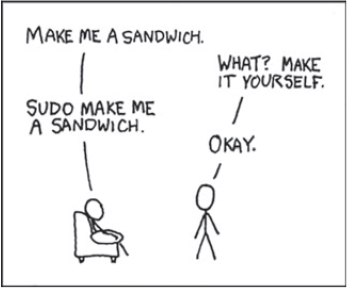
We’re going to work more with sudo in the next session because you can’t use a text-based package manager without it. But before we move on, I’ll leave you with an xkcd comic (see figure 12.1) that might help you to understand sudo a bit better.
Figure 12.1. The sudo command isn’t exactly magic, but it sometimes feels that way. Image via https://xkcd.com/149/.