concept bind context in category nativescript
This is an excerpt from Manning's book NativeScript in Action.
Now, simply placing the
text="{{ Name }}"syntax in the XML markup isn’t enough to make data binding occur. We’re missing an important item: what observable will be data bound to? To get the answer, we’ll need to refactor our code in the home-page.js file to remove the property databinding and tell the page which observable to use by setting the page’s binding context.
Step 6: set the page’s binding context to data bind the date picker
Now that we’ve saved a reference to the close callback, let’s turn our attention to binding the date picker to an observable so we can easily get the selected value via code. Listing 11.8 adds to the selectDate-page.js file, establishing a binding context for the page.
Listing 11.8 Establishing a binding context when the selectDate-page page is loaded
var observableModule = require("data/observable"); var model; exports.onLoaded = function(args) { var page = args.object; model = new observableModule.fromObject({ date: new Date(Date.now()) }); page.bindingContext = model; };The loaded event handler is code you’ve seen before to create a new observable with date property. You’ll recall from chapter 8 that setting the page’s binding context enables you to use mustache syntax binding in XML.
Back in step 1, we created the UI for the birth date modal, which included a data-bound date picker:
<DatePicker date="{{ date }}" />. By setting the binding context in listing 10.8 we’ve linked together the observable’s date property with the date picker’s date property. This means changes to the date picker’s selected date value will be synchronized into the observable.
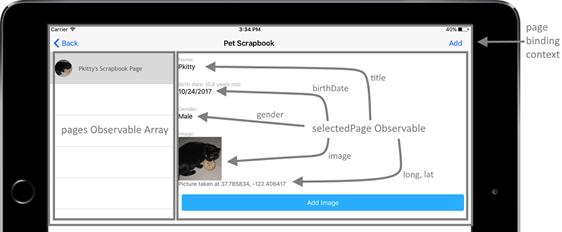
Figure 11.12 The tablet-specific page showing the binding context and how observables should bind to each UI element area