concept image in category nativescript
This is an excerpt from Manning's book NativeScript in Action.
In some circumstances, adding a single UI control to a grid cell is sufficient. Complex UIs may call for you to add two, three, or even more components into a cell. For example, what if we wanted to add an image and price for each game displayed on the Tekmo product page? At first, you may think to add these additional components to the grid layout and give them each a row and column value. Unfortunately, this won’t work. But why?
Listing 9.10 The scrapbookUpdate-page.xml with a camera button and image added
<Page loaded="onLoaded"> <StackLayout> <Label text="{{ title, title + ' Scrapbook Page' }}" /> <TextField class="header" text="{{ title }}" hint="Enter title..."/> <Label text="{{ 'Age: ' + calcAge(year, month, day) + ' years old'}} " /> <DatePicker year="{{ year }}" month="{{ month }}" day="{{ day }}" /> <ListPicker items="{{ genders }}" selectedIndex="{{ gender }}" /> <Image src="{{ image }}" stretch="none" /> #1 <Button tap="onAddImageTap" text="Add Image" /> #2 <Button tap="onDoneTap" text="Done"/> </StackLayout> </Page> #1 The image’s source is data-bound to the image property of the scrapbook page #2 Tapping the Add Image button will open the native camera UI to take or select a photo
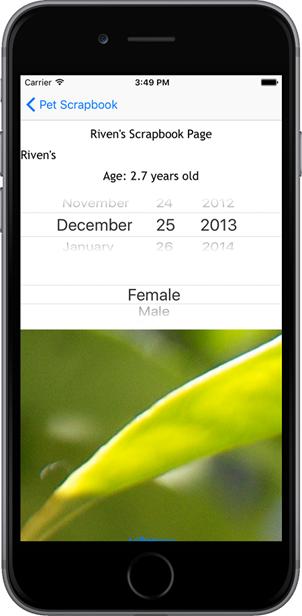
After a user selects an image or takes a picture with the camera, the camera module automatically returns the user to the page that they were on, as seen in figure 9.10.
Figure 9.10 The scrapbook page after taking a picture.
You may have noticed that the image you selected or captured is rather large. Most device cameras have a very high megapixel count, which could result in taking images that consume a lot of space on a device and are physically large as well. Luckily, the camera module allows you to adjust the size of the picture by passing in a parameter to the
takePicture()function (listing 9.12).Listing 9.12 Passing parameters to the takePicture() function on the update page to control the image size
exports.onAddImageTap = function (args) { var page = args.object; var scrapbookPage = page.bindingContext; camera.requestPermissions(); camera .takePicture({ width: 100, #1 height: 100, #1 keepAspectRatio: true}) #2 .then(function (picture) { image.fromAsset(picture).then(function (imageSource) { scrapbookPage.set("image", imageSource); }); }); } #1 Set the height and width of the image we take with the camera #2 Tell the camera module to maintain the aspect ratio of the picture taken