concept page in category nativescript
This is an excerpt from Manning's book NativeScript in Action.
NativeScript apps are a collection of code files written in XML, JavaScript, and CSS. Collectively, the UI, business logic, and styling form the pages of your app, like HTML application pages. Once you’ve written the pages for your app, you use the NativeScript CLI to transform your code into a native app. You then use the CLI to install and run the app in an emulator, simulator, or on a physical device.
In the last chapter, you learned how NativeScript themes can make your apps look more professional with a minimal amount of effort. Using the Pet Scrapbook as an example, we styled the home, scrapbook list, and update pages with the built-in light color scheme. Even though the app has started to look more professional, the UI and functionality of the update page is clunky.
We've also updated the
onLoaded()function to store a reference to the page globally.Listing 11.6 The updated onLoaded() function and new onBirthDateTap() function to navigate to the birth date selection modal page
var page; exports.onLoaded = function(args) { page = args.object; var scrapbookPage = page.navigationContext.model; page.bindingContext = scrapbookPage; }; exports.onBirthDateTap = function(args) { var modalPageModule = "views/selectDate-page"; var context = { birthDate: page.bindingContext.birthDate }; var fullscreen = true; page.showModal( modalPageModule, context, function closeCallback(birthDate) { #1 page.bindingContext.set("birthDate", birthDate); #1 }, #1 fullscreen ); }; #1 function called by the modal page when it closes, and is used to pass data from the modal page back to this pageNavigating between the update page to the modal page is similar to navigating between regular non-modal pages, except you use the
showModal()method of the page. TheshowModal()function takes four parameters:
Throughout this chapter, you’ve learned how to create more consistent and professional-looking apps with themes and modal dialogs. With these tools, we transformed the Pet Scrapbook app into a more visually appealing app. The changes we made really helped make the app look more professional, but we failed to think about tablets. Imagine you had a tablet running the Pet Scrapbook. Now think about the page with a list of scrapbook pages. Would it make sense to have the list of scrapbook pages take up the entirety of a tablet’s screen? Figure 11.7 shows how much space is wasted when the app is run on a tablet.
Figure 11.7 The Pet Scrapbook running on an iPad, note the large amount of unused space in the UI.
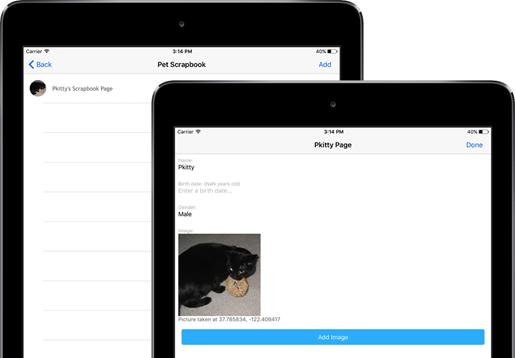
With a larger screen available, it feels wasteful to have the entire screen dedicated to the list of scrapbook pages. A better use of the available screen space is a split screen: the list of pages on the left, and selecting a page from the list displays the details on the right. Figure 11.8 shows the desired effect in action.