concept Firebug in category .net

This is an excerpt from Manning's book ASP.NET AJAX in Action.
The situation is slowly getting better. All the modern browsers have a JavaScript console that logs client errors, and interesting tools are being developed. Among these, Firebug for Firefox and Web Development Helper for Internet Explorer have proven to be must-have tools for Ajax developers. These tools integrate with the browser and let you inspect and debug web pages directly in the browser. The next version of Visual Studio (codename “Orcas”) will provide a real development environment for JavaScript, with features such as improved debugging and IntelliSense in script files. This book’s Resources section points you to the URLs where you can download some of these tools. Also, Appendix B contains instructions on how to install them, together with an overview of their features.
Firebug is a web tool shipped as an add-on to the Firefox browser. It can monitor HTTP traffic, inspect the DOM of a page, and debug JavaScript code. When run in the browser, Firebug lets you change the look and behavior of a web page in real time.
You can install Firebug from the official website at http://www.getfirebug.com, which also contains an online guide to the features provided by this web tool. Figure B.1 shows the Firebug homepage. Let’s examine the installation procedure for Firebug before diving into a tour of its features.
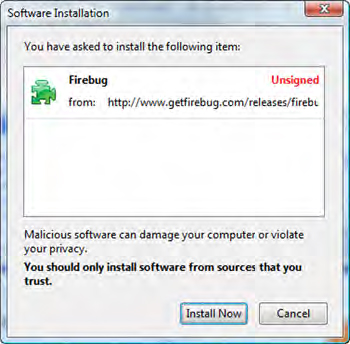
Installing Firebug is straightforward. On the homepage, click the Install icon located at upper right. Firefox prompts you for the permissions to perform the installation and then restarts the browser, as shown in figure B.2.
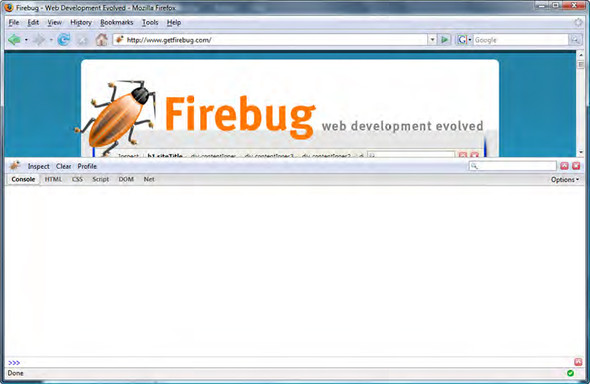
Once the browser has restarted, you access Firebug by clicking the little green icon on the status bar at the bottom of the browser. You can also open and close the tool by pressing the F12 key and selecting View > Firebug in the Firefox menu bar. Doing so opens the Firebug’s console shown in figure B.3.
Let’s do a general overview of the features available in Firebug, starting from the logging console.