concept PhotoGallery control in category .net

This is an excerpt from Manning's book ASP.NET AJAX in Action.
Listing 8.11. HTML code for the UI of the PhotoGallery control
<div id="photoGallery"> <div> <input type="button" id="gal_prevButton" value="Prev" /> <input type="button" id="gal_nextButton" value="Next" /> <img id="gal_progress" src="Images/progress.gif" alt="" style="visibility:hidden" /> </div> <div> <img src="Images/placeholder.png" id="gal_image" alt="" /> </div> </div>
The block of static HTML that you use for the PhotoGallery control is contained in a div element. As you can see by looking at the code in listing 8.11, the UI is represented by two buttons—used for browsing the previous or next photo in the sequence—and an img element with an ID of gal_image that displays the current photo. A second img element—gal_progress—displays an indicator during the loading of the next photo.
Listing 8.11. HTML code for the UI of the PhotoGallery control
<div id="photoGallery"> <div> <input type="button" id="gal_prevButton" value="Prev" /> <input type="button" id="gal_nextButton" value="Next" /> <img id="gal_progress" src="Images/progress.gif" alt="" style="visibility:hidden" /> </div> <div> <img src="Images/placeholder.png" id="gal_image" alt="" /> </div> </div>
The extenders provided by the Ajax Control Toolkit, in conjunction with the elegant XML syntax used to describe animations, make it easy to create complex effects and to implement visual patterns like the yellow spotlight. In the next section, we’ll look at another technique that uses JSON to instantiate animations. You’ll use this technique to enhance the PhotoGallery control that you coded in section 8.4.5.
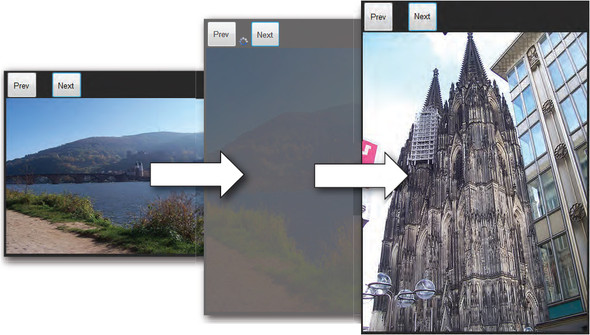
In this section, we’ll return on the PhotoGallery control built in section 8.4.5. So far, you’ve created a client control to browse a set of images stored in the website. Your next goal is to enhance the control by adding an animated transition between the images. The transition you’ll build isn’t complex, but it’s effective, as shown in figure 10.18. While the next image is being loaded, you partially fade-out the current image; then, you resize it until it reaches the width and height of the next image to display. Finally, the new image fades in and replaces the old image.
Figure 10.18. Example of an animated transition applied to the PhotoGallery control. The animations that make up the transition are defined through JSON objects.
Let’s start by opening the PhotoGallery.js file that contains the code for the PhotoGallery control. You have to modify the code so that when the next image is loaded, a new method named _playTransition is called. This method is responsible for playing the animated transition and then calling the _displayImage method as soon as the transition is completed. First, you must rewrite the _onImageElementLoaded method, declared in the PhotoGallery’s prototype, as follows: