concept project file in category .net

This is an excerpt from Manning's book .NET Core in Action.
You’ll practice more with the .NET CLI commands (restore, new, run, publish, and pack) throughout the book. In the next chapter, we’ll get into the details of the project files and you’ll learn how to build more substantial applications with .NET Core.
Editing the project file from an IDE
How you edit the project file is different depending on your development environment. If you’re using one of the editors supported by OmniSharp, the csproj file is likely just another file listed in the folder. In Visual Studio for Mac, control-click the project and choose Tools > Edit File. In Visual Studio 2017, right-click on the project and chose the option to edit the project file. Each editor will also have varying capabilities in terms of IntelliSense.
Listing 3.13. Three types of dependencies shown in a project file
<Project Sdk="Microsoft.NET.Sdk">
  <PropertyGroup>
    <TargetFramework>netcoreapp2.0</TargetFramework>      #1
  </PropertyGroup>
  <ItemGroup>
    <ProjectReference Include="..\foo\foo.csproj" />      #2
    <PackageReference Include="xunit"                     #3
                      Version="2.1.0" />                  #4
  </ItemGroup>                                            #5
</Project>
How to modify the project file to perform some common build operations

This is an excerpt from Manning's book Continuous Integration in .NET.
To better understand the CI process, you should have a simple but real-world example of software that you can put under source control in the next chapter and eventually integrate continuously. At this early point, you’ll only create a Visual Studio solution and the project files. You’ll add the code in later chapters.
MSBuild is used mostly in conjunction with Visual Studio, because they understand each other so well. MSBuild has tasks that can read and compile entire Visual Studio projects or solutions. And project files since Visual Studio version 2005 are nothing other than MSBuild scripts, which means you can extend your project file directly. IntelliSense and validation for MSBuild scripts are present in Visual Studio.
The project files are ordinary MSBuild scripts, and it’s possible to override and redefine the targets. You have to remember one rule: the target definition that’s closer to your MSBuild script counts. So if you override the BeforeBuild or After-Build target in your file, MSBuild will take this definition and not the definition with the same name from an imported target file. BeforeBuild and AfterBuild are visible in every project file
. They’re commented out, and all you have to do is to uncomment and define them to extend your build process.
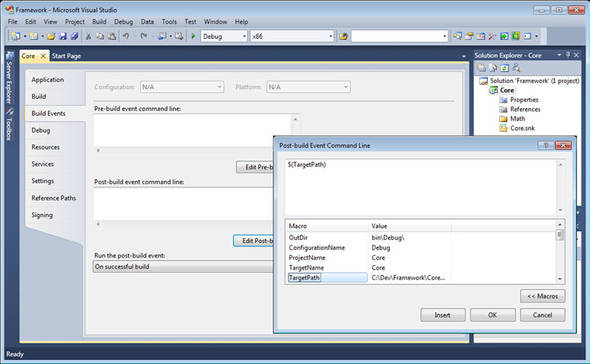
Similar functionality is offered with the pre-build and post-build events. These are legacy events from pre–Visual Studio times. They’re simple command-line commands that are executed line by line. You can use macros with them; these so-called macros are nothing more than MSBuild properties translated to strings by execution. These events are available in project properties in Visual Studio and are saved in the project file as PreBuildEvent and PostBuildEvent targets. To see the windows shown in figure 3.9, right-click the project file in Solution Explorer, choose Project Properties, click the Build Events tab, click the Pre- or Post-Build button, and click the Macros.