concept crate in category oculus rift

This is an excerpt from Manning's book Oculus Rift in Action.
For this next example scene, (figure 12.10), we’ve added several cubes to the scene to give us some objects to play with. Let’s call these cubes “crates.”[3]. When you gaze at a crate, it turns blue. If you keep it in your sight for two seconds, it turns red and then you are able to move the crate to another point on the beach simply by turning your head to look at where you want the crate to go. When the crate collides with the beach or with another crate, it turns white and stays put until you pick it up again.
Figure 12.10: Moving crates using input from the Rift
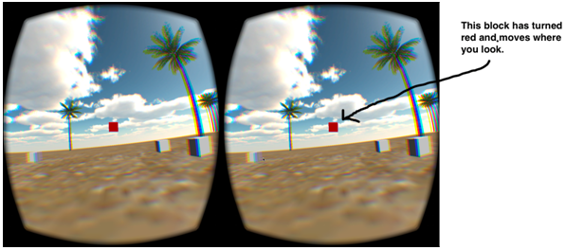
As we need objects to interact with, let's start by creating the crates and adding them to our scene.
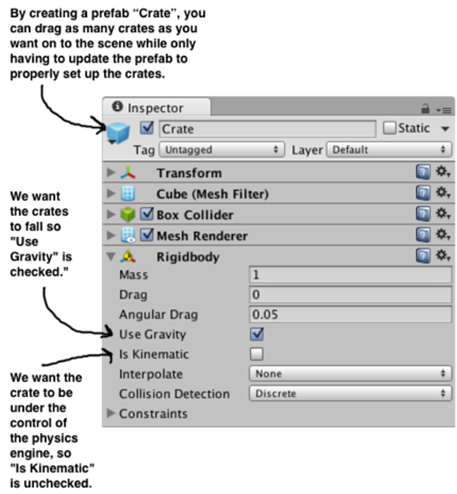
For the crates, we are using cubes of various sizes and at various locations. To add a cube, select GameObject > Create Other > Cube. As you will want to add multiple cubes to the beach, drag the cube created to the Asset window to make it a prefab and rename the prefab “Crate”. Now you can drag as many crates as you want to the scene while only having to update the prefab to properly set up the crates. When adding a crate to the scene, the exact position of the crate is not important, however, it is important that it not be colliding with the beach.
To detect collisions between any two objects, at least one of the objects in the collision must have a rigidbody attached. We want the crates to be able to detect collisions with the beach and with other crates, so we need to attach a rigidbody to the crate. Select the crate prefab and then in the Inspector, select the Add Component button and then select Physics > Rigidbody to attach a rigidbody.
Having a rigidbody attached means the crates will act under the control of the physics engine, and its position will be influenced by gravity. We want the crates to fall, so for the rigidbody attached to the crate, check useGravity to set it to true. Note that we have left isKinematic unchecked. This means the crate is under the control of the physics engine and if you place a crate hovering in the air, it will fall to the beach when you run the scene. When looked at in the Inspector, your prefab crate should look like figure 12.11.
Figure 12.11: The crate prefab in the Inspector
We are moving the crate using input from the headset by attaching the crate to CenterEyeAnchor. When the crate is attached to CenterEyeAnchor, it always stays at the center of your view. This means that you can’t look away from it to put it down. We need to use some other mechanism to determine when to remove the crate from the parent object, and, in our example, the mechanism used is collision.
To handle the collision, we need a script attached to the object we are moving. This script (listing 12.4) will detect the collision, remove the parent transform, and then reset the crate so that it can be selected again.
Listing 12.4: Cubecollision.cs – Using collision
using UnityEngine; using System.Collections; public class Cubecollision : MonoBehaviour { void OnCollisionEnter (Collision col){ renderer.material.color = Color.white; #A transform.parent = null; #B transform.rotation = Quaternion.Euler(0, 0, 0); if(col.gameObject.name == "Beach"){ #C Vector3 newPos = transform.position; #C newPos.y = col.gameObject.transform.position.y + #C transform.localScale.y/2.0f + .1f; #C transform.position = newPos; #C rigidbody.isKinematic = true; #D rigidbody.useGravity = true; #D }else { rigidbody.useGravity = true; #E } } void OnCollisionStay() { rigidbody.AddForce(transform.forward * 20); #F } } #A Set the crate render color to white. #B Put the crate down by setting the transform parent to null so that the crate is no longer attached to CenterEyeAnchor #C If the crate collided with the beach, position the crate so that it is not intersecting the beach at any point. #D Enable gravity, and, because we no longer want the crate to detect collisions, set isKinematic to true. #E If the crate collided with another crate, only enable gravity. We want the crate to fall but we still want it to detect when it has collided with the beach so that it can be properly positioned and we want to detect if it still colliding with another crate. #F If the crate lands in a position such that it is colliding with another crate, apply force until the crates move apart.For the script to work, it needs to be attached to the crates.