concept Player in category oculus rift
appears as: Player

This is an excerpt from Manning's book Oculus Rift in Action.
Add an empty gameObject to your scene and rename it Player to make it easier to keep track of it.
Under the Game Object menu, select Create Empty.
Add a Character Controller to the Player game object and adjust the Transform Position of the Player object so that it is located above the Beach plane and not colliding with any objects.
Under the Component menu, select Physics > Character Controller. The default Height for the Character Controller is 2, so, for the Transform of the Player object, set Y Position to 1 to reposition the Player object so that it is not colliding with the Beach.
Add the FPSInputController.js and MouseLook.cs control scripts to your Player capsule.
You can find these scripts in Project View: Standard Assets > Character Controllers > Sources > Scripts. Simply drag the scripts you want to use on to your Player (figure 11.16). Notice that when you add the FPSInputController.js, the CharacterMotor.js is automatically added for you. If you don’t have these assets, to add the standard Unity character controller assets to your project, select Assets > Import Package > Character Controller and click Import in the Items to import window that appears.
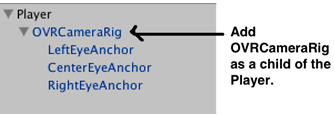
Figure 11.11: The OVRCameraRig added as a child of the Player in the scene hierarchy
We also don’t want to be able to pick ourselves up, so you need to do the same thing for the Player object. In the inspector for the Player, set the Layer to Ignore Raycast and when asked “Do you want to set layer to Ignore Raycast for all child objects as well?” select “Yes, change children”.