concept script in category oculus rift

This is an excerpt from Manning's book Oculus Rift in Action.
The Oculus integration package is a collection of scripts, prefabs (reusable Unity objects), and plugins that provide you with everything you need to get a Unity application running on the Rift. Unlike the previous chapters, we won’t be making use of the Oculus SDK directly and you won’t even need to have it installed.
The example scenes and scripts used in this chapter are available from https://github.com/OculusRiftInAction/OculusRiftInAction/examples/unity/. Note that as Unity uses C# and Javascript, we’ll be using those languages for the example code in this chapter.
For the text object to display the elapsed time, we need to attach a script (listing 12.1) to the Text object.
We’ll start with the script that handles selecting and moving the crates, the Movegaze.cs script in listing 12.3, which we will attach to the CenterEyeAnchor object.
Listing 12.3: Moveegaze.cs – Using Rift head tracking to select and move objects
using UnityEngine; using System.Collections; public class Movegaze : MonoBehaviour { private float startTime; private GameObject attachedObject = null; private GameObject lookedatObject = null; void Start (){ startTime = Time.time; } function Update() { Ray ray = new Ray(transform.position, transform.forward); #A RaycastHit hit; float currentTime = Time.time; if (attachedObject == null) { if (Physics.Raycast (ray, out hit, 100)) { if ((currentTime – startTime) > 2) { attachedObject = lookedatObject; attachedObject.rigidbody.useGravity = false; #B attachedObject.rigidbody.isKinematic = false; #C attachedObject.transform.parent = this.transform; #D attachedObject.renderer.material.color = Color.red; } else{ if (lookedatObject == null){ lookedatObject = hit.collider.gameObject; lookedatObject.renderer.material.color = Color.blue; } } } else { if (lookedatObject != null) { lookedatObject.renderer.material.color = Color.white; } startTime = currentTime; lookedatObject = null; } } else { if (attachedObject.renderer.material.color == Color.white){ #E startTime = currentTime; #E attachedObject = null; #E } } } } #A By casting a ray that originates at the CenterEyeAnchor, we can find out what is in our line of sight. #B To move the cube around without having it affected by gravity, set gravity to false. #C To be able to detect a collision, set isKenamatic to false. #D To move an object in the scene with the Rift, make it child object the CenterEyeObject. #E After the object has been put down, set startTime to the currentTime.For this script to work, there are two things we need to do. First, we need to attach the script to the CenterEyeAnchor object, then for any objects that we don’t want to detect, we need to set them to ignore the raycast.
Attaching the script to CenterEyeAnchor
The script needs to be attached to the CenterEyeAnchor object in the scene for it to work.(figure 12.12). The CenterEyeAnchor object in the OVRCameraRig prefab maintains a transform at the pose half-way between the left and right eye cameras. By attaching it to CenterEyeAnchor and by casting a ray that originates from that object, we can find out what is in our line of sight.
Figure 12.12: CenterEyeAnchor in the Inspector with the Movegaze.cs script attached.
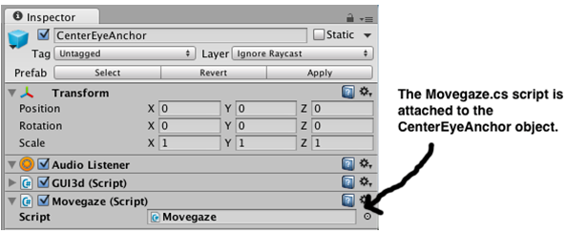
To attach the script to CenterEyeAnchor, in the Inspector for CenterEyeAnchor, click the Add Component button and then select the Movegaze.cs script.