concept UI in category oculus rift

This is an excerpt from Manning's book Oculus Rift in Action.
• Having to ask the user to tell you when they’re wearing the Rift (a) requires a UI and (b) feels clumsy; it should be something we already know.
void renderScene() { Context::Clear().DepthBuffer().ColorBuffer(); shaderFramebuffer->Bound([&] { #A oria::viewport(renderSize()); #A renderSkybox(); #A }); #A oria::viewport(textureSize()); #B Stacks::withIdentity([&] { #C shaderFramebuffer->color.Bind(Texture::Target::_2D); #C oria::renderGeometry(plane, planeProgram, LambdaList({ [&] { #C Uniform<vec2>(*planeProgram, #C "UvMultiplier").Set(vec2(texRes)); #C } })); #C }); #C if (uiVisible) { #D GLuint currentUiTexture = ... #D if (currentUiTexture) { #D MatrixStack & mv = Stacks::modelview(); #E mv.withPush([&] { #E mv.translate(vec3(0, 0, -1)); #E Texture::Active(0); #E glBindTexture(GL_TEXTURE_2D, currentUiTexture); #E oria::renderGeometry(uiShape, uiProgram); #E }); #E } #E } ... } #A Render the VR scene to a special offscreen buffer at a resolution determined by the scaling factor #B Ensure we target the full SDK specified offscreen texture size for the remaining operations #C Re-render the VR scene to the full offscreen texture size, stretching it to cover the entire surface #D If the UI is active and we have a valid UI texture, we need to render it over the VR scene #E position the UI one meter away from the user and render it to a floating rectangle within the environment
If you test the application, you’ll see that the UI is a bit messy. We can do a little bit of styling in the Inspector for the UI elements to clean it up a bit. In the inspector for both objects, set the X, Y, Z positions of the Rect transform to 0. The text is aligned top-right by default. You can change the Text alignment to center-middle and change the text style in the Inspector for the Text object. To allow the user to see what is behind the GUI, you can set the alpha level to allow some transparency.
When creating a UI for VR one of the questions you will want to ask yourself is how immersive you want the experience to feel. In general using conventional menus floating on plane in between you and the VR world simple isn’t very immersive. If immersion isn’t a top priority for your application, a conventional style GUI may work for your application. If immersion is a goal, one way to achieve that immersion is to build the UI into the VR world. For example, the timer GUI shown in the previous example could be a giant clock. Or perhaps for something a little easier to visualize, instead of a level menu, you could use an elevator with buttons (figure 12.9).
Figure 12.9: Building the UI into your VR world creates a more immersive environment for the user
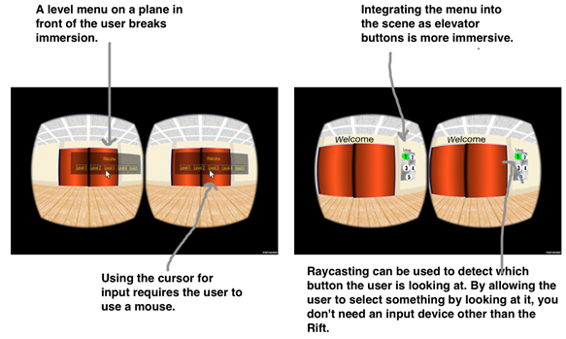
If you are getting the idea that you need to redesign your UI from the ground up for VR, you are on the right track. Chapter 6 goes into a lot more detail about what the current research has to say about UI for VR and provides some great ideas for what you can do, most of which can be easily applied to applications created in Unity. One excellent technique to creating a more immersive UI for VR is to use the input you get from the Rift.