concept datum in category powershell

This is an excerpt from Manning's book Learn PowerShell in a Month of Lunches.
In the preceding list, you can see that we have one drive using the FileSystem provider, one using the Env provider, and so forth. The PSProvider adapts the data store, the PSDrive makes it accessible, and you use a set of cmdlets to see and manipulate the data exposed by each PSDrive. For the most part, the cmdlets you use with a PSDrive have the word Item somewhere in their noun:
At this point, you’ve learned to be pretty effective with PowerShell’s pipeline. Running commands (for example, Get-Process | Sort-Object VM -desc | ConvertTo-Html | Out-File procs.html) is powerful, accomplishing in one line what used to take several lines of script. But you can do even better. In this chapter, we dig deeper into the pipeline and uncover some of its most powerful capabilities which allow you to pass data beteween commands the right way with less work.

This is an excerpt from Manning's book Learn PowerShell Scripting in a Month of Lunches.
What are the two ways PowerShell can pass data from one command to another in the pipeline?
Listing 26.4. Adding a command to export data to SQL Server
function Export-DiskInfoToSQL { [CmdletBinding()] param( [Parameter(Mandatory=$True, ValueFromPipeline=$True)] [object[]]$DiskInfo ) BEGIN { New-DiskInfoSQLTable $conn = New-Object System.Data.SqlClient.SqlConnection $conn.ConnectionString = $DiskInfoSqlConnection $conn.Open() $cmd = New-Object System.Data.SqlClient.SqlCommand $cmd.Connection = $conn } PROCESS { ForEach ($object in $DiskInfo) { if ($object.size -eq $null) { $size = 0 } else { $size = $object.size } if ($object.freespace -eq $null) { $freespace = 0 } else { $freespace = $object.freespace } $sql = @" INSERT INTO DiskInfo (ComputerName, DiskSize,DriveType,FreeSpace,DriveID,DateAdded) VALUES('$($object.ComputerName)', $size, $($object.DriveType), $freespace, '$($object.Drive)', '$(Get-Date)') "@ $cmd.CommandText = $sql Write-Verbose "EXECUTING QUERY `n $sql" $cmd.ExecuteNonQuery() | Out-Null } #ForEach } #PROCESS END { $conn.Close() } }
Although we don’t think there’s an immediate real-world use for this—our intent would be to load data into SQL Server and leave it there for Reporting Services to create reports from—we want to show you an example of querying data. The following listing is the final chunk of code to add to your module. Again, we suggest using the downloadable version if you want to try this, because it has all the code in one place.
Listing 26.6. Adding a command to retrieve data from SQL Server
function Import-DiskInfoFromSQL { [CmdletBinding()] Param() $conn = New-Object System.Data.SqlClient.SqlConnection $conn.ConnectionString = $DiskInfoSqlConnection $conn.Open() $cmd = New-Object System.Data.SqlClient.SqlCommand $cmd.Connection = $conn $sql = @" SELECT ComputerName,DiskSize,DriveType,FreeSpace, DriveID,DateAdded FROM DiskInfo ORDER BY DateAdded ASC "@ $cmd.CommandText = $sql $reader = $cmd.ExecuteReader() # spin through the results while ($reader.read()) { 1 $props = @{'ComputerName' = $reader['ComputerName'] 'Size' = $reader['DiskSize'] 'DriveType' = $reader['DriveType'] 'FreeSpace' = $reader['FreeSpace'] 'Drive' = $reader['DriveId'] 'DateAdded' = $reader['DateAdded']} New-Object -TypeName PSObject -Property $props } $conn.Close() }

This is an excerpt from Manning's book Windows PowerShell in Action, Third Edition.
This time you run Get-Process to get data about the processes on this computer, and sort on the working set instead of the file size. Otherwise, the pattern is identical to the previous example. This command pattern can be applied over and over.
**********************
Windows PowerShell transcript start
Start time: 20170510110151
Username: W510W16\Richard
RunAs User: W510W16\Richard
Machine: W510W16 (Microsoft Windows NT 10.0.14393.0)
Host Application: powershell
Process ID: 8732
PSVersion: 5.1.14393.1066
PSEdition: Desktop
PSCompatibleVersions: 1.0, 2.0, 3.0, 4.0, 5.0, 5.1.14393.1066
BuildVersion: 10.0.14393.1066
CLRVersion: 4.0.30319.42000
WSManStackVersion: 3.0
PSRemotingProtocolVersion: 2.3
SerializationVersion: 1.1.0.1

**********************
Transcript started, output file is c:\test\T20170510_2.txt
PS>
**********************
Command start time: 20170510110156
**********************
PS>Get-Date

10 May 2017 11:01:56

PS>
**********************
Command start time: 20170510110204
**********************
PS>ping 127.0.0.1

Pinging 127.0.0.1 with 32 bytes of data:
Reply from 127.0.0.1: bytes=32 time<1ms TTL=128
Reply from 127.0.0.1: bytes=32 time<1ms TTL=128
Reply from 127.0.0.1: bytes=32 time<1ms TTL=128
Reply from 127.0.0.1: bytes=32 time<1ms TTL=128

Ping statistics for 127.0.0.1:
    Packets: Sent = 4, Received = 4, Lost = 0 (0% loss),
Approximate round trip times in milli-seconds:
    Minimum = 0ms, Maximum = 0ms, Average = 0ms
PS>
**********************
Command start time: 20170510110218
**********************
PS>Stop-Transcript
**********************
Windows PowerShell transcript end
End time: 20170510110218
**********************

This is an excerpt from Manning's book PowerShell in Depth, Second Edition.
In this example, you can see that the parameter is mandatory (required), that its value can be passed in position 1, and that it accepts data of the String type. There’s also a bit more detail about what the parameter does—some parameters’ detailed help even includes brief examples. The list of acceptable values is also often provided in the case of parameters only taking values from a restricted group, as follows:
There are two ways to attach data to an element, and we’ve used both. In the <OSVersion> element, “2012R2” is the value of the element. That’s useful when you have only one piece of data that goes with the element. However, for <BIOS>, we included two attributes, Version and Maker, and attached values to those. Both approaches are equally valid. In fact, we could’ve broken the <BIOS> element out as follows: The only reason we didn’t do so is because, from a programming perspective, it’s a little easier to use our first approach. We only have to get that <BIOS> element, which is a single operation, and then we get access to its attributes. Using the more expanded approach, we’d have to retrieve each element to access the values. But it’s not that much extra work—how you decide to go about it is up to you.<BIOS> <Version>1.2.662</Version> <Maker>Dell</Maker> </BIOS>
With so much of the world’s data in XML and/or HTML, being able to work in those formats can be handy. PowerShell provides a variety of capabilities that should be able to address most common situations; obviously, the more knowledge you have of those formats and how they’re used, the more effective you’ll be with PowerShell’s ability to handle them.
In this case, you’re using XML as a format in which to save the data in the PowerShell objects, from which it can be reconstructed. Here’s a quick example:

This is an excerpt from Manning's book PowerShell Deep Dives.
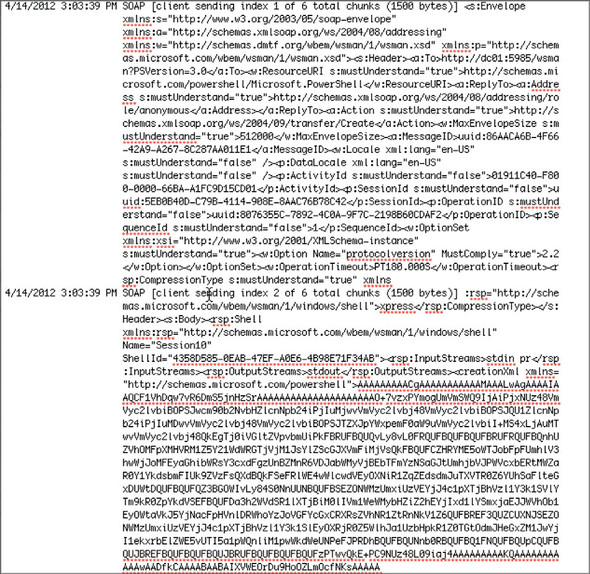
PowerShell can be a powerful network troubleshooting tool thanks to its reach back into the .NET framework. In this chapter I’ll take you through some of the more useful .NET classes that you can harness to help with your network troubleshooting and with building some fun scripts. By the end of the chapter you’ll know how to create a port scanner to check for open ports on your network, send and receive data between ports, create formatted packets to send a Lightweight Directory Access Protocol (LDAP) request to a domain controller, and process the return packets to emulate the same type of output from another command-line interface (CLI) tool, portqry.exe. You’ll also learn about creating a TCP listener object that will serve as an open port on your system to allow clients to connect to your system, and lastly, you’ll put everything together to create an Echo server that can repeat back to you every key that you’ve typed! By using these techniques and scripts you’ll be able to troubleshoot applications communicating on your network by checking to see if the ports required are available on the system or if they’re being blocked, either by software on the server or by something else, such as a hardware firewall or an access control list (ACL) on a switch.
With the network stream established you can begin transmitting the bytes to the remote client using the Write() method of the network stream object. The Write() method takes three parameters to successfully transmit the data. The first parameter should contain the buffer of bytes being sent across the network, and the second parameter should be the location within the buffer that the stream should begin writing the data to on the remote port. The final parameter is the total size (or length) of data that will be transmitted through the stream. Once the data has been transmitted, the network stream will flush the contents by using the Flush() method of the network stream object, like this:
$clientStream.Write($bytes,0,$bytes.length)
$clientStream.Flush()
That’s all there is to sending data across a TCP port to another TCP port. As long as the port is open and you know exactly what type of packet can be sent to it, the remote port should accept the packet and respond with its own packet.


This is an excerpt from Manning's book PowerShell in Practice.
The data that Get-Process produces is as of the time of execution. When investigating a set of data such as that referring to the running processes, it’s sometimes necessary to ensure that all comparisons are performed on exactly the same data. Running variants of listing 1.2 won’t suffice, as the data will change between runs. In this case, we can use a variable:
Having said all that, what are we going to learn regarding PowerShell and SQL Server? We’ll start by looking at SQL Server Management Objects, which is the .NET object model for administering SQL Server. This will lead into server administration and database administration. We’ll create a configuration database together with the tables to hold the data. This was discussed in chapter 7. We’ll examine methods of working with data held in SQL Server, including creating, reading, and deleting. We’ll also discover how to back up our databases.
In this section, we’ll create the skeleton on a configuration database. We first mentioned this idea in chapter 7 when we looked at retrieving configuration information. We’ll look at creating and populating the database, working with the data, and taking a backup of our data. The scripts in this section can be easily modified to work in other database scenarios.
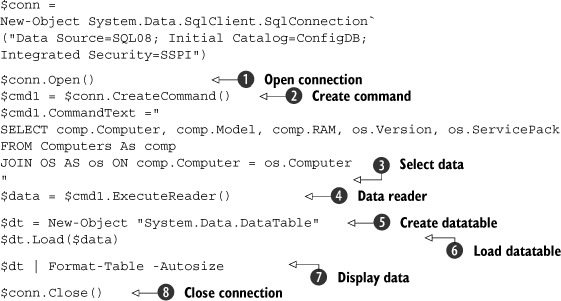
The ADO.NET solution we saw when inserting data can be modified to extract data, as in listing 14.18. We start by creating and opening a connection to the database
. The connection string is identical to the one used previously. Incidentally, if you find yourself having trouble with connection strings, look at http://connectionstring.com. The site has more connection strings than you ever want to see.
The command we’ll run is created as before
. This time we’re running a SELECT statement because we want to read data from the database
. The query joins our two tables using the foreign key we established earlier (I knew that would come in useful) and picks out a number of columns across the two tables. We use the ExecuteReader() method to execute the query and put it into a datareader object
. The datareader objects give us a method of working with the results by iterating on a row by row basis, but we really want to be dealing with objects.
There’s a datatable object that we can use. Think of it as an in-memory representation of a SQL Server table that we’ve created. We can use New-Object
to make one of these and then use the Load() method to get the data from our data reader
. A quick trip to Format-Table and we have our display
, and then we can close the connection
. In PowerShell v2, we could think about using the Out-GridView cmdlet to display the data.
Listing 14.19. Read data using a stored procedure
$conn = New-Object System.Data.SqlClient.SqlConnection` ("Data Source=SQL08; Initial Catalog=ConfigDB; Integrated Security=SSPI") $conn.Open() $cmd1 = $conn.CreateCommand() $cmd1.CommandType = [System.Data.CommandType]::StoredProcedure $cmd1.CommandText ="pip14" $data = $cmd1.ExecuteReader() $dt = new-object "System.Data.DataTable" $dt.Load($data) $dt | Format-Table -Autosize $conn.Close()