concept event in category powershell

This is an excerpt from Manning's book Windows PowerShell in Action, Third Edition.
Table 2.1. Classes, types, and members defined
Term
Example
Notes
Type Robin, Bird A type is a description of an object—what it looks like and what it can do. That description is associated with the type name. The relationship between an object and its type is called an is-a relationship (though the PowerShell operator for this is -is, not is-a). Some examples of this relationship are Robin is-a bird or Mickey is-a mouse. In PowerShell the code would be Robin -is bird and Mickey -is mouse respectively. Class Robin, Bird Class is the keyword used in PowerShell v5 and later to define a new type. You’ll see the words “type” and “class” frequently used interchangeably but when we define a type we use the class keyword. See chapter 19. Property BreastColor, Size, Weight A property of an object is some piece of data describing the object. The property is defined on a class but only has value on an instance; for example, the class Bird defines a property Color but only an individual bird has a color. All Bird classes have the property Color. A crow has the property Color == black. Method StartFlying(), EatWorm(), Methods define behaviors on a class. In some object-oriented languages methods are called messages, because, for example, calling the StartFlying() method effectively sends a message to the bird to start flying. Member Size, EatWorm() Member is a general term that includes all aspects of a type, both methods and properties. Event OnButtonDown, PoopOnCar Events are a special kind of method except you don’t call them directly. The object invokes them as a consequence of some other action on the object. If you tell a bird to fly by calling the StartFlying() method, this might trigger the event PoopOnCar(). Generic type List<integer>, Dictionary<string, integer> A generic type contains instances of other types such as a List of Integers or a dictionary mapping a name to a number. See section 2.5.2 for more information about generics.
An event is exactly what it sounds like: something happens; for example, a file is changed, a button is clicked, or a process is started. Events on a Windows machine can be synchronous or asynchronous. In this section, we’ll spend more time working with synchronous events, but the majority of the material will focus on asynchronous events. Asynchronous event handling allows scripts to respond to real-world events in a timely manner. We’ll also explore the basic concepts of event-driven scripting, the PowerShell eventing model and infrastructure, and how to apply this feature.
Being able to set up local event handlers is useful, but you also need to be able to process events generated on remote computers to manage distributed datacenters. The PowerShell eventing subsystem, by building on top of PowerShell remoting, makes this surprisingly easy. In figure 17.6 notice the -Forward parameter. This parameter does exactly what you might expect: it forwards the subscribed event to a remote session. This is where the -SourceIdentifier parameter becomes critical. The source identifier name that’s specified at the event source end becomes the name of the event to process on the receiving end. This process is illustrated in figure 17.6.
Figure 17.6. The second-hop authentication changes when credential delegation is used. Without delegation, the second hop from server 1 to server 2 authenticates as the user that the service is running under. With credential forwarding enabled, server 1 can use the client credentials to authenticate to server 2 as the client user.
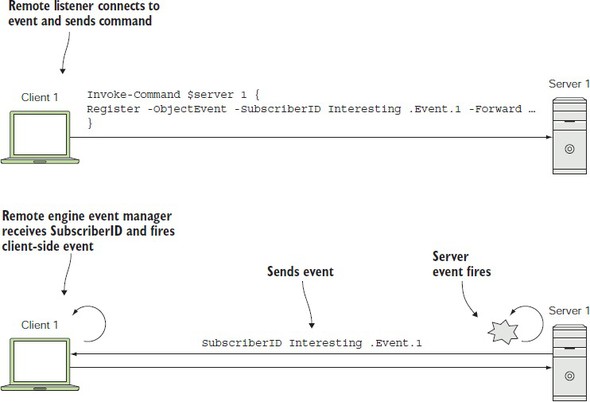
Here’s where the engine events come into play. The forwarded events are handled using engine event processing. Register-EngineEvent lets you register subscriptions that trigger the event handler based on the subscription identifier sent from the remote end. The events generated by New-Event in the previous section are also engine events. In the next section, we’ll look at a detailed example where you forward an event from one machine for processing on another.
By inspecting the class/superclass relationships, you can see that these classes form a hierarchy of event sources, where the farther you go from the root, the more specific the event becomes. This hierarchy is illustrated in figure 17.4.
You can assign an action scriptblock to these event subscriptions, as you did with object events. In the scriptblock body, you’ll write a message indicating what type of event was fired along with the process name. You’ll set up similar event handlers for the Win32_ProcessStopTrace and Win32_ProcessTrace events, again displaying the type of the event and the process name:
PS> Register-CimIndicationEvent -ClassName Win32_ProcessStopTrace -Action {
    'Process Stop: ' +
     $event.SourceEventArgs.NewEvent.ProcessName |
     Out-Host
}

PS> Register-CimIndicationEvent -ClassName  Win32_ProcessTrace -Action {
    'Process Any: ' +
     $event.SourceEventArgs.NewEvent.ProcessName |
     Out-Host
}
From the hierarchy (and the names of the events), you know that Win32_ProcessStartTrace fires when a process starts, Win32_ProcessStopTrace fires when a process is terminated, and Win32_ProcessTrace fires on either kind of process event. To test these subscriptions, run the following command, which will start and stop an instance of the calc process a number of times (on Windows 10 – earlier versions of Windows called the process calc:

This is an excerpt from Manning's book PowerShell in Depth, Second Edition.
Their lack of use isn’t a PowerShell deficiency, because you’ll find many good cmdlets for working with WMI-, .NET-, and PowerShell-related events. We’ll cover these more in later chapters. Based on our experiences, most administrators haven’t explored working with events, which is somewhat complicated and often drifts into the world of .NET or systems programming. The adoption of PowerShell is a bit like the exploration of an unknown area. The pioneers push into unknown territory, such as events, whereas the bulk of the population slowly follows the trails they’ve created. Events are on the fringes of explored territory for most IT pros.
Basically, an event is a notification from the object to you that something has happened. A car object might have a “Crashed” event, letting you know that something bad happened. A service object might have a “FinishedStarting” event, letting you know that it was done starting. When you use events, you’re simply writing commands that you want to run in response to the event—that is, when the car crashes, run the command to call for emergency services. Or sometimes you just want to see the notification.
PS C:\> Get-Job 18 | select -ExpandProperty JobStateInfo |
 select -ExpandProperty Reason

The event log 'Nothing' on computer '.' does not exist.

This is an excerpt from Manning's book PowerShell Deep Dives.
In the examples I’ll typically truncate much of this output so that you can focus on the most meaningful pieces. Also note the difference between reading the information from the event log architecture, as in figure 3, and reading the .EVT trace file directly, as you’ll do in some of the scenarios. The latter will provide combined information from different logs, which can sometimes be more useful.
Event logs are special files on Windows-based workstations and servers that record system activity. Do you want to know if there’s a problem with your Windows-based servers? Almost anything you’d want to know about what has occurred on your servers, whether an informational event, a warning, an error, or a security event, is contained in the event logs. When’s the last time you took a look at all of the event logs on each of your servers?
Earlier you learned that the event ID for “An account failed to log on” is 4625. Viewing one of the 4625 events on the web server through Event Viewer, shown in figure 1, you’ll see status and sub-status codes that may provide additional information that could help determine why a user can’t log on.

This is an excerpt from Manning's book PowerShell in Practice.
Table 1.4. New features in PowerShell v2
Feature
Explanation
Remoting Enables PowerShell on the local machine to issue commands that’ll be executed on a remote machine or machines. PowerShell remoting requires WinRm and PowerShell v2 to be installed on the local and remote machine(s). PowerShell must be started with administrative privileges to use for running remote commands. Background jobs Enables PowerShell to run commands asynchronously. This facility returns the PowerShell prompt immediately rather than waiting until the command has finished. The asynchronous command runs in the background. The status of the job can be viewed and the output data retrieved when the job has completed. Commands can be run against remote machines using background jobs. Advanced functions Cmdlets can now be written in PowerShell instead of needing to use a .NET language such as C#. Advanced functions accept parameters in the same way as a compiled cmdlet. These were known as script cmdlets during the CTP process though this term is no longer used officially. Modules A module is a method of loading additional functionality into PowerShell. A module can contain collections of functions contained in a .psm1 file that are loaded into PowerShell as a unit or a dll that provides functionality. Individual functions can be made visible to the shell or remain hidden and only be accessible from other functions within the module. The cmdlet Import-Module is used to add modules into PowerShell. It can also be used to load PowerShell snapins without registering them with PowerShell. Modules are an improved approach compared to the snapin functionality in PowerShell v1. Transactions When making a change via a provider, the change can be wrapped within a transaction so that it can be rolled back in the event of an error. PowerShell v2 only supports transactions on the Registry provider. Eventing PowerShell can access the eventing system to work with management and system events. PowerShell startup parameters New PowerShell startup parameters have been added, to run script files via a File parameter, run PowerShell as a single-threaded application, hide the console window, and pass complex commands into PowerShell that require using quotes or curly braces. Try-Catch-Finally PowerShell v1 uses the trap and throw commands to process .NET exceptions. A Try-Catch-Finally block is added to PowerShell v2 to bring it in line with the .NET languages. The command that may throw an exception is put in a try{} block, any exceptions are caught in the catch{} block, and a finally{} block executes regardless of whether an exception occurred. Steppable pipelines This makes it easier for developers to write cmdlets that call other cmdlets. It also enables finer control on how a script block executes. Data language Enables separation of data from code in a PowerShell script. Script internationalization Enables the internationalization of scripts by importing files of message strings into a data section. The file to be imported is controlled by the UI culture of the system. Script debugging The debugging facilities have been enhanced with new debugging cmdlets. New operators and automatic variables New operators for working with strings and new automatic variables for working with the PowerShell system have been added. New cmdlets New cmdlets have been added for remoting, adding, or converting types; ETW logs on Windows Server 2008 and Vista; script internationalization; modules; debugging; eventing; background jobs; transactions; WMI; and some miscellaneous actions. PowerShell Integrated Scripting Environment PowerShell Integrated Scripting Environment (ISE) is a GUI-based editor with an interactive shell. It requires .NET 3.5 SP1. ISE can support up to eight PowerShell tabs (instances), each of which can have multiple scripts open. ISE can execute the whole script or just the highlighted part. Out-Gridview Displays output in an interactive table that can be searched and filtered. This feature requires .NET 3.5 SP 1.
In the first example, we’re using a simple text-matching approach One of the cmdlets introduced in PowerShell v2 is Get-ComputerRestorePoint, which returns a list of the available restore points on the system. One of the properties returned is EventType, which provides information on the event that triggered the creation of the restore point. While experimenting with the cmdlet, I discovered that though just running the cmdlet provides a text description of the EntryType, if I used a select or Format-List with the cmdlet I got an integer returned as the EntryType. With a bit more digging, I discovered that this cmdlet is returning WMI objects and that the change in data being returned is a formatting issue. How could I match the integers with the text?
There are a number of standard event logs, with more being created as applications are installed or additional functionality is installed. Event logs are the first port of call for an administrator when troubleshooting problems. I’ve lost track of the number of times looking at the event logs has enabled me to solve a problem. This includes issues from Active Directory replication not working to cluster nodes refusing to failover. If I were to give a new administrator one tip, it would be learn how to discover information in the event logs: “Learn PowerShell” wouldn’t be a tip...it would be an order!
We can use the event viewer to read the logs. It’s possible to filter the view. Using PowerShell, we can interrogate and search the logs based on any of the information in the logs. PowerShell v1 only allowed us to read the event logs. If we wanted to do anything else, we had to write scripts as in listings 8.16 through 8.19. PowerShell v2 introduces a number of new cmdlets to work with event logs:
Figure 8.3. Event log example with source. The computer name is blacked out to obscure the internal domain for security reasons.
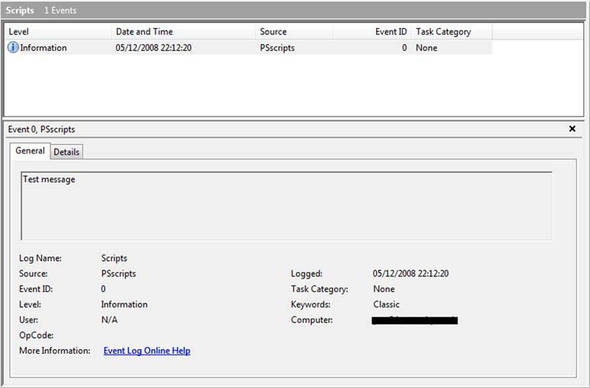
The second parameter is the name of the log. CreateEventSource can be used to create a source for an existing event log, or as in this case, it’ll create the event log if it doesn’t already exist. .NET code will rarely get any simpler.