concept expression in category powershell
This is an excerpt from Manning's book Windows PowerShell in Action, Third Edition.
PS> $b = ( 2
>> + 2 )
>>
At line:1 char:9
+ $b = ( 2
+         ~
Missing closing ')' in expression.
    + CategoryInfo          : ParserError: (:) [], ParentContainsErrorRecordException
    + FullyQualifiedErrorId : MissingEndParenthesisInExpression
In addition to running commands, PowerShell can evaluate expressions. In effect, it operates as a kind of calculator. Let’s evaluate a simple expression:
PS> 2+2
4
Notice as soon as you typed the expression, the result was calculated and displayed. It wasn’t necessary to use any kind of print statement to display the result. It’s important to remember whenever an expression is evaluated, the result of the expression is output, not discarded. PowerShell supports most of the basic arithmetic operations you’d expect, including floating point.
You can save the output of an expression to a file by using the redirection operator:
PS> (2+2)*3/7 > c:\foo.txt
PS> Get-Content c:\foo.txt
1.71428571428571
Saving expressions into files is useful; saving them in variables is more useful:
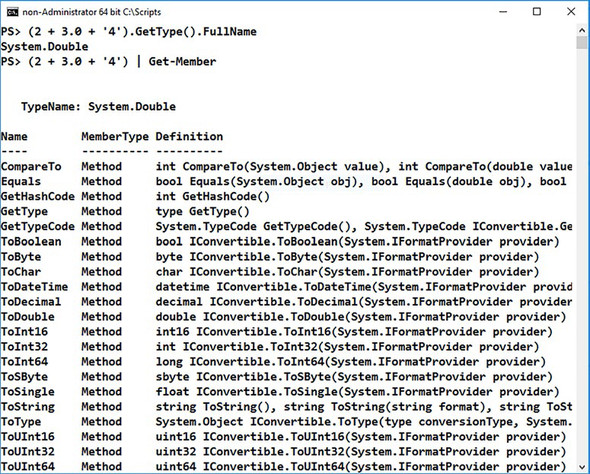
The goal of PowerShell is to enable you to get real work done. As in any language, expressions consist of operators and objects. The operators perform their operations on objects, giving you (hopefully) useful results. This chapter covers the set of basic operators in PowerShell and how they’re used in expressions. Without operators PowerShell can’t perform comparisons, arithmetic, logical operations, or a host of other activities. The operators we’re going to cover in this chapter are shown in figure 3.1.
This is an excerpt from Manning's book PowerShell in Depth, Second Edition.
-Include <string[]>
    Stops only the specified services. The value of this parameter
    qualifies the Name parameter. Enter a name element or pattern,
    such as "s*". Wildcards are permitted.
    Required?                    false
    Position?                    named
    Default value
    Accept pipeline input?       false
    Accept wildcard characters?  false
-InputObject <ServiceController[]>
    Specifies ServiceController objects representing the services to be
     stopped. Enter a variable that contains the objects, or type a
     command or expression that gets the objects.
    Required?                    true
    Position?                    1
    Default value
    Accept pipeline input?       true (ByValue)
    Accept wildcard characters?  False
In this command you use the –Not operator to reverse the result of the ContainsKey() method so that if the expression is true, you’ll add a new entry. As you can see, it worked: