concept filesystem in category powershell
This is an excerpt from Manning's book Learn PowerShell in a Month of Lunches.
New-PSDrive -name DEMO -psprovider FileSystem -root \\Server\Share
One of the more potentially confusing aspects of PowerShell is its use of providers. We warn you that some of this chapter might seem a bit remedial for you. We expect that you’re familiar with the filesystem, for example, and you probably know all the commands you need to manage the filesystem from a bash shell. But bear with us: We’re going to point things out in a specific way so that we can use your existing familiarity with the filesystem to help make the concept of providers easier to understand. Also, keep in mind that PowerShell isn’t bash. You may see some things in this chapter that look familiar, but we assure you that they’re doing something quite different from what you’re used to.
In the preceding list, you can see that we have one drive using the FileSystem provider, one using the Env provider, and so forth. The PSProvider adapts the data store, the PSDrive makes it accessible, and you use a set of cmdlets to see and manipulate the data exposed by each PSDrive. For the most part, the cmdlets you use with a PSDrive have the word Item somewhere in their noun:
PS /Users/jsnover> Get-Command -Noun *item*
Capability      Name
----------      ----
Cmdlet          Clear-Item
Cmdlet          Clear-ItemProperty
Cmdlet          Copy-Item
Cmdlet          Copy-ItemProperty
Cmdlet          Get-ChildItem
Cmdlet          Get-Item
Cmdlet          Get-ItemProperty
Cmdlet          Invoke-Item
Cmdlet          Move-Item
Cmdlet          Move-ItemProperty
Cmdlet          New-Item
Cmdlet          New-ItemProperty
Cmdlet          Remove-Item
Cmdlet          Remove-ItemProperty
Cmdlet          Rename-Item
Cmdlet          Rename-ItemProperty
Cmdlet          Set-Item
Cmdlet          Set-ItemProperty
We’ll use these cmdlets, and their aliases, to begin working with the providers on our system. Because it’s probably the one you’re most familiar with, we’ll start with the filesystem—the FileSystem PSProvider.
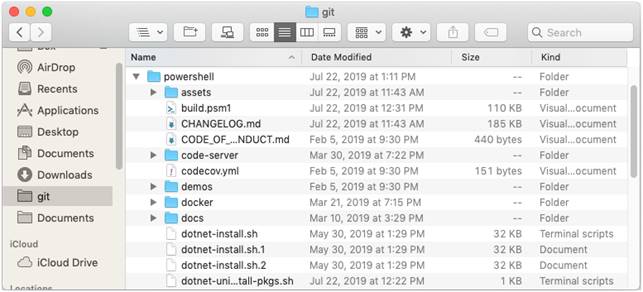
You’re probably most familiar with viewing the filesystem through Finder on macOS or the file browser on Linux, as shown in figure 5.1, where the hierarchy of drives, folders, and files is visually obvious.
Figure 5.1 Viewing files, folders, and drives in Finder
PowerShell’s terminology differs somewhat from that of the filesystem. Because a PSDrive might not point to a filesystem—for example, a PSDrive can be mapped to the Environment, which is obviously not a filesystem—PowerShell doesn’t use the terms file and folder. Instead, it refers to these objects by the more generic term item. Both a file and a folder are considered items, although they’re obviously different types of items. That’s why the cmdlet names we showed you previously all use item in their noun.

This is an excerpt from Manning's book PowerShell in Practice.
Have you ever wanted a consistent method of working with multiple data stores such as the filesystem, Active Directory, SQL Server, IIS, and the Windows Registry? PowerShell can deliver a large part of that vision through the use of providers.
The filesystem is an essential part of any server. We need to be able to work with files and the folder hierarchy irrespective of the applications in use. The registry is a repository of configuration information that we have to be able to access. We’ll see the registry provider in action. Now you can do a dir through the registry. Awesome!