concept Invoke - Command in category powershell
This is an excerpt from Manning's book Learn PowerShell in a Month of Lunches.
The command to execute over SSH:
help Invoke-Command –Parameter hostname
Or the command to execute over the legacy Windows protocol:
help Invoke-Command –Parameter computername
Everything in those curly braces, the {}, gets transmitted to the remote computers—all three of them. By default, PowerShell talks to up to 32 computers at once; if you specify more than that, it will queue them up, and as one computer completes, the next one in line will begin. If you have an awesome network and powerful computers, you could raise that number by specifying the -throttleLimit parameter of Invoke-Command; read the command’s help for more information.
PS > Invoke-Command {Get-Process} -HostName localhost -UserName jsnover | Get-Member


   TypeName: Deserialized.System.Diagnostics.Process

Name                       MemberType   Definition
----                       ----------   ----------
GetType                    Method       type GetType()
ToString                   Method       string ToString(), string To…
Company                    NoteProperty object Company=null
CPU                        NoteProperty object CPU=null
Description                NoteProperty object Description=null
FileVersion                NoteProperty object FileVersion=null
Handles                    NoteProperty int Handles=0
Name                       NoteProperty string Name=
NPM                        NoteProperty long NPM=0
Parent                     NoteProperty object Parent=null
Path                       NoteProperty object Path=null
PM                         NoteProperty long PM=0
Product                    NoteProperty object Product=null
ProductVersion             NoteProperty object ProductVersion=null
PSComputerName             NoteProperty string PSComputerName=localh…
PSShowComputerName         NoteProperty bool PSShowComputerName=True
RunspaceId                 NoteProperty guid RunspaceId=26297051-1cb…
SI                         NoteProperty int SI=53860
VM                         NoteProperty long VM=0
WS                         NoteProperty long WS=0
__NounName                 NoteProperty string __NounName=Process
BasePriority               Property     System.Int32 {get;set;}
Container                  Property      {get;set;}
EnableRaisingEvents        Property     System.Boolean {get;set;}
This is an excerpt from Manning's book Windows PowerShell in Action, Third Edition.
Invoke-Command is the way to programmatically execute PowerShell commands on a remote machine. When you want to connect to a machine to interact with it on a one-to-one basis, you use the Enter-PSSession command. This command allows you to start an interactive one-to-one session with a remote computer. Running Enter-PSSession looks like this:
Each background job runs in its own PowerShell session, paralleling the way each remote command is also executed in its own session. As was the case with remoting, this session can be a temporary one that exists only for the duration of the background job, or it can be run in an existing PSSession. But the way to do this isn’t obvious because the Start-Job cmdlet doesn’t have a -Session parameter. Instead, you have to use Invoke-Command with the -Session and -AsJob parameters. Here’s what that looks like. First, create a PSSession object:
PS> $s = New-PSSession -ComputerName W16DC01Now pass that session object to Invoke-Command with -AsJob specified:
The easiest way to do this is to use the -AsJob parameter on Invoke-Command. Alternatively, the scriptblock passed to Invoke-Command can call Start-Job explicitly. Let’s see how this works.
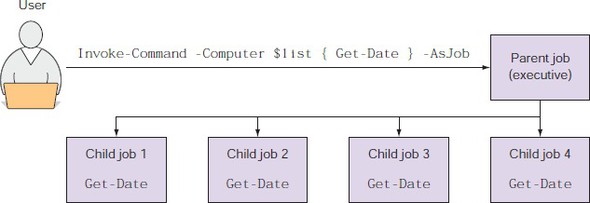
Let’s look at the scenario where you need to have more than one child job. When Start-Job is used to start a job on a local computer, the job always consists of the executive parent job and a single child job that runs the command. When you use the -AsJob parameter on Invoke-Command to start a job on multiple computers, you have the situation where the job consists of an executive parent job and one child job for each command running on a remote server, as shown in figure 13.2.
Figure 13.2. The relationship between the executive job and the nested jobs created when Invoke-Command -AsJob is used to run commands on multiple remote computers. The user calls Invoke-Command to start a job with multiple nested jobs, one for each target node in $list.
When you use Invoke-Command to explicitly run Start-Job on the remote machines, the result is the same as a local command run on each remote computer. The command returns a Job object for each computer. The Job object consists of an executive parent job and one child job that runs the command.

This is an excerpt from Manning's book PowerShell in Depth, Second Edition.
PS C:\> help Invoke-Command
NAME
    Invoke-Command
SYNOPSIS
    Runs commands on local and remote computers.
SYNTAX
    Invoke-Command [-ScriptBlock] <ScriptBlock> [-ArgumentList<Object[]>]
 [-InputObject<PSObject>] [-NoNewScope [<SwitchParameter>]]
[<CommonParameters>]
    Invoke-Command [[-ConnectionUri] <Uri[]>] [-ScriptBlock] <ScriptBlock>
 [-AllowRedirection [<SwitchParameter>]]
[-ArgumentList<Object[]>] [-AsJob [<SwitchParameter>]]
[-Authentication <AuthenticationMechanism>]
[-CertificateThumbprint<String>] [-ConfigurationName<String>]
[-Credential <PSCredential>] [-Disconnected[<SwitchParameter>]]
[-HideComputerName [<SwitchParameter>]]
[-InputObject<PSObject>] [-JobName<String>]
[-SessionOption<PSSessionOption>] [-ThrottleLimit<Int32>]
 [<CommonParameters>]
    Invoke-Command [[-ConnectionUri] <Uri[]>] [-FilePath] <String>
[-AllowRedirection [<SwitchParameter>]]
[-ArgumentList<Object[]>] [-AsJob [<SwitchParameter>]]
[-Authentication <AuthenticationMechanism>]
[-ConfigurationName<String>] [-Credential <PSCredential>]
[-Disconnected [<SwitchParameter>]] [-HideComputerName
[<SwitchParameter>]] [-InputObject<PSObject>] [-JobName<String>]
[-SessionOption<PSSessionOption>]
[-ThrottleLimit<Int32>] [<CommonParameters>]
...
You have two ways to start jobs that use the Remoting architecture: Start-Job and Invoke-Command. Start-Job is designed to start a job that runs entirely on your local computer and technically doesn’t use the Remoting subsystem to function because it doesn’t use remote machines. Invoke-Command starts a job that’s tracked on your local machine but that sends commands to remote computers for execution there. Invoke-Command is a great way to coordinate running a command on a bunch of remote computers.
When a job is started using the –AsJob parameter of Invoke-Command, it runs under WSMAN in a wsmprovhost.exe process, as illustrated in figure 11.2.
