concept list in category powershell
This is an excerpt from Manning's book Learn PowerShell in a Month of Lunches.
Table 2.1 shows a list of commonly used settings that you can paste right into the search box and configure to your liking.
Let’s quickly review: You know that PowerShell cmdlets produce objects, and that those objects often contain more properties than PowerShell shows by default. You know how to use gm to get a list of all of an object’s properties, and you know how to use Select-Object to specify the properties you want to see. Up to this point in the book, you’ve relied on PowerShell’s default configuration and rules to determine how the final output will appear on the screen (or in a file, or in hard-copy form). In this chapter, you’ll learn to override those defaults and create your own formatting for your commands’ output.
Get-Content -Path vaultsToCreate.txt |
[CA] ForEach-Object { New-AzKeyVault -ResourceGroupName manning -Location 'UK South' -Name $_ }
Which gives us 4 results that look like this for the 4 resources we created:
Vault Name                       : vaultInt1
Resource Group Name              : manning
Location                         : Australia Central
Resource ID                      : /subscriptions/*****/resourceGroups/manning/providers/Microsoft.KeyVault/vaults/vaultInt1
Vault URI                        : https://vaultint1.vault.azure.net/
Tenant ID                        : *********
SKU                              : Standard
Enabled For Deployment?          : False
Enabled For Template Deployment? : False
Enabled For Disk Encryption?     : False
Soft Delete Enabled?             :
Access Policies                  :
                                   Tenant ID: *******
                                   Object ID: *******
                                   Application ID:
                                   Display Name: Tyler Leonhardt
                                   Permissions to Keys: get, create, delete, list, update, import, backup, restore, recover
                                   Permissions to Secrets: get, list, set, delete, backup, restore, recover
                                   Permissions to Certificates: get, delete, list, create, import, update, deleteissuers, getissuers, listissuers, managecontacts, manageissuers, setissuers, recover, backup, restore
                                   Permissions to (Key Vault Managed) Storage: delete, deletesas, get, getsas, list, listsas, regeneratekey, set, setsas, update, recover, backup, restore


Network Rule Set                 :
                                   Default Action: Allow
                                   Bypass: AzureServices
                                   IP Rules:
                                   Virtual Network Rules:

Tags                             :
This is an excerpt from Manning's book Windows PowerShell in Action, Third Edition.
The open source PowerShell project is hosted on Github at https://github.com/PowerShell/PowerShell and is open for anyone to join and contribute. PowerShell 6.0 includes versions for Windows, most major Linux distributions, macOS, and Docker. The list of supported platforms is evolving. You can see a complete list of supported platforms at the GitHub site. You can install PowerShell 6.0 side by side on Windows with an existing instance of PowerShell.
The Invoke-Command cmdlet is used to invoke a scriptblock on one or more computers. You do so by specifying a computer name (or list of names) for the machines on which you want to execute the command. For each name in the list, the remoting subsystem will take care of all the details needed to open the connection to that computer, execute the command, retrieve the results, and then shut down the connection. If you’re going to run the command on a large set of computers, Invoke-Command will also take care of all resource management details, such as limiting the number of concurrent remote connections. Our previous example becomes this:
As you progress down the table, the things you can do in the endpoint become more limited until Nolanguage, when you’re only allowed to run basic pipelines containing cmdlets and functions. The session capabilities are also controllable by restricting the list of cmdlets and functions available to a user. For example, you can restrict the functionality of an endpoint so that a user can only reset their password in Active Directory!
Our session is constrained! You’ll notice that the function we defined, Get-HealthModel, is in the list of commands. Let’s check that it works:
PS> Invoke-Command -Session $s -ScriptBlock {get-healthmodel}

Name                           Value
----                           -----
Date                           08/05/2017 12:57:29
TopWS                          {System.Diagnostics.Proces...
PageFaults                     146394771
FreeSpace                      67302338560
TopCPU                         {System.Diagnostics...
This is an excerpt from Manning's book PowerShell in Depth, Second Edition.
The console application maintains its own command history buffer, which contains a list of the commands you’ve run. It holds the 50 most recent commands by default, and we explained earlier how you can adjust that number. When you’re using the up and down arrow keys, or pressing F7 in the console, you’re accessing this buffer.
Use –FilePath instead of –ScriptBlock to specify the name of a script to run—the script is on the local machine. You can add –ArgumentList to specify a list of parameter values to be fed to that script.
Listing 28.9. English Get-DataPSD1
#English US strings ConvertFrom-StringData @" MSG1= Found {0} services that are running. MSG2= Found {0} processes on the computer {1}. MSG3= {0} Starting command {1} MSG4= {0} Ending command {1} MSG5= Getting the list of services that are currently running. MSG6= Getting all of the running processes. "@

This is an excerpt from Manning's book PowerShell Deep Dives.
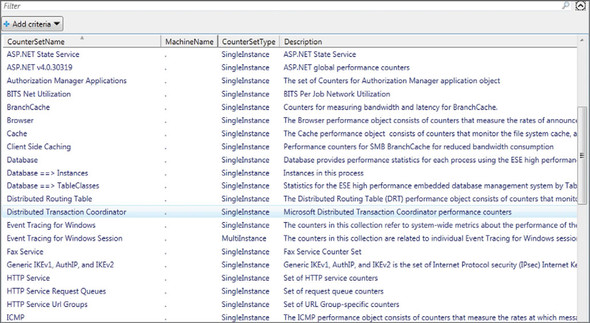
This will get you a list of the objects, but the SID history column on every row will say “Microsoft.ActiveDirectory.Management.ADPropertyValueCollection”. To see the data you must use the ExpandProperty switch on the Select-Object cmdlet. When you display a list of object properties at the PowerShell console sometimes one of those properties may be what we call multivalued. That means the property contains multiple entries in an array or object collection. In Active Directory several user attributes are multivalues (including postalAddress, sIDHistory, description, and userCertificate). By expanding these properties in your query you can get one row for each SID history value that’s present, making the result set friendlier for exporting and reporting. This report treats the multivalue attributes as separate rows so that you get a one-to-one list of OldSID/NewSID entries. The working syntax looks similar to this:
This is an excerpt from Manning's book PowerShell in Practice.
Get-Command generates a list of PowerShell commands. That list is piped into a filter (Where is an alias or shorthand for Where-Object) that only accepts those commands installed by a PowerShell snapin (a method of extending PowerShell) whose names start Microsoft.P. We then count the number of commands in the filtered list, as shown in figure 1.2.
We can use Get-QADObject to return a list of the OUs in the domain. We need to use the -Type parameter to restrict the returned data to organizational units; otherwise we may get back a bit more data than we bargained for. The output of this cmdlet is piped into Format-Table so that the name and the distinguished name (DN) can be displayed. It’s slightly more work (but not impossible) to create an indented list similar to the previous listing. I’ll leave that with you as tonight’s homework assignment. With Windows Server 2008 R2, we could also use:
It gets confusing when we consider the -Location parameter, as it sounds as if it means the same as the scope—where we’re applying the GPO. The location actually refers to the GPO’s order in the list of GPOs to be applied to that particular OU, where 1 is the top of the list and -1 is the bottom.