concept machine in category powershell
This is an excerpt from Manning's book Windows PowerShell in Action, Third Edition.
You can create a remote session to a machine running a copy of Windows PowerShell (in this case, PowerShell 5.1):
The Invoke-Command cmdlet is used to invoke a scriptblock on one or more computers. You do so by specifying a computer name (or list of names) for the machines on which you want to execute the command. For each name in the list, the remoting subsystem will take care of all the details needed to open the connection to that computer, execute the command, retrieve the results, and then shut down the connection. If you’re going to run the command on a large set of computers, Invoke-Command will also take care of all resource management details, such as limiting the number of concurrent remote connections. Our previous example becomes this:
You have to turn on PowerShell remoting for a machine to receive and execute remote administration commands. You don’t need to turn on remoting to send commands, though you will need to turn it on at least temporarily to change client-side settings such as the TrustedHosts list on the local machine.
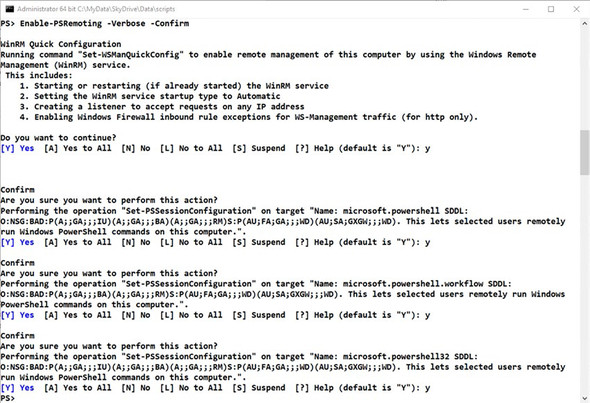
You enable remoting using the Enable-PSRemoting cmdlet. To run this command, you must have administrator privileges on the machine you’re going to enable. You need to do the following:

This is an excerpt from Manning's book PowerShell in Depth, Second Edition.
Many calculations produce results with a large number of decimal places. For example, the free disk space on the machine used to produce this chapter is 190400217088 bytes. You, like us, would probably prefer to see that value in GB:
Remoting also supports machine-level authentication. In other words, when you connect to a remote machine, your computer must trust that machine. Trust normally comes through mutual membership in an Active Directory domain, although it can also be manually configured in a number of ways. The practical upshot is that your computer will refuse to connect to any remote machine that it doesn’t know and trust. That can create complications for some environments where the machines aren’t all in the same domain, requiring additional configuration to get Remoting to work.
Remoting doesn’t work across Active Directory domains by default. If your computer is in DOMAINA, and you need to remote into a machine that belongs to DOMAINB, you’ll have to do a bit of work first. You’ll still need to ensure that your user account has permissions to do whatever it is you’re attempting in DOMAINB—the configuration setting we’re showing you only enables the Remoting connectivity. This is a Registry setting, so be careful when making this change:
PS C:\> New-ItemProperty -Name LocalAccountTokenFilterPolicy -Path
  HKLM:\SOFTWARE\Microsoft\Windows\CurrentVersion\Policies\System
  -PropertyType DWord -Value 1
This code will enable all members of a machine’s Administrators group, regardless of the domain they’re in, to use Remoting on the machine. So, in our example, you’d make this change on the machine in DOMAINB—the destination machine of the Remoting connection.
Remoting doesn’t like to connect to machines that it doesn’t trust. You might think you’re connecting to a remote machine named SERVER1, but if an attacker could somehow spoof DNS or perform some other trickery, they could hijack your session and have you connect to the attacker’s machine instead. They could then capture all manner of useful information from you. Remoting’s concept of trust prevents that from happening. By default, Remoting trusts only machines that are in the same Active Directory domain as your computer, enabling it to use Kerberos authentication to confirm the identity of the remote machine. That’s why, by default, you can’t remote to a machine using an IP address or hostname alias: Remoting can’t use those to look up the machine’s identity in Active Directory.
You can modify this behavior by manually adding machine names, IP addresses, and other identifiers to a persistent, static Trusted Hosts list that’s maintained by WinRM. WinRM—and thus Remoting—will always trust machines on that list, although it doesn’t actually authenticate them. You’re opening yourself up to potential hijacking attempts—although it’s rare for those to occur on an internal network.

This is an excerpt from Manning's book PowerShell Deep Dives.
So far, you have worked with remote machines running PowerShell v3 and WS-MAN 3.0. How do you deal with machines running older versions of WS-MAN?
Most of the time, performance management is a topic that interests IT pros who have to troubleshoot performance issues. But assessing performance can be important in a number of other scenarios, such as before you upgrade a machine to new hardware, before updating an application to a newer version, when defining performance baselines, or, worse, when users are complaining because their desktop PC or their business application is performing badly.
This is an excerpt from Manning's book PowerShell in Practice.
Processes—what’s running on the machine?
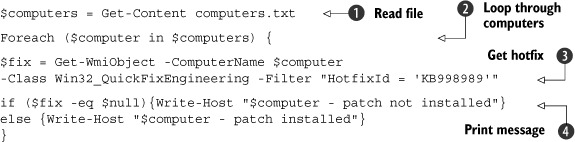
As it stands, the script will display all of the hotfixes installed on the system. Much of the time, we may want to check whether a particular hotfix is applied on the machines, as in listing 7.5.
This script starts in the same way, by reading the file of computer names
and looping through them
. In this case, we put the results
of the Get-WmiObject cmdlet into a variable. The -Filter parameter is used to restrict Get-WmiObject to only look for the specified hotfix. This will give a significant boost to the script’s performance. The way PowerShell works is that it will return nothing if it can’t find the specified patch on the machine. We can exploit that fact to determine the patch’s existence.
There are a couple of points worth remembering about computer renaming. Using this technique on a machine does not change the name in Active Directory. If the machine is a domain member, perform the name change through the system configuration to ensure AD is updated.