concept object in category powershell
This is an excerpt from Manning's book Learn PowerShell in a Month of Lunches.
-Filter <String>
        Specifies a filter in the format or language of the provider. The value of this parameter qualifies the Path parameter.

        The syntax of the filter, including the use of wildcard characters, depends on the provider. Filters are more efficient than
        other parameters, because the provider applies them when the cmdlet gets the objects rather than having PowerShell filter
        the objects after they are retrieved.

        Required?                    false
        Position?                    named
        Default value                None
        Accept pipeline input?       False
        Accept wildcard characters?  true
If objects are like a giant table in memory, and PowerShell shows you only a portion of that table on the screen, how can you see what else you have to work with? If you’re thinking that you should use the Get-Help command, we’re glad, because we’ve certainly been pushing that down your throat in the previous few chapters. But unfortunately, you’d be wrong.
The help system documents only background concepts (in the form of the about help topics) and command syntax. To learn more about an object, you use a different command: Get-Member. You should become comfortable using this command—so much so, that you start looking for a shorter way to type it. We’ll give you that right now: the alias gm.
This is an excerpt from Manning's book Learn PowerShell Scripting in a Month of Lunches.
Objects are the only form of pipeline output emitted.
But you probably do see a parameter capable of accepting an [Object] (or [Object[]]), right? In the Microsoft .NET Framework, System.Object is like the mother type for everything else. That is, everything inherits from the Object type. In PowerShell, PSObject (or “PowerShell Object”) is more or less equivalent to Object. So, whenever you see that a parameter accepts PSObject, you know that it can accept basically anything. In the help for ConvertTo-HTML, you’ll find an –InputObject parameter, which fulfills our two criteria:
PS C:\MyPSTool> git remote add origin
 https://github.com/jdhitsolutions/MyPSTool.git                    1
PS C:\MyPSTool> git push -u origin master                            2
Counting objects: 17, done.
Delta compression using up to 2 threads.
Compressing objects: 100% (12/12), done.
Writing objects: 100% (17/17), 1.46 KiB | 0 bytes/s, done.
Total 17 (delta 2), reused 0 (delta 0)
remote: Resolving deltas: 100% (2/2), done.
To https://github.com/jdhitsolutions/MyPSTool.git
 * [new branch]      master -> master
Branch master set up to track remote branch master from origin.
This is an excerpt from Manning's book Windows PowerShell in Action, Third Edition.
As you’ve seen, you can run commands to get information, perform some basic operations on this information using the PowerShell operators, and then store the results in files and variables. Let’s look at additional ways you can process this data. First, you’ll see how to sort objects and how to extract properties from those objects. Then we’ll look at using the PowerShell flow-control statements to write scripts that use conditionals and loops to do more sophisticated processing.
Now use Get-Member to get more information about the object that was returned:
PS> Get-ChildItem function:foo | Get-Member sc*

   TypeName: System.Management.Automation.FunctionInfo

Name        MemberType Definition
----        ---------- ----------
ScriptBlock Property   scriptblock ScriptBlock {get;}
The central concept in PowerShell programs is the pipeline, which processes a sequence of objects, one at a time. In chapter 1, we illustrated this with a diagram of the pipeline processor. Let’s take another look (see figure 10.4).
Figure 10.4. Objects flow through a pipeline one at a time. A common parser constructs each of the command objects and then starts the pipeline processor, stepping each object through all stages of the pipeline.
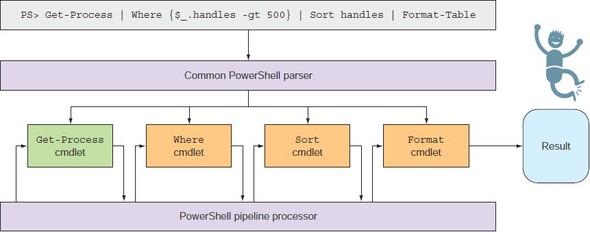
Each object is processed completely (ignoring things like sorting) before processing begins on the next one, but the pipeline itself has to process all objects in one go. There are times when it’s useful to be able to start a pipeline and then feed it objects as needed. This is what a steppable pipeline lets you do. You can create a pipeline, start it (so all the begin clauses are executed), and then pass objects to it for processing one at a time. Let’s see how to do this.
When you first add a synthetic member to an object, you’re creating a new object (but not a new type). This new object wraps the original object in an instance of System.Management.Automation.PSObject. Just as System.Object is the root of the type system in .NET, PSObject is the root of the synthetic type system in PowerShell. For this reason, you assign the result of the Add-Member call back to the original variable. To do that, you have to add the -PassThru parameter to the command because, by default, the Add-Member cmdlet doesn’t emit anything.
This is an excerpt from Manning's book PowerShell in Depth, Second Edition.
Get-Help produces output, like all other cmdlets, as objects; we’ll get to those in chapter 7, which focuses on working with objects. Piping those to more, as happens with help and man, results in output that’s pure text. For the most part, the conversion to pure text won’t have any impact on you accessing help information whatsoever, which means you can feel free to use any of the commands with which you feel more comfortable.
PowerShell is object oriented but that doesn’t mean you have to become a programmer to use it. You need to learn enough about objects to get the most of the shell—enough to use the tool effectively.
Objects, it turns out, are another kind of data structure. As with Excel or SQL Server, you don’t ever get to see how objects physically store their data, nor do you need to. You only need to know that objects are a way of storing data, usually in memory, so that you can work with the data. Objects use a slightly different terminology than Excel or SQL Server:
-Include <string[]>
    Stops only the specified services. The value of this parameter
    qualifies the Name parameter. Enter a name element or pattern,
    such as "s*". Wildcards are permitted.
    Required?                    false
    Position?                    named
    Default value
    Accept pipeline input?       false
    Accept wildcard characters?  false
-InputObject <ServiceController[]>
    Specifies ServiceController objects representing the services to be
     stopped. Enter a variable that contains the objects, or type a
     command or expression that gets the objects.
    Required?                    true
    Position?                    1
    Default value
    Accept pipeline input?       true (ByValue)
    Accept wildcard characters?  False


This is an excerpt from Manning's book PowerShell Deep Dives.
You get a different type of object returned.
Whereas listing 1 looks like a simple text file, XML is more than structured text. The first sentence in the W3C XML specification states “XML describes a class of data objects called XML documents” (World Wide Web Consortium, www.w3.org/TR/xml/; emphasis added). XML documents are stored as readable text, but they’re defined from the start as data objects. The perspective that these objects are stored as formatted text instead of 1’s and 0’s is incidental; XML is an object framework with its own members and semantics for access and storage.
This is an excerpt from Manning's book PowerShell in Practice.

We’ll be meeting Get-ChildItem again in chapter 8 when we examine the filesystem, but for now let’s just say it’s the PowerShell equivalent of dir or ls (both of these exist in PowerShell as aliases of Get-ChildItem). Use ls; it’s less typing! It’ll also impress the UNIX admins. The Path parameter tells Get-ChildItem the folder to examine. The output of Get-ChildItem is piped to Where, which applies a filter based on whether the object is a container (a folder in this case). PowerShell adds a property (PsIsContainer) to the output of Get-ChildItem which indicates whether the object is a folder. In this case, we want those objects that aren’t folders-just the files. The “!” symbol means not, so !PsIsContainer means objects that aren’t containers.
The assembly is loaded
using the loadfrom() method. We know where to find the DLL, which makes this the easiest and simplest method to perform the load. Alternatively, we could use Add-Type if using PowerShell v2. Once the assembly is loaded, we can create an object for the IIS server
. When working with the Microsoft. Web.Administration classes, we always have to start with the ServerManager object.
For persisting objects