concept user in category powershell

This is an excerpt from Manning's book Learn PowerShell Scripting in a Month of Lunches.
It’s easy to think, “Well, provisioning a new user is a single task.” No, it isn’t. It’s a process, and if you think about how you’d perform it manually, you’d realize instantly that it consists of multiple actual tasks. You have to create the user, set up a home folder, create a user library in SharePoint, and so on. Were you to start coding the process, you’d create a tool for each task: new user, new home folder, SharePoint account, and so forth (many of those tasks can be accomplished using tools Microsoft has already written). You’d then “connect” those tools together, into a process, by writing what we call a controller script.
This is a great example, and it’s one we’re going to put some code to later in this book. Say that you wanted to send a quick email reminder to users whose passwords were about to expire in a day or two. What’s involved there?
You’d need to start by getting a list of users who have expiring passwords—that is, whose accounts aren’t disabled and who don’t have a “password does not expire” setting. You’d probably then need to calculate exactly when their password does expire, and filter out anyone whose password wasn’t expiring within whatever range you cared about. You’d then send them all an email and perhaps log that information to a file for diagnostic purposes.
Listing 14.1. Comment-based help
function Get-MachineInfo { <# .SYNOPSIS Retrieves specific information about one or more computers, using WMI or CIM. .DESCRIPTION This command uses either WMI or CIM to retrieve specific information about one or more computers. You must run this command as a user who has permission to remotely query CIM or WMI on the machines involved. You can specify a starting protocol (CIM by default), and specify that, in the event of a failure, the other protocol be used on a per-machine basis. .PARAMETER ComputerName One or more computer names. When using WMI, this can also be IP addresses. IP addresses may not work for CIM. .PARAMETER LogFailuresToPath A path and filename to write failed computer names to. If omitted, no log will be written. .PARAMETER Protocol Valid values: Wsman (uses CIM) or Dcom (uses WMI). Will be used for all machines. "Wsman" is the default. .PARAMETER ProtocolFallback Specify this to automatically try the other protocol if a machine fails. .EXAMPLE Get-MachineInfo -ComputerName ONE,TWO,THREE This example will query three machines. .EXAMPLE Get-ADUser -filter * | Select -Expand Name | Get-MachineInfo This example will attempt to query all machines in AD. #> [CmdletBinding()] Param( [Parameter(ValueFromPipeline=$True, Mandatory=$True)] [Alias('CN','MachineName','Name')] [string[]]$ComputerName, [string]$LogFailuresToPath, [ValidateSet('Wsman','Dcom')] [string]$Protocol = "Wsman", [switch]$ProtocolFallback ) BEGIN {} PROCESS { foreach ($computer in $computername) { if ($protocol -eq 'Dcom') { $option = New-CimSessionOption -Protocol Dcom } else { $option = New-CimSessionOption -Protocol Wsman } Write-Verbose "Connecting to $computer over $protocol" $session = New-CimSession -ComputerName $computer ` -SessionOption $option Write-Verbose "Querying from $computer" $os_params = @{'ClassName'='Win32_OperatingSystem' 'CimSession'=$session} $os = Get-CimInstance @os_params $cs_params = @{'ClassName'='Win32_ComputerSystem' 'CimSession'=$session} $cs = Get-CimInstance @cs_params $sysdrive = $os.SystemDrive $drive_params = @{'ClassName'='Win32_LogicalDisk' 'Filter'="DeviceId='$sysdrive'" 'CimSession'=$session} $drive = Get-CimInstance @drive_params $proc_params = @{'ClassName'='Win32_Processor' 'CimSession'=$session} $proc = Get-CimInstance @proc_params | Select-Object -first 1 Write-Verbose "Closing session to $computer" $session | Remove-CimSession Write-Verbose "Outputting for $computer" $obj = [pscustomobject]@{'ComputerName'=$computer 'OSVersion'=$os.version 'SPVersion'=$os.servicepackmajorversion 'OSBuild'=$os.buildnumber 'Manufacturer'=$cs.manufacturer 'Model'=$cs.model 'Procs'=$cs.numberofprocessors 'Cores'=$cs.numberoflogicalprocessors 'RAM'=($cs.totalphysicalmemory / 1GB) 'Arch'=$proc.addresswidth 'SysDriveFreeSpace'=$drive.freespace} Write-Output $obj } #foreach } #PROCESS END {} } #function

This is an excerpt from Manning's book Windows PowerShell in Action, Third Edition.
Some of these issues are flagged to be addressed during the development of PowerShell v6. Other issues are differences that are inherent to the various platforms to which PowerShell is being ported, and users will need to be aware of the issues and manage them.
The Enable-PSRemoting command performs all the configuration steps needed to allow users with local administrator privileges to remote to this computer in a domain environment. In a non-domain or workgroup environment, as well as for non-admin users, additional steps are required for remoting to work.
By default, only members of the Administrators group on a computer have permission to use the default session configurations. To allow users who aren’t part of the Administrators group to connect to the local computer, you have to give those users Execute permissions on the session configurations for the desired endpoint on the target computer. For example, if you want to enable non-administrators to connect to the default remoting Microsoft.PowerShell endpoint, you can do so by running the following command:
Figure 11.10. This dialog box is used to enable the Execute permission on the default remoting configuration. Use this dialog box to allow a user who isn’t a member of the Administrators group to connect to this computer using PowerShell remoting.
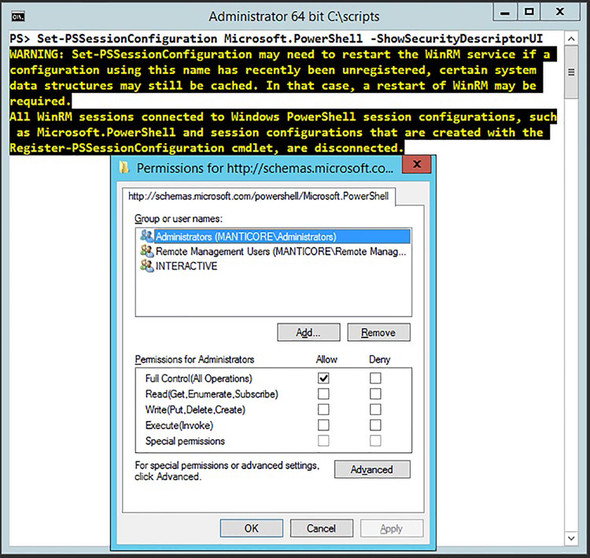
You add the name of a user or a group you want to enable to the list, then select the Execute (Invoke) check box. Then dismiss the dialog box by clicking OK. At this point, you’ll get a prompt telling you that you need to restart the WinRM service for the change to take effect. Do so by running Restart-Service winrm as shown here:
PS> Restart-Service winrmOnce the service is restarted, the user or group you’ve enabled can connect to the machine using remoting.

This is an excerpt from Manning's book PowerShell in Depth, Second Edition.
The function in listing 2.1 specifies whether you’re running the 32- or 64-bit version of PowerShell
. The current user is retrieved and used to create a Security.Principal .WindowsPrincipal object
. That object is then used to determine whether the user is running PowerShell as Administrator—that is, with elevated privileges
. The window title is set using the information gathered earlier
, and then the prompt is set
. Any string you want can be used as the prompt. The results of including listing 2.1 in your profile are shown in figure 2.2. The ISE will also run this function at startup.
Inquire—Ask the user what to do. You’ll probably never do this except when debugging a command because it’s pretty intrusive. With scheduled or other unattended scripts, it’s totally impractical.
Write-Debug : Command execution stopped because the user selected the
 Halt option.
At C:\test.ps1:34 char:20
+         Write-Debug <<<<  "Danger setting is $danger"
    + CategoryInfo          : OperationStopped: (:) [Write-Debug], P
   arentContainsErrorRecordException

    + FullyQualifiedErrorId : ActionPreferenceStop,Microsoft.PowerSh
   ell.Commands.WriteDebugCommand

This is an excerpt from Manning's book PowerShell Deep Dives.
Most of the time, performance management is a topic that interests IT pros who have to troubleshoot performance issues. But assessing performance can be important in a number of other scenarios, such as before you upgrade a machine to new hardware, before updating an application to a newer version, when defining performance baselines, or, worse, when users are complaining because their desktop PC or their business application is performing badly.
The GroupTable stores an entry for each group of which a user is a member, a reference to a particular user object in the UserTable, the valid start and end dates of group membership, and the group’s SamAccountName value. The primary key column (ID) is an automatically incremented integer, as many duplicate ObjectGUID’s could exist in the table. The UserGUID column has a foreign key constraint relationship with the UserTable’s UserGUID column.

This is an excerpt from Manning's book PowerShell in Practice.
I was once asked to look through a 12,000-seat Active Directory to find all of the users that didn’t have Outlook Web Access enabled. Not the sort of task to perform using GUI tools! I wrote a script that has been reused several times since. It took much less time to write and test the script than it would’ve to perform the process manually. That extra time can be spent on other, more interesting tasks.
An LDAP search filter is used to find all of the user accounts in a given OU, and we can use that information to add the users to the group, as in listing 5.23. We start by creating a directory entry
(in listing 5.23) for the group. A directorysearcher
is created to find all of the users in the OU. Note that we set the root of the search to the OU. There’s no need to search the whole directory when we know the users are in a single OU.
We loop through our results
and use the Add() method of the group to add
the user into the group. We’re constructing the AD path for the user, which is the input parameter the method expects. $user.properties.distinguishedname is used to access the distinguished name property because we’re dealing with a directorysearcher resultset rather than a user object.
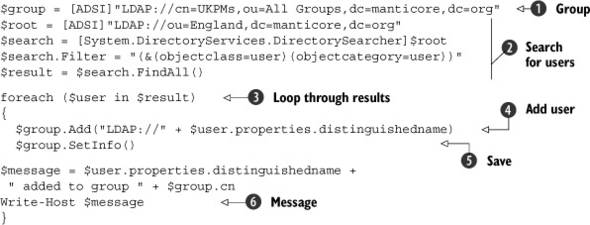
 the information back to disk. The script finishes by writing a message
 to say the user has been created. If we wanted to remove users from a group, we could use the Remove() method instead of Add().
The majority of the scripts deal with a single object, but in listing 5.11 I show how to create users in bulk. In listing 5.23 where we discuss changing group membership, there’s a technique for dealing with all of the users in a particular OU. This technique can be used in the other scripts as appropriate to enable them for bulk processing. In this section, I’ll use an ADSI-based script as the primary method, with the Quest and Microsoft AD cmdlets as secondary methods. If it’s possible to use these cmdlets in your organization, I recommend you do so.
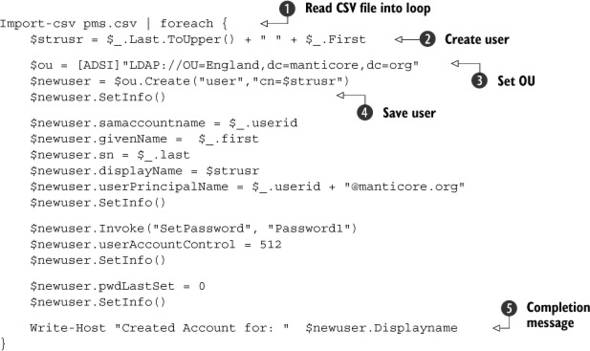
Listing 5.10. Creating users in bulk with Microsoft cmdlets
Import-Csv -Path users2.csv | foreach { New-ADUser -Name "$($_.Given) $($_.Surname)" ` -SamAccountName $_.Id -GivenName $_.Given ` -Surname $_.Surname `-Path 'ou=england,dc=manticore,dc=org' ` -DisplayName "$($_.Given) $($_.Surname)" ` -AccountPassword $null -CannotChangePassword $false ` -ChangePasswordAtLogon $true ` -UserPrincipalName "$($_.Id)@manticore.org" }