concept variable in category powershell
This is an excerpt from Manning's book Windows PowerShell in Action, Third Edition.
PowerShell v6 includes variables, shown in listing 1, to help with this:
The chapter concludes with a detailed discussion of how variables work in PowerShell and how you can use them with operators to accomplish significant tasks.
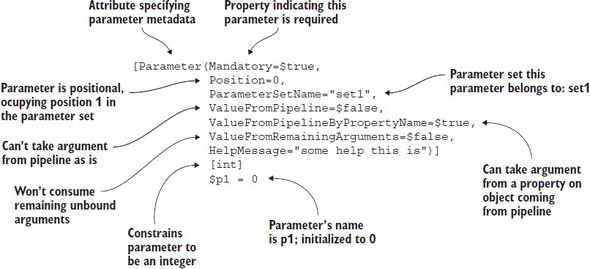
Listing 8.3. Exporting variables
$script:count = 0 $script:increment = 1 function Get-Count { return $script:count += $increment } function Reset-Count { $script:count=0; setIncrement 1 } New-Alias -Name reset -Value Reset-Count 1 function setIncrement ($x) { $script:increment = $x } Export-ModuleMember -Function *-Count -Variable increment -Alias reset 2
This is an excerpt from Manning's book PowerShell in Depth, Second Edition.
Variables are a big part of any programming language or operating system shell, and PowerShell is no exception. In this chapter, we’ll explain what they are and how to use them, and we’ll cover some advanced variable-like data structures such as arrays, hash tables, and script blocks.
PowerShell starts up with a number of variables already created and ready to go. Most of these variables control various aspects of PowerShell’s behavior, and you can change them in order to modify its behavior. Any changes you make will be lost when you exit the shell, and they won’t be reflected in any other shell instances you may have open unless you put the changes in your profile. These variables load up with the same values in each new shell session, and they’re specific to each session rather than being global for the entire PowerShell engine. You can get a look at these by getting a directory listing for the Variable: drive, which is where PowerShell stores all variables:
PS C:\> dir variable:
Name                           Value
----                           -----
$
?                              True
^
args                           {}
ConfirmPreference              High
ConsoleFileName
currentUser                    System.Security.Principal.WindowsIdentity
DebugPreference                SilentlyContinue
Error                          {}
ErrorActionPreference          Continue
ErrorView                      NormalView
ExecutionContext               System.Management.Automation.EngineIntrin...
false                          False
FormatEnumerationLimit         4
HOME                           C:\Users\Richard
Host                           System.Management.Automation.Internal.Hos...
input                          System.Collections.ArrayList+ArrayListEnu...
MaximumAliasCount              4096
MaximumDriveCount              4096
MaximumErrorCount              256
MaximumFunctionCount           4096
MaximumHistoryCount            4096
MaximumVariableCount           4096
MyInvocation                   System.Management.Automation.InvocationInfo
NestedPromptLevel              0
null
OutputEncoding                 System.Text.ASCIIEncoding
PID                            2516
principal                      System.Security.Principal.WindowsPrincipal
PROFILE                        C:\Users\Richard\Documents\WindowsPowerSh...
ProgressPreference             Continue
PSBoundParameters              {}
PSCommandPath                  C:\Users\Richard\Documents\WindowsPowerSh...
PSCulture                      en-GB
PSDefaultParameterValues       {}
PSEmailServer
PSHOME                         C:\Windows\System32\WindowsPowerShell\v1.0
PSScriptRoot                   C:\Users\Richard\Documents\WindowsPowerShell
PSSessionApplicationName       wsman
PSSessionConfigurationName     http://schemas.microsoft.com/powershell/...
PSSessionOption                System.Management.Automation.Remoting.PSS...
PSUICulture                    en-GB
PSVersionTable                 {PSVersion, WSManStackVersion,
                               SerializationVersion, CLRVersion...}
PWD                            C:\MyData\SkyDrive\Data\scripts
role                           Administrator
ShellId                        Microsoft.PowerShell
StackTrace
true                           True
VerbosePreference              SilentlyContinue
WarningPreference              Continue
WhatIfPreference               False
The list shows the state of the variables in a console session that has just been opened. You can even find a variable that controls the maximum number of variables PowerShell can keep track of! Any variables that you create are also stored in this drive—so can you think of how you might completely delete a variable? The same way you’d delete a file: the Del (or Remove-Item) command! And yes, you can absolutely delete the built-in variables, but they’ll come right back when you open a new shell instance. As a practical rule, though, be careful about deleting automatic variables because many PowerShell commands rely on them. A number of help files are available that deal with variables (get-help about*variable*).
Unexpected output and no error. That’s because, by default, PowerShell assumes variables to have a default value of 0, or an empty string, or some other similar value associated with the data type assigned to the variable. If you don’t assign a data type, the variable will contain $null.
This is an excerpt from Manning's book PowerShell in Practice.
In this example, we start by setting a variable, $proc, equal to the output of Get-Process. A $ symbol is used in PowerShell to designate a variable ($_ is in effect a special variable used to refer to the current object on the pipeline). The result from piping $proc to Get-Member show that the variable is of type System.Diagnostics.Process. It’s an array of such objects. When it’s passed on to the pipeline, the array elements, or collection, are processed one at a time as they’re passed along the pipeline.
A variable is a store for data that’ll be used during the execution of a script. What can a variable store? Variables store .NET objects or a collection of objects.
Scope defines how scripts and functions work with variables. When PowerShell starts, it defines a top-level or global scope. When a script, script block, or function is started, a new scope is defined. A parent-child relationship is created between the original scope and the child scope. Similarly, when a function is called within a script, a scope is created that’s a child of the script’s scope.