concept VS Code in category powershell
This is an excerpt from Manning's book Learn PowerShell Scripting in a Month of Lunches.
If you’ve been paying close attention, you’ve noticed that our screenshots have all been taken on a macOS computer. Although VS Code is happy to run there, we don’t actually have PowerShell installed, so the VS Code PowerShell extension has returned an error. We wanted to demonstrate what this looks like, so you’ll know what it means if you run into this yourself sometime. Going forward, we’ll switch to a Windows machine. But if you’ve followed along (on Windows) to this point, then you should be good to go.
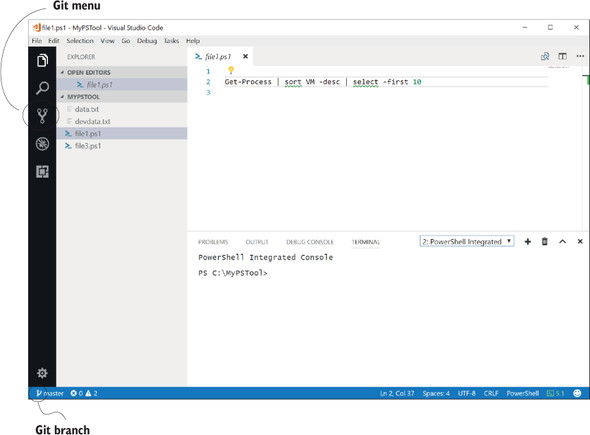
In VS Code, you can open an entire folder, which is handy when you’re developing a module. If the folder is a git repository, VS Code will detect that. Figure 19.1 shows our test folder open in VS Code.
VS Code detected the current branch. There’s also an icon to access git-related actions. We’ll make some changes to files in the repository in the editor.
When changes are detected, VS Code displays a number over the git icon, indicating the number of files. Click the icon to see the changes, as shown in figure 19.2.
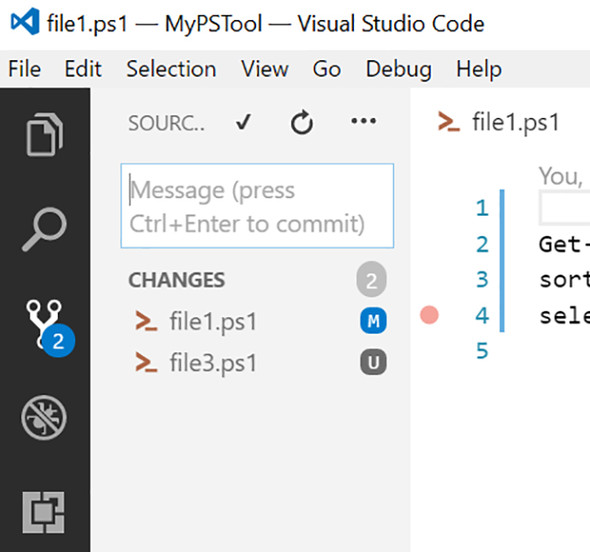
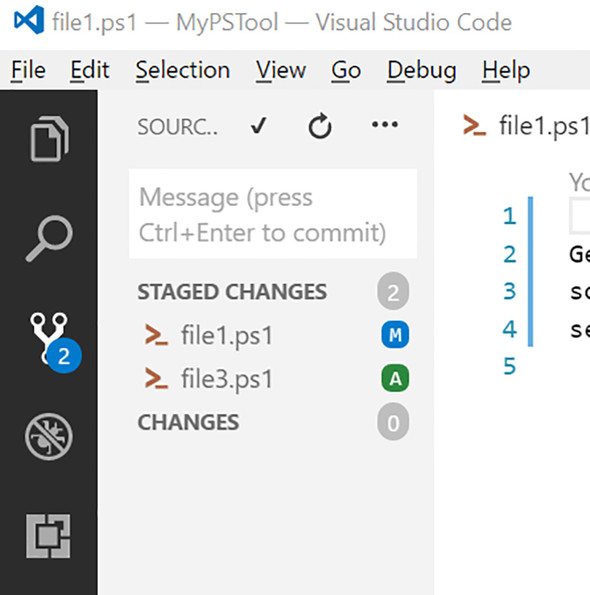
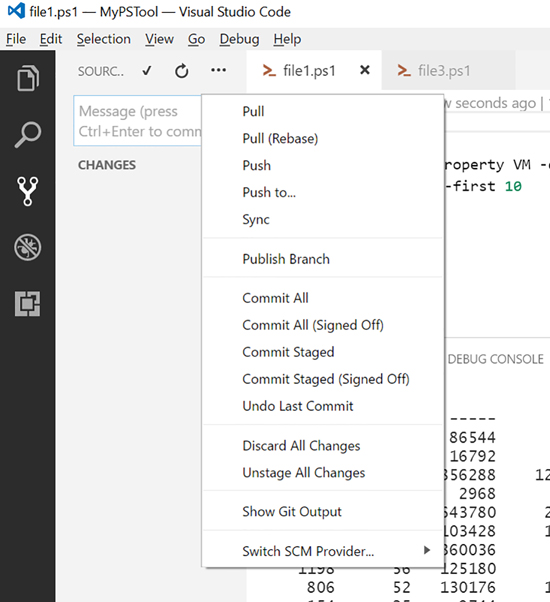
But you don’t have to use git from the command line. In VS Code, you can hover the mouse over a file and stage or discard changes on a per-file basis, or you can do the same for all files by hovering over changes. We staged all the changes, as shown in figure 19.3. All that remains is to commit the changes by typing a commit message in the box and clicking the checkmark icon. You can also use the ... popup menu to perform other git actions (see figure 19.4).
You can even check out or create other branches. Access the command palette by pressing the Ctrl-Shift-P shortcut. In the box, type git, and VS Code will auto-populate the drop-down list with available commands. Scroll down to the option to create a new branch, and enter a name for the branch. VS Code will create it and automatically check it out: You can tell because the lower-left corner will indicate the current branch. When you’re ready, click the branch name at lower left, and, in the command palette box, click the name of the branch you want to check out.
VS Code makes it easy to see changes, undo changes, and compare changes. We’ll let you explore the other git-related icons in the application.
But VS Code is primarily an editor, not a graphical git tool, so some operations require the command line. One example is merging. Yes, you can create a new branch, modify files, and commit them. But there’s no way to merge branches in the version of VS Code that’s available as we’re working on this book. Fortunately, you can use the integrated terminal to run git commands (see figure 19.5).