concept zombie in category python

This is an excerpt from Manning's book Hello App Inventor!: Android programming for kids and the rest of us.
As we’ve explained in previous chapters, Android devices can do many things. But when learning to program, one of the first things young people usually want to do is create a game, and this often involves animation. Have you ever used or made a flip book—you know, the ones with a stick person walking along the bottom of the page or slam-dunking a basketball? When you see something moving smoothly across a screen, whether it’s a cartoon or a game, what you’re really seeing is a sequence of quickly changing pictures, like in a flip book. Imagine animating a walking zombie. Its position needs to change, which can be achieved by adjusting the zombie’s speed, the direction it’s heading in, and how often it moves (heading and interval properties) in the App Inventor Designer or by letting the user interact with the zombie by clicking buttons, dragging the sprite, tipping the phone, and so on. But if you don’t change the position of the zombie’s legs, it appears to be frozen or floating. To do this in App Inventor, you use a clock timer and lists of images that change each time the zombie moves, giving the appearance of walking rather than floating.
Using a vector drawing package means it’s easy to resize the image so it fits the phone’s screen. You can use the built-in fill effects to color the image; and because the parts are traced separately, when an eye or nose falls off, you won’t see a gaping hole. We used the drawing package to draw a mud bank for the zombie to stand on—this also provided an easy (and slightly sneaky) way to solve problem 5.
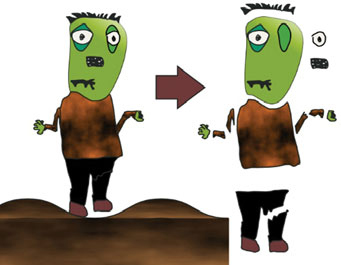
In the end, we split the zombie into 12 different parts plus the mud bank. You can download them as separate images from the website.
Now you need to put the zombie back together again in the app. This is exactly like putting a jigsaw puzzle together, and frankly it’s a little tedious—but trust us, it’ll all be worthwhile when you wake up to a moaning zombie. First you need to create 13 sprites on a canvas and then upload the 12 zombie parts and the mud bank as their image properties. Then you need to get all 13 sprites in just the right place onscreen—it’s handy to use a phone for live testing here, because it’s annoying to have the app look great on your PC only to find out it looks terrible on your phone. Our top tip when you’re doing this is that any sprite you move will come to the foreground—so you need to work from the back to the front (do the head first, then the hair, eye, and nose). If you don’t do this, you’ll end up with an even weirder-looking zombie—for example, with a nose that is behind its face.
Once the zombie was back together in the app and standing on the mud bank, we set the background color of the canvas to dark grey to add a suitably gloomy atmosphere. You could try adding a spooky background image to the canvas—say, a scary castle, a swamp, or (worst of all) a shopping mall. Here you can see how we re-composed the jigsaw zombie: