concept screen in category raspberry pi
appears as: screen, screens, The screen, screen
This is an excerpt from Manning's book Hello Raspberry Pi!: Python programming for kids and other beginners.
Figure 1.6 shows the location of the SD memory card slot. This thin, metal slot is on the underside of the Raspberry Pi. For your Pi to work when you plug it in, it must have some initial knowledge to start up and display something on the screen. In addition to this startup information, it must also have a place to store any new information.
Get messages to display on the screen

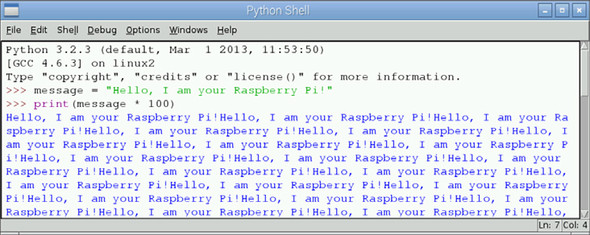
This prints the message on the screen once. You can use the multiplication operator with a string to print it many times:
>>> print(message * 100)The message cascades across and down the screen 100 times (see figure 2.11).