concept animation in category react native
This is an excerpt from Manning's book React Native in Action.
This chapter expands on those topics. Transformations give you the power to manipulate components in two or three dimensions. You can translate components from one position to another, rotate components, scale components to different sizes, and skew components. Transforms are useful in their own right, but they will play a much bigger role in chapter 7, which discusses animation in detail.
Listing 7.2 Animating a TextInput to expand when the input is focused
import React, { Component } from 'react';
import {
  StyleSheet,
  View,
  Animated,
  Button,
  TextInput,
  Text,
} from 'react-native';

export default class RNAnimations extends Component {
  animatedWidth = new Animated.Value(200);    #1
  animate = (value) => {    #2
    Animated.timing(
      this.animatedWidth,
      {
        toValue: value,
        duration: 750,
      }
    ).start()
  }
  render() {
    return (
      <View style={styles.container}>
        <Animated.View style={{ width: this.animatedWidth }}>    #3
          <TextInput    #4
            style={[styles.input]}
            onBlur={() => this.animate(200)}
            onFocus={() => this.animate(325)}
            ref={input => this.input = input}
          />
        </Animated.View>
        <Button
          title='Submit'
          onPress={() => this.input.blur()}
        />
      </View>
    );
  }
}

const styles = StyleSheet.create({
  container: {
    flex: 1,
    padding: 10,
    paddingTop: 50,
  },
  input: {
    height: 50,
    marginHorizontal: 15,
    backgroundColor: '#ededed',
    marginTop: 10,
    paddingHorizontal: 9,
  },
});

#1   Creates an initial value for the animation, calling it animatedWidth
#2   Creates an animate function that will animate the animated value of animatedWidth
#3   Attach the animatedWidth value to the style of the container View holding the Input component.
#4   Attach the animate method to the onBlur and onFocus handlers, passing in the desired width for when each event is fired.
Sometimes you need to create multiple animations at once and have them run simultaneously. The Animated library has a class method called
parallelyou can use to do this.parallelstarts an array of animations at the same time.Figure 7.4 Welcome screen using parallel animations (shown after the animations are complete)
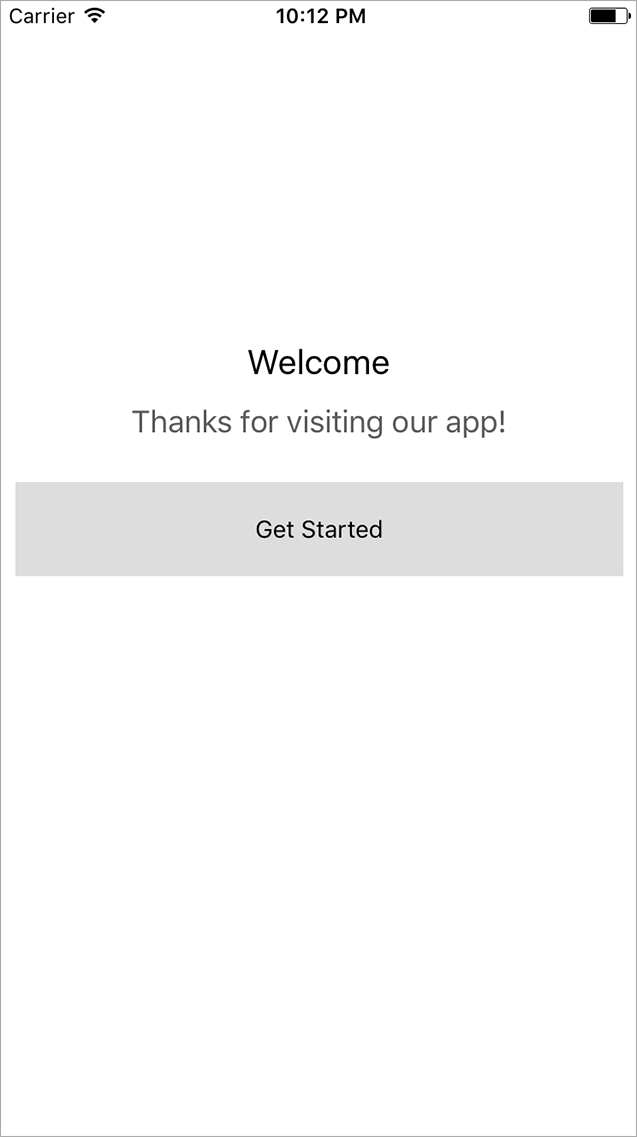
For example, to make a welcome screen with two messages and a button all appear to move into the screen at once, you could create three separate animations and call
.start()on each of them. But a more efficient way would be to use theAnimated.parallelfunction and pass in the array of animations to run at the same time.In this example, you’ll create a welcome screen that animates in two messages and a button when the component mounts (see figure 7.4). Because you’re using
Animated.parallel, all three animations will begin at exactly the same time. You’ll add adelayproperty to the configuration to control the start time of two of the animations.