concept DrawerLayoutAndroid in category react native

This is an excerpt from Manning's book React Native in Action.
To get started, you’ll first create a slide-out menu (see figure 11.1). This menu will link to each of the app’s pieces of functionality. It will basically serve as a way to navigate between components. You’ll create this menu using the
DrawerLayoutAndroidcomponent.Figure 11.1 Initial layout of the application using
DrawerLayoutAndroid. The button at the top in the first screen, Open Drawer, will call a method that opens the drawer. The second screen is the opened drawer.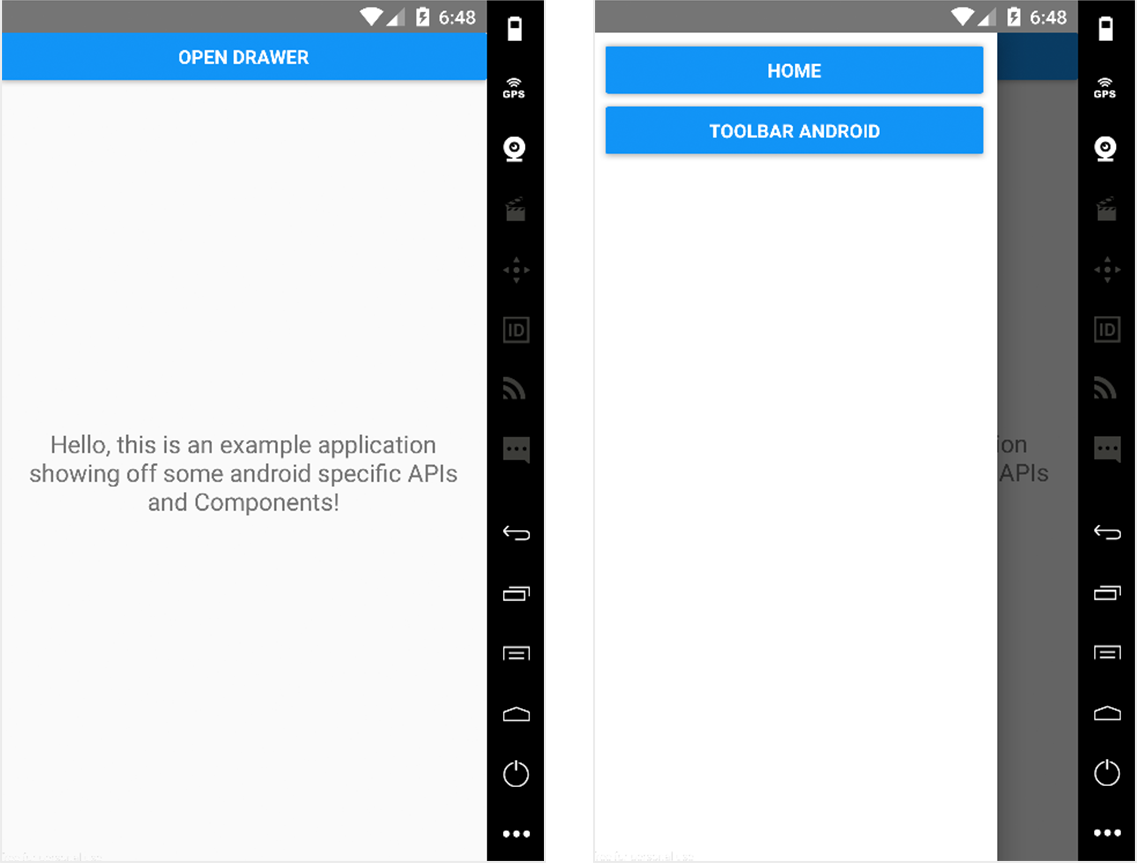
Now you need to update index.android.js to use your first Android-specific component,
DrawerLayoutAndroid, which is a sliding toolbar from the left side of the screen. Edit index.android.js to include and implement this component.Listing 11.1 Implementing the
DrawerLayoutAndroidcomponentimport React from 'react' import { AppRegistry, DrawerLayoutAndroid, #1 Button, View } from 'react-native' import Menu from './app/Menu' #2 import App from './app/App' #3 class mycomponent extends React.Component { constructor () { super() this.state = { scene: 'Home' #4 } this.jump = this.jump.bind(this) this.openDrawer = this.openDrawer.bind(this) } openDrawer () { this.drawer.openDrawer() #5 } jump (scene) { #6 this.setState({ #6 scene #6 }) #6 this.drawer.closeDrawer() #6 } render () { return ( <DrawerLayoutAndroid #7 ref={drawer => this.drawer = drawer} #8 drawerWidth={300} #9 drawerPosition={DrawerLayoutAndroid.positions.Left} #10 renderNavigationView={() => <Menu onPress={this.jump} />}> #11 <View style={{ margin: 15 }}> #12 <Button onPress={() => this.openDrawer()} title='Open Drawer' /> </View> <App #13 openDrawer={this.openDrawer} jump={this.jump} scene={this.state.scene} /> </DrawerLayoutAndroid> ) } } AppRegistry.registerComponent('mycomponent', () => mycomponent) #1 Imports DrawerLayoutAndroid from React Native #2 Imports the Menu component (not yet created) #3 Imports the App component (not yet created) #4 Creates a component state setting scene to ‘Home’ #5 Creates a method to open the Drawer #6 Creates a method to update the scene state, and then calls closeDrawer() #7 Implements the DrawerLayoutAndroid component #8 Creates a reference to the drawer to call methods on the component #9 Gives the drawer a width of 300 #10 Positions the drawer to the left #11 Renders the navigation view, which is the Menu component #12 Attaches the jump method to the menu and creates a button that will be used to open the drawer #13 Also passes in the App component as a child, giving the openDrawer, jump, and scene as props