concept element in category react native
This is an excerpt from Manning's book React Native in Action.
The first thing to do is to mentally break the UI elements into what they represent. The example mockup has a header bar, and within the header bar are a title and a menu button. Below the header is a tab bar, and within the tab bar are three individual tabs. Go through the rest of the mockup and think of what the other items are. These items you’re identifying will be translated into components. This is the way you should think about composing a UI when working with React Native: break down common elements in the UI into reusable components, and define their interface accordingly. When you need an element in the future, it will be available for reuse.
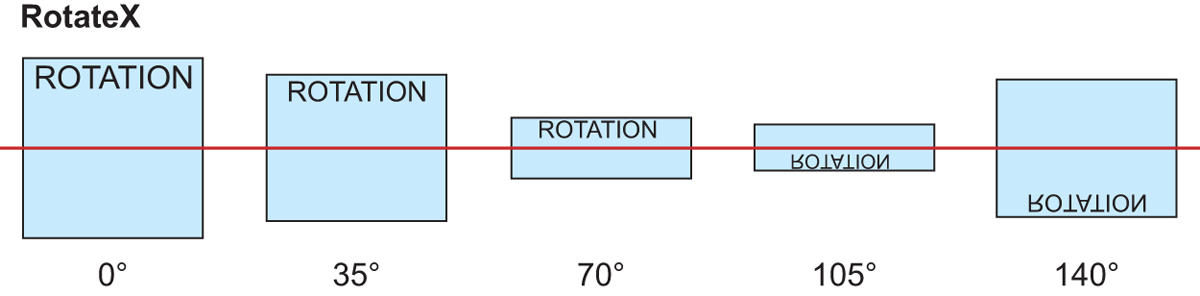
Figure 5.7 Rotating a 100 × 100 square about the x-axis in increments of 35°. After 90°, the “ROTATION” label can be seen through the element, upside down.
5.2.4 Setting visibility when rotating an element more than 90°
If you look back at figures 5.7 and 5.8, when you rotate the square about the x- or y-axis and go beyond the 90° point, you can still see the text that was on the front face of the square. The
backfaceVisibilityproperty dictates whether an element is visible when the element is rotated more than 90°.This property can be set to either'visible'or'hidden'. This property isn’t a transform, but it gives you the ability to hide or show elements when viewing the back face of an object.The
backfaceVisibilityproperty defaults to'visible', but if you changedbackfaceVisibilityto'hidden', you wouldn’t see the element at all once the component rotated more than 90° in either the x or y direction. In figures 5.7 and 5.8, the squares corresponding to the 105° and 140° rotations would disappear. If that sounds confusing, look at figure 5.12.