concept connection in category sharePoint

This is an excerpt from Manning's book SharePoint 2010 Web Parts in Action.
The main reason for using this Web Part implementation is that it has some exclusive features when working with Web Part connections, features that the ASP.NET Web Part doesn’t provide. The SharePoint Web Part can be connected to other Web Parts that either reside on other pages within the site or that don’t exist in any zone (in other words, static Web Parts). The ASP.NET Web Part only accepts connections between Web Parts placed in zones and on the same page. The SharePoint Web Part can also handle client-side connections using the Web Part Page Services Component (WPSC). This is no longer such a big deal because the new SharePoint 2010 Client Object Model, in combination with JavaScript, can be used to create a similar experience. Another reason for using the SharePoint Web Part is that it has a built-in feature for caching content.
By selecting a connection type and then the target Web Part, you’ll connect your Web Parts. Depending on the type of the connection, an optional pop-up window will ask you to provide the connection with further details, such as which parameter or property to retrieve or send values to. You’ll see this in action a bit later in the chapter. Once the connection is established, a check mark appears beside the current connection. Depending on the implementation of the Web Parts, there might be multiple connections.
To disconnect Web Parts from one another, you use the same procedure. Select the current connection (the one with the check mark). If the connection is configurable, the pop-up window will allow you to change the settings, or you can choose to remove the connection. If you can’t configure the connection, you’ll simply see a dialog box asking you to confirm the disconnect.
The first technique you’ll explore is creating a custom connection defined by a custom interface. You use this type of connection when you don’t need to connect your Web Parts with Web Parts from SharePoint or third-party applications. To create a custom connection, you need to
First, a local property called _provider is defined and used to store a reference to the connection interface. The instance of that connection interface is set in the GetFeed-Connection method, which is the connection consumer endpoint. The attribute has two parameters; the first one is the display name for the connection and the second one an ID for the connection. The ID is optional at this point, but it’s required if the Web Part will have more than one connection consumer endpoint (and you’ll soon add more). Finally, you add an internal method that checks whether the Web Part is connected. This method will be used to ensure that the Web Part doesn’t use the connection if it’s not set.
If you deployed this project now, the provider and consumer can be connected, but because you haven’t as yet added any code in the RSS Web Part that uses the connection, you won’t see any results of the connection. To use the connection interface, you have to consider the order of events in a Web Part (see chapter 4). Figure 14.7 shows a part of the event flow of the Web Part when connections are involved.
Figure 14.7. The Web Part Manager connects Web Parts during a page load (HTTP GET) immediately after the OnLoad event and before the CreateChildControls event.
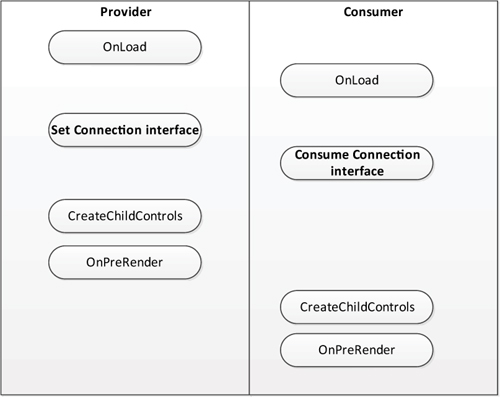
During an HTTP GET request, the provider connection method is called after the OnLoad events of both the consumer and provider. Directly after retrieving the provider connection, the connection consumer method is called to establish the connection. Once the connection is established, the CreateChildControls method is invoked.
<WebPartPages:SPProxyWebPartManager
    runat="server"
    id="ProxyWebPartManager">
    <SPWebPartConnections>
        <WebPartPages:SPWebPartConnection
            ID="connection"
            ConsumerConnectionPointID="feed"
            ConsumerID="RSSWP"
            ProviderConnectionPointID=""
            ProviderID="FIWP">
        </WebPartPages:SPWebPartConnection>
    </SPWebPartConnections>
</WebPartPages:SPProxyWebPartManager>