concept customer in category sharePoint

This is an excerpt from Manning's book SharePoint 2007: Developer’s Guide to Business Data Catalog.
Among the data sources you define within the BDC, some will have relationships. For example, a customer can have many orders. By using the Data List Web Part and the Related List Web Part together, you can easily display this related data and enable your users to select a customer to display the relevant orders. All of these relationships need to be defined within the BDC. We’ll cover that shortly.
So let’s suppose for a moment that you’re using Microsoft Dynamics CRM for your customer relationship management, but you store customer proposals in a document library within SharePoint. Without the Business Data field type, you could prompt users of the Customers table to associate their documents with a customer, but either the users would need to type the company name, or you’d need to create a choice field or lookup for them to select from. If the data is already in the CRM database, the Business Data field type could look up those columns for you. Why is this so useful? It means we can filter, sort, and group our documents reliably by customer name or customer ID, or in fact any field from the Customers table that we decide to display within the document library. The information is stored as metadata within the document library, but can be refreshed should the back-end data change. For example, if a customer changes its name and we’ve modified the record in the back-end database, we could refresh the Company Name column in SharePoint to pick up the change automatically.
While in the view, the business data can be used for filtering, sorting, and categorizing. You can click the drop-down on the column header just like you can in any other column. This gives you the opportunity to categorize your documents by customer, or by contact name, for example. Filtering on these columns makes finding the documents you’re looking for quick and easy.
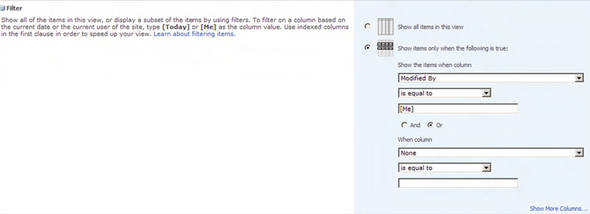
Another useful view change you could make is to create a view so that each sales representative can only see her own customers’ documents. This can be done easily using the view filtering capabilities and the [Me] keyword, as shown in figure 5.8. As each person logs on to SharePoint and displays this view, she’ll see all of the documents for customers that the logged-on user manages.
Figure 5.8. The view properties allow you to filter on business data. In this example, the [Me] keyword is used to show only your accounts as a sales representative.
The Business Data column can also serve within your custom workflows. Using the SharePoint Designer workflows, you may want to email a customer, informing her that her shipment has been sent. The creation of a shipment document in a document library could be the trigger for the workflow, which in turn picks up the business data to populate the email and to be used in the conditions of the workflow. Figure 5.9 displays the Business Data column being used in a SharePoint Designer workflow condition.