concept library in category sharePoint
This is an excerpt from Manning's book SharePoint 2010 Site Owner's Manual: Flexible Collaboration without Programming.
To give you a bit of background about what’s going on, the text is the only thing stored directly on this page. You have the capability to create many pages for each site, and each page has a shared set of libraries and lists that you can access to render data via web parts on the page. For example, the Hello World Example Doc is pulling from a library on that site and is being displayed via a web part. This web part can be modified to filter out certain documents by the properties. I could filter it to show only documents that have been modified or created within the past seven days. To access additional site functionality, you can select the Site Actions menu shown in the upper-left corner of your screen. In the next section we’ll cover some key links on the Site Actions menu.
Figure 3.1 displays four web parts. These are web parts with views into the following types of libraries or lists: a calendar, a document library, a links list, and a task list. Each header of the web part gives you an idea of what that web part is filtered to show you. For example, the task list header reads My Tasks. If you were to select My Tasks, it would take you to all the tasks assigned to all users of this site. The view displayed in this web part has been configured to show the user only the tasks assigned to them that have not been completed. That is an example of how you’d use a web part to show snippets of data held within a list.

A variety of templates are provided for lists within SharePoint Foundation and SharePoint Server. A breakdown of all the lists and libraries associated with SharePoint Foundation and SharePoint Server will be covered in appendix A, so for this section I’ll focus on introducing you to some of the more popular list templates that are available. It’s important to understand these because they’re the functionality that makes up sites and site templates. Each is powerful and can be configured many different ways to meet the site owner’s specific needs. The templates we’ll go over are the Document Library, Picture Library, Asset Library, Announcements, Contacts, Links, Calendar, Tasks, Discussion Board, and Survey templates.
Let’s start by going through some of the core features that are included in all lists and libraries regardless of what template you’re using.
Each list and library is formatted to meet a specific functionality. In the next section I’ll provide a screen shot of the lists and libraries we’re discussing and a brief explanation of some of the functionality specific to that item. List and libraries, likes sites, can be saved as templates. You can take a list or library and save all of your customizations for reuse on other sites.
This is an excerpt from Manning's book SharePoint 2010 Workflows in Action.
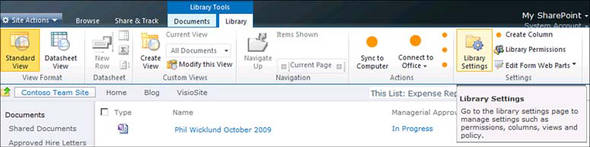
In Library Settings, there’s a Workflow Settings link under the Permissions and Management heading. On the Workflow Settings page (figure 1.3), you can add a workflow to a library. Select Add a workflow and choose the one you want. It’s that easy!
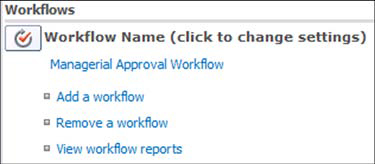
After adding the workflow to the library and initiating the workflow process, a new column (figure 1.4) will display in the document on which the workflow process is running.
Initiation forms gather information directly before the workflow starts. With association and modification forms, users enter information into the workflow. The difference between the two is that an association form is presented to users when the workflow is added to the list, library, or site, and modification forms are presented to users during the workflow’s execution.
This is an excerpt from Manning's book SharePoint 2007: Developer’s Guide to Business Data Catalog.
So we have a number of great web parts with which to display our business data, but that’s not all. We’re just getting started here! The Business Data column is useful throughout SharePoint lists and libraries when looking up data from your line-of-business system.
Throughout this book so far, we’ve discussed the issue of having islands of data within an organization. The Business Data column within MOSS Enterprise resolves another part of that puzzle when bringing those islands of data back together. Organizations have invested large sums of money in applications such as Microsoft Dynamics GP, CRM, and NAV. Those applications store information in back-end databases such as Customers, Employees, Orders, and Product Information. This data is all stored in tables. What about the documents associated with that data, though? We may send letters, proposals, and invoices to our customers; send purchase orders to our suppliers; and store résumés against our employees. We’re also trying to educate our users to store such documents in SharePoint document libraries. So the fact that the Business Data field type allows us to associate documents that are stored in document libraries with records in our databases should be another advantage to storing documents in SharePoint document libraries and not in the file system. This isn’t limited to just document libraries, either. You can use the Business Data column in all lists and libraries, thereby allowing documents, InfoPath forms, pictures, announcements, contacts, and so on all to be associated with a unique record in the line-of-business system.