concept process in category sharePoint

This is an excerpt from Manning's book SharePoint 2010 Web Parts in Action.
Our example using the out-of-the-box Web Part that you just connected illustrates just one way to create an application using Web Parts. In many cases you configure the Web Parts for your users using the Web Part’s properties, and sometimes you allow users to configure the Web Parts themselves. Web Parts and Web Part pages have two major views: Shared and Personal. These views are also often referred to as customized or personalized views. The Shared view is the default view of a page and its Web Parts, managed by the page editor. All users will see the Shared view until they decide to make changes to the page. To do so, they’ll create a Personal View of the page, in a process known as personalization.
Logging is most often used when your solutions are deployed to look at the application’s behavioral history, even though the ULSViewer tool allows you to see the logging as it happens. To see your custom application in real time and step through the code to find the failing parts, debugging is extremely useful. Debugging is the most common way to find what’s wrong with your code. Using the excellent debugging facilities in Visual Studio 2010, you can easily set a breakpoint in your code and run your application. When the breakpoint is reached, the execution is interrupted and you can step forward or inspect the values of objects and even change them. To debug a Web Part or any other piece of code, attach Visual Studio to a process on the server so that it can catch the debugging events. SharePoint normally uses the ASP.NET worker process to run the code. But sandboxed solutions are executed in their own process, and Feature receivers run in the SharePoint timer job process, which means that you might have to attach the debugger to other processes than Visual Studio by default attaches to.
Another way to start debugging is to attach to the processes manually. Use this approach if you’d like to debug an already running session. The SharePoint web application processes run in the standard ASP.NET worker w3wp.exe processes. To attach to a process using Visual Studio, select Debug > Attach To Process. Be sure that the Show Processes From All Users and Show Processes In All Sessions options are checked. Then select the w3wp.exe process to attach to and click Attach. There might be several w3wp.exe processes, and you can safely attach to all of them. Or you can use the IIS management console to find the process id of the application pool and then select the correct process.
This is an excerpt from Manning's book SharePoint 2010 Workflows in Action.
Business processes surround us and affect the typical employee daily. Whether you like it or not, the company you work for depends heavily on processes to get things done and be profitable. Someone who makes burgers at a fast food outlet, for example, has to follow a specific process that will transform raw materials into a finished burger.
Workflows are systems that manage the execution of a business process. They solve many of the most troubling problems that workers face. The burger outlet process is simple, but there’s no doubt that large companies have complicated business processes, and it can be difficult to determine how far a process has progressed and what is delaying it.
Consider how often business processes are hindered because of poor communication. Does your business process live or die entirely by email? Email has become the default communication method for everything from conversations and decisions to tasks and documents. Consider a process that runs when a new person is hired into your company. That employee needs a new account, email, badge, phone number, benefits, direct deposit, and contract. In many cases, getting all that accomplished involves many people who communicate through email. Inevitably, things get lost. Email works for small companies, but what happens if you onboard 50 people per day? You need a system that will manage all of these activities; otherwise, you’ll have confusion and inefficiencies. You need a workflow.
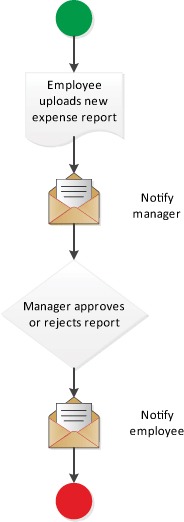
After you have your diagram built out, you can import it into SharePoint Designer and publish it to SharePoint. Another great new feature is the ability to use this diagram as a status indicator of the workflow. After the workflow starts, the diagram will show where in the process the workflow is currently executing.
1. Add a Send an email action to the right of the Start terminator. This action will be used to send an email to the requestor, notifying them that the process is in progress.