concept resource in category sharePoint

This is an excerpt from Manning's book SharePoint 2010 Site Owner's Manual: Flexible Collaboration without Programming.
Table 3.2. SharePoint Foundation site templates
Template
Description
Team Site Team sites enable groups of end users to easily collaborate by sharing documents, tasks, events, and announcements and creating discussions. Blank Site A blank site has nothing configured on it, so you truly have a clean slate to begin creating your site. Document Workspace A document workspace is similar to a team site, but it limits the capabilities to focus on enabling end users to collaborate on the completion of a document by means of a document library, tasks, and a list of links associated with the documents. Blog Site A blog site allows contributors to post ideas and let the end users comment on those ideas. Group Work Site The group work site is a groupware option to allow end users to organize and circulate resources. Basic Meeting Workspace A basic meeting workspace helps end users organize meetings. Blank Meeting Workspace The blank meeting workspace is configured to provide a clean slate on which to begin creating your site. Decision Meeting Workspace The decision meeting workspace helps you to manage and track items and decisions made in a meeting. Social Meeting Workspace The social meeting workspace helps you organize and share pictures associated with a social event. Multipage Meeting Workspace The multipage meeting workspace helps you to manage a meeting and provides tabs so you can create many pages to capture action items, tasks, agendas, and the like.
You are a resource manager for Durante Inc. You’re responsible for tracking employees, employees’ resumes, and the proposals they’re associated with. You’re often asked to provide information on the employees associated with a proposal. Currently this is a time-consuming task for you because you have the data dispersed and unassociated. The proposal team keeps the proposals on a file share. You manage the resumes by having the employees keep them up to date and send them via email to you if there are changes. You then store them in a folder in Outlook. When you are requested to provide their resumes for a proposal, you go the proposal file share, look up the resources listed, and then locate their resumes in your resumes folder in Outlook. You compile the data and send it to the requester. You’re certain there’s an easier and more efficient way to handle this data.

This is an excerpt from Manning's book SharePoint 2010 Web Parts in Action.
SharePoint 2010 needs a lot of resources, such as RAM and CPU. If you don’t have a powerful machine, the deployment and debugger attachment process can take a while. You have a couple of options to speed up this process. First, you can run your solution without attaching the debugger by pressing Ctrl-F5. A second option is to manually start Internet Explorer and use the Deploy Solution command to test your solution. If you need to debug your session after using one of these methods, you can always attach the Visual Studio debugger to the IIS Worker Process manually.
The two previous methods add files to the file system and these files are accessible from any site collection on any web application in the farm. There are situations when you don’t want the resources to reside in the file system or be accessible from anywhere except when called from your Web Part. Then you should use the standard ASP.NET technique to embed the resources within the assembly. This is done by embedding the files into the assembly file. These files are then retrieved from the assembly using the WebResource.axd handler. This assembly resource handler is called using a set of query string parameters that contain encrypted information about which assembly to retrieve the resource from and the name of the resource. The handler will then load the resource stream from the assembly and send it back to the client. You can’t use this method for sandboxed Web Parts; the handler doesn’t have access to the assembly existing in the sandbox, so it can’t access and load the resources.
To add embedded resources to a project, you add the item or add an existing item to the project, just as with the class resource items. The Deployment Type property of the resource should be set to NoDeployment and the Build Action property to Embedded Resource so that the compiler knows that it should embed the item into the assembly. To make this embedded resource available for the ASP.NET assembly resource handler, you have to add a WebResource assembly attribute. You add the assembly attribute to the AssemblyInfo.cs file; find the AssemblyInfo.cs file by expanding the Properties node of the project in the Solution Explorer. The attribute should look like this:
[assembly: System.Web.UI.WebResource(
"WebPartsInAction.Ch6.ImagesAndScripts.WebPartWithImage.Annotation3.png",
"image/png")]
The first parameter in the attribute represents the resource name. By default, it has the name of the project along with the project item and the filename of the resource. In this case, WebPartsInAction.Ch6.ImagesAndScripts is the project name, WebPartWithImage is the name of the Web Part, and Annotation3.png is the filename. The second parameter is the content type of the resource. Because this image is a PNG, the content type is set to image/png.
You can choose among several methods of including resource files into a Visual Studio solution and SharePoint project, but none of them covers all possible aspects. The resource files in a SharePoint solution package are deployed into different locations, and use of the resources depends on the location. Table 6.1 shows the various locations that you can use to deploy resource files.
Table 6.1. Resources can be included in a solution via numerous methods.
Location
Usage
{SharePoint Root}/Resources Resources in this location are accessible from all web applications and can be used by Web Parts, Features, and Web Parts control description files. {Feature}/Resources Resources in this location are only accessible and usable by the Feature. {wwwroot}/App_GlobalResources Resources in this location are accessible from only that web application and can be used in Web Parts and user control files. Satellite assemblies The default resources are embedded into the assembly and the other cultures have separate culture-specific assemblies.
The Web Parts control description file (.webpart) contains the default property values for a Web Part and should be localized. The procedure is the same here as when localizing Features, but you can only use resources stored in the {SharePoint Root}/Resources folder. This also means that you can’t localize the .webpart file for Sandboxed solutions. Figure 6.7 shows a Web Part that has been localized into French and has been installed in a site collection that has French as the default language.
Figure 6.7. The Web Part Gallery uses the default language settings of the site for the groups and Web Parts added to the site collection.
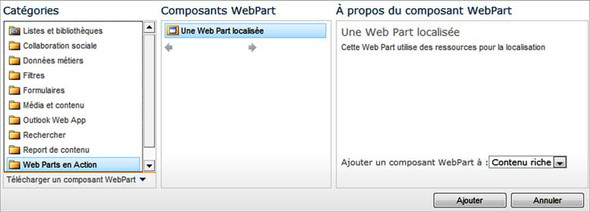
Just as with the group name in the element manifest, the resource used for the properties is the default language of the top-level site of the site collection when deployed. Remember to always have a fallback invariant culture resource file or set the Requires Resources property of the feature to true to avoid invalid translations. It’s especially important to localize the Title and Description property values, which appear in the Web Part Gallery.
To localize the property values in the Web Parts control description file, you add resources to a root resources file and then use resource expressions in the property elements. Listing 6.5 shows how a .webpart file can be localized.
Deploying resources to the Web Part resource storage Embedding resources in the assemblies Deploying resources into the SharePoint sites