concept event in category sonarqube

This is an excerpt from Manning's book SonarQube in Action.
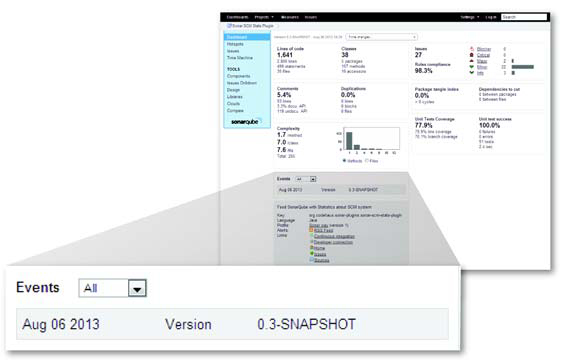
The two widgets in the bottom of the left column are also neutral. Second from the bottom, the events widget gives you a quick list of events recorded on the project, as shown in figure 1.5.
There are several types of events, one of which is a change to the project version string that you pass in to the analysis. That’s the lone event shown in figure 1.5. With the first project analysis, SonarQube recorded a version string “change,” from nothing to something.
Events are significant, at least in part because they flag an analysis snapshot for long-term retention. Every time an analysis is performed, a snapshot of the project state is taken. That could quickly add up to a lot of snapshots, bloating the database, but SonarQube’s rigorous housekeeping routines keep that from happening. Those routines are preconfigured to sane but tunable defaults. For more on that, see chapter 13.
Next we’ll explore how to manage your project history. We’ll explain basic terms such as snapshots, versions, and events, and we’ll present some cases when you need to manage them in SonarQube.
Before we start explaining some terms, let’s browse the project’s history. To do so, click the History link, found in the project’s Configuration drop-down menu. SonarQube has a clever, flexible mechanism to maintain historical information for a project. This information isn’t limited to previous analyses but is expanded to include versions and events.
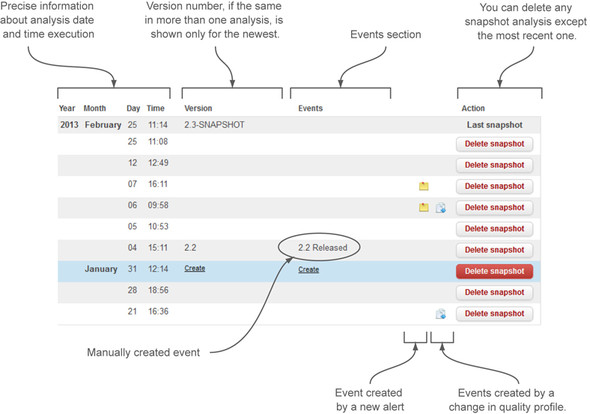
In figure 15.11, notice that all the details you could want about your project’s history are consolidated on just one page. Starting from the left column, you get precise information about the date and time of analysis execution. Year and Month column data are omitted if they’re the same as the previous analysis; this makes the table even more readable. Next, the Version column shows the sonar.projectVersion property provided in SonarQube Runner or in an Ant task. In Maven projects, it can be automatically retrieved by the pom.xml file (that is, the <project><version> property). Next is the Events section, which is composed of three columns: the first displays manually created events, and the other two indicate events created by alerts or quality profile changes. The last column provides a button to delete a snapshot analysis. Note also that SonarQube doesn’t let you delete the most recent snapshot analysis.
Before we move on, let’s elaborate on three terms we used in the previous paragraph: snapshot, event, and version. Table 15.3 explains them in detail.
Table 15.3. History terms
Term
Description
Comments
Snapshot Every time SonarQube runs a new project analysis, its results are stored in the database, and a new snapshot of the project is created. Snapshots aren’t forever. Recall what we discussed in chapter 14 about the database cleaning mechanism and how you can modify the default settings. Version The project’s version number is passed as parameter in SonarQube analysis. The latest snapshot of a version is always kept in the database, even if it breaks the database cleaner rules. Event Events either are noteworthy facts that occurred during project analysis or can be manually added. A snapshot may be associated with more than one event. Snapshots with events are never deleted automatically from the database, although someone with project administration rights can do that manually.