concept rule in category sonarqube

This is an excerpt from Manning's book SonarQube in Action.
SonarQube’s commercial competitors in the code-quality space offer some of those things too (depending on which one you’re looking at); but they seem to focus their definition of quality mainly on bugs and complexity, whereas SonarQube’s offerings span what its creators call the Seven Axes of Quality. We’ll cover them in more detail soon, but in brief, SonarQube addresses not just bugs but also coding rules, test coverage, duplications, API documentation, complexity, and architecture. Some of the other players in this space also hit unit-test coverage and API documentation, but no one else seems to address all Seven Axes.
Figure 13.2. You create a profile from scratch via a form that’s added inline on the page. Depending on the language, you may get the opportunity to seed your new profile with rules from some of the language’s available rules engines, uploaded in an engine-specific format.
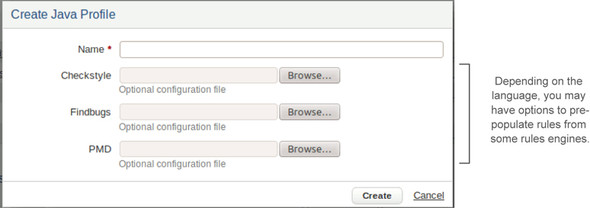
Depending on the language, the Create Java Profile form may include upload inputs for selected rules engines. The formats of the files you need to feed into these engines are rule-engine-specific. We’ll look later at how you can export the rules from an engine from one profile for import into a new one. When you submit the form, your new profile is added to the list.
Once you have your new profile, it’s time to begin editing. Click-through on the profile name to land at the Coding Rules tab of the profile editing interface; this is its list of rules. If you started from scratch, you’re looking at a blank list (remember, by default this page shows the profile’s active rules, and you haven’t added any yet) with the search form at the top. If you copied another rule set, then there are plenty of rules to look at here.
As we’ve said before, any user, even Anonymous, can get to the list of rules in a profile. But for administrators looking at a modifiable profile, the rules are presented in an editable search results format, as shown in figure 13.3.
Starting from the top, you now have an extra selection in the search interface: Inheritance. Among the rules, you now see not only the rules explicitly included in the profile, but also the ones inherited from the parent profile. Those inherited rules are denoted with a blue and white inheritance icon to the left of the rule name, and they can’t be removed from a child profile (the check box is greyed out), but you can still adjust their severities. If you do adjust the severity of an inherited rule, it’s reported inline with a different inheritance icon: this one is red and white to show that the rule is out of synch.
The third kind of change you might want to make is adding rules, but first you have to find them. As you scroll up and down the page, you’ll see that there are no unchecked (addable) rules available. Remember, that’s because by default, this page shows all the rules in the current profile, and only those rules. Finding the others is easy, though.
Scroll back up to the search interface at the top of the page, as shown in figure 13.5. To find the rules that aren’t currently in your profile, search by Status Inactive, and you should have plenty to choose from. Enabling rules in your profile is intuitive; just check the check box. But you may be wondering why, with over 500 rules currently in your profile (assuming you copied from the SonarQube way with FindBugs profile), you would want more.