concept user in category sonarqube

This is an excerpt from Manning's book SonarQube in Action.
Unless you worked for NASA, the answer was “Well, it compiles.” Or, “Um, it seems to work.” And then there’s the perennial favorite: “The users aren’t complaining.”
Sometimes that was enough. Until the users did start complaining. Or until we had to add new features. Which is when we realized just how “not right” we had done it.
When we looked at users, we skipped the interface to add groups to a user because you hadn’t created any groups yet. The interface to do so is much like that used to add users to a group, with a list of in groups on the right, the groups the user isn’t in on the left, and arrows in between to move items from one side to the other.
First, let’s see what having a user account gets you. The administrator isn’t the only person who can change a user’s password. When users log in to SonarQube, they have access to a brief menu of options tucked under their names in the top menu bar. What they see after picking the My Profile option is shown in figure 12.4.
Figure 12.4. Users can perform their own password changes and set their email preferences, as well as manage their own filters.
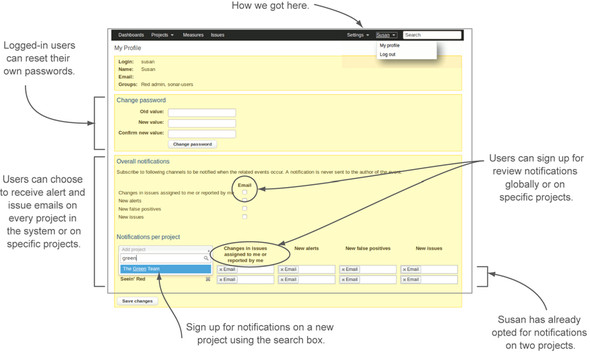
We’ll show you how to configure the global email settings in chapter 14; once you have that set up, users can also have SonarQube send them emails. They can choose to receive notification when “their” issues are edited, either throughout the system or on specific projects. They can also choose email notification for new issues, alerts, and false positives either globally or on specific projects.
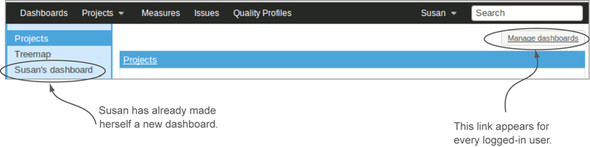
The final thing users can do for themselves is set up their own filters—so they can pick and choose the projects they see in a list based on a number of different criteria—and dashboards. (We’ll cover filter administration in chapter 14 and dashboard administration in chapters 14 and 15.) Once you’re comfortable with filter and dashboard administration, it will be in your best interest as a harried administrator to teach your users how to take advantage of these capabilities (because every filter and dashboard they make for themselves is one you don’t have to make for them). You administer filters in the Configuration area of the interface. Dashboard administration is available from the Manage Dashboards link that appears for a logged-in user at upper right on each dashboard, as shown in figure 12.5.
Figure 12.5. Users can make their own private dashboards with whatever filters and widgets they like. New dashboards appear in the left navigation rail just like any other dashboard. Users can control the order in which dashboards appear.
There’s one more thing to mention before we leave users. The Admin account is just another user. In addition to all the administrative functions available to someone logged in with those credentials, she also sees at the top of the navigation list the same basic user options that any other user sees. And she has the same interface for changing the Admin account’s password and setting its email preferences.