concept container in category system administration

This is an excerpt from Manning's book Securing DevOps.
Our CircleCI configuration shows several commands that call Docker to build a container for the application, such as
docker buildanddocker push. In this section, I first explain why Docker is an important component of DevOps, and then we’ll take a close look at how the container is built.Containers, and Docker containers in particular, are popular because they help solve the complex problem of managing code dependencies. Applications usually rely on external libraries and packages to avoid reimplementing common code. On systems, operators prefer to share these libraries and packages for ease of maintenance. If an issue is found in one library used by 10 applications, only that one library is updated, and all applications automatically benefit from the update.
Issues arise when various applications require different versions of the same library. For example, a package wanting to use OpenSSL 1.2 on a system that uses OpenSSL 0.9 by default won’t work. Should the base system have all versions of OpenSSL installed? Are they going to conflict? The answer is rarely simple, and these issues have caused many headaches for operators and developers. This problem has several solutions, all of which are based on the idea that applications should manage their dependencies in isolation. Containers provide a packaging mechanism to implement this kind of isolation.
2.5.6 Deploying the container onto your systems
The Docker container of the invoicer is hosted on hub.docker.com (step 5 of figure 2.1). You need to tell EB the location of the container so it can pull it down from Docker Hub and deploy it to the EC2 instance. The following JSON file will handle that declaration.
Listing 2.20 EB configuration indicates the location of the container
{
  "AWSEBDockerrunVersion": "1",
 "Image": {    #1
 "Name": "docker.io/securingdevops/invoicer",    #1
 "Update": "true"    #1
  },
  "Ports": [
 {    #2
 "ContainerPort": "8080"    #2
 }    #2
  ],
  "Logging": "/var/log/nginx"
}

#1   Location of the invoicer container on Docker Hub
#2   Listening port of the application

This is an excerpt from Manning's book Azure in Action.
In your storage account, you create a set of containers (similar to folders) that you can store your binary files in. In the initial version of the BLOB storage service, containers can either be restricted to private access (you must use an authentication key to access the files held in this container) or to public access (anyone on the internet can access the file, without using an authentication key).
Before we get all technical about accounts, containers, and BLOBs, keep this in mind: an account is simply your account. Dave has an account, Jim has an account, and you have an account. An account is about ownership. A container is somewhere you can store your BLOBs. Containers are about access control (public or private access) and some level of organization.
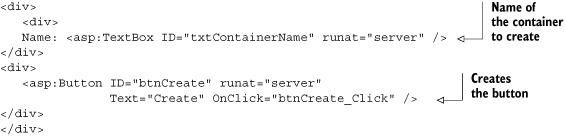
At this stage, you only want to write the code that will create your container; you don’t need to see the list of containers. At present, your UI needs to display only the new container name text box and the Create Container button.