concept distribution point group in category system administration

This is an excerpt from Manning's book Learn System Center Configuration Manager in a Month of Lunches: Covers SCCM 1511 and Windows 10.
Table 9.1. Details of the Content Status dashboard
What it means
Software The name of the software package in the ConfigMgr database. Packages of different types can have the same name, but packages of the same type can’t. Type The type of package—for example, boot image, package, or application. Targeted The number of targets to which the software has been deployed. A target can be a distribution point, a distribution point group, or a collection. If the value is 0, the package hasn’t been distributed to any targets. Size (MB) The size of the package in MB. Compliance % The number of targets to which the package has been successfully deployed. Useful for determining distribution errors. If the target value is 0, the compliance value will be blank. Date Created The date on which the package was created. Package ID A unique identifier for the package that’s stored in the ConfigMgr database. The package ID consists of the three-character site code (for example, PS1) followed by a five-character hexadecimal number. Source Version The version of the source software. For example, when an application or package is first created, it has a version value of 1. If the source is updated in any way (for example, new files are added or the properties in ConfigMgr are changed), the version is incremented by 1.
ConfigMgr caters to this by enabling you to group DPs together into distribution point groups. Similar to security groups in Active Directory, content that’s deployed to a distribution point group is automatically distributed to all members of the group, and if any DPs are subsequently added to the group (for example, a new DP is provisioned), it will automatically receive all the content assigned to that group.
4. Click “OK.” You now have a distribution point group, with the local DP as a member.
To create the distribution point group in PowerShell, run the following:
New-CMDistributionPointGroup `
-Name 'MoL Lab DPs' `
-Description 'All DPs in the MoL ConfigMgr Lab'
Add-CMDistributionPointToGroup `
-DistributionPointName 'CM01.mol.sccmlab.net' `
-DistributionPointGroupName 'MoL Lab DPs'
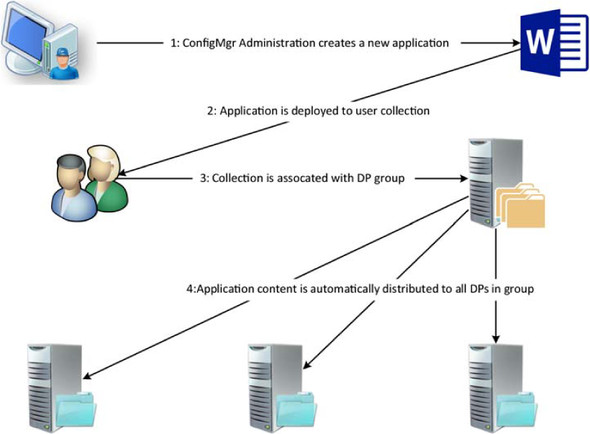
You can also associate a collection with a distribution point group. Why would you want to do this? Let’s say you create a new application that’s going to be deployed to a specific user collection. By deploying the application content to the user collection, the collection association with the distribution point group will then automatically distribute the content to all DPs in the group, as shown in figure 9.8.
To associate a collection with a distribution point group (although this bit isn’t needed for your lab environment), do the following: