An automation rule is a Microsoft Sentinel configuration for centrally managing response and remediation activities. It runs when a selected event occurs and matching conditions are met, then performs defined actions. Use rules to reduce time to resolve incidents by consistently assigning ownership, updating incident state, adding investigation tasks, or starting a playbook. section 8.8 section 8.13
Automation rules are part of Sentinel’s security orchestration, automation, and response capabilities. They coordinate actions across the organization, while a playbook supplies the customizable remediation workflow through Azure Logic Apps. This distinction matters: the rule decides when automation applies; the playbook carries out a defined workflow when invoked. section 8.7 section 8.8
Build an automation rule from three elements:
- Trigger: choose the event that starts evaluation. Available triggers are incident created, incident updated, and alert created. section 8.8.1
- Conditions: narrow execution by trigger event, rule state, incident or entity property values, or the analytics rule that generated an incident or alert. section 8.8.1
- Actions: perform the response work, such as run a playbook, add an incident task, or change incident severity. section 8.8.1
Configure a rule in the Sentinel Automation experience by creating a named rule, selecting a trigger, defining any analytics-rule or incident criteria, and selecting actions. Set an expiration date when automation is needed only for a limited period, such as a penetration-testing exercise. Also set rule order deliberately: later rules evaluate an incident after earlier rules may have changed it. For example, a rule that only accepts medium-severity incidents will not run after an earlier rule changes the same incident to high severity. section 8.8.2 section 8.8.2
Block a user after repeated failed sign-ins
A scheduled rule creates an incident after 10 failed login attempts within 5 minutes. Create an automation rule triggered when the incident is created, restrict it to that analytics rule, and use Run Playbook to select a playbook that blocks the user in Microsoft Entra ID. The same pattern can invoke other response workflows, such as sending email for a Defender for Cloud security alert. section 8.8.2 section 8.8.2
Use automation rules to standardize investigation handling as well as containment. For repeatable incident work, add tasks through the rule so investigators receive a defined sequence, such as validating a suspicious IP address. Automation supports the incident process; investigation still uses the incident workspace to assess suspicious activity and threats. section 8.5 section 8.13
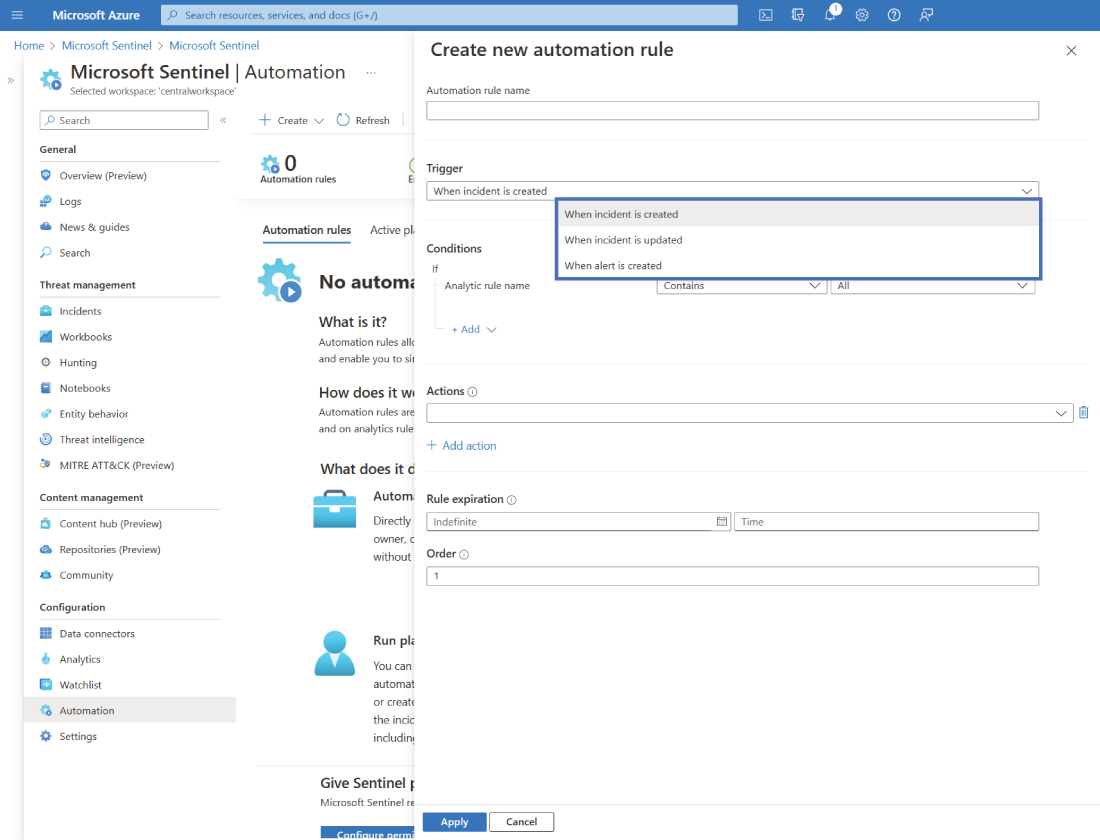
Use the Automation view as a visual reference while locating the rule-creation workflow in Microsoft Sentinel. section 8.8.2