An Azure-managed disk is persistent block storage attached to a virtual machine, much like a hard drive attached to a physical computer. It keeps data when the VM is turned off while reducing storage maintenance. section 5.7
Choose disk options according to workload needs and operational responsibility:
- Select an OS disk for the VM image, then attach existing or new data disks as needed. section 3.2.5
- Choose HDD, standard SSD, or premium SSD; higher performance generally costs more, while lightly used applications may work well with HDDs. section 3.2.5
- Use platform-managed keys or manage your own key, with optional double encryption using both key types. section 3.2.5
- Expect local redundancy with at least three copies, plus backup, availability-set, and availability-zone support. section 3.2.5 section 5.7
Managed disks are designed for attachment to VMs rather than direct HTTP or HTTPS access. They can scale alongside VM scale sets, and Azure policies can require their use instead of custom VHDs. section 5.7 section 3.5.3
Configuring a VM's disks
When creating a VM, select its OS disk, choose an SSD or HDD based on performance and cost, and attach any required data disks. Later, inspect policy compliance if the environment requires every VM to use managed disks. section 3.2.5 section 3.5.3
Figure 3.21 Create OS and data disks for the VM.
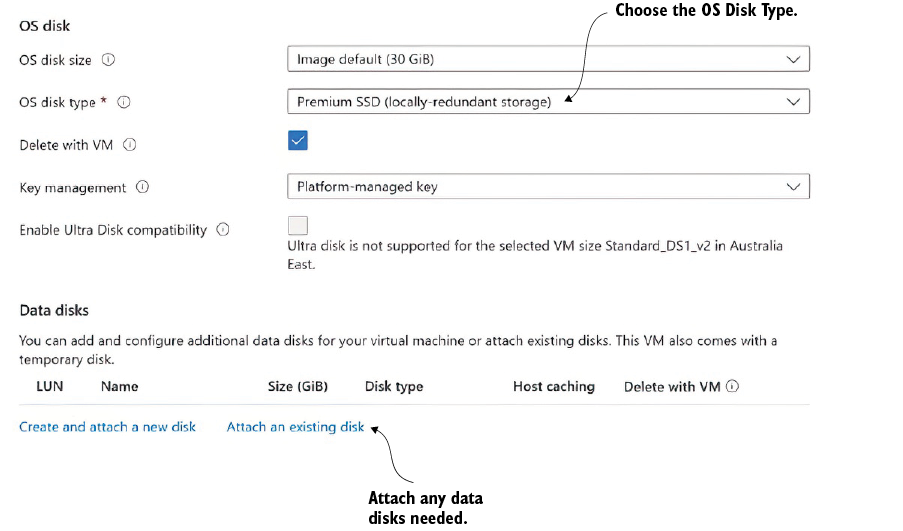
Shows the VM creation step for selecting an OS disk and adding data disks. section 3.2.5