Azure Files is managed cloud file storage: a shared folder system hosted in an Azure storage account. It suits files that must be reachable by cloud resources, external clients, or both, without buying another server just to hold everyone’s spreadsheets. section 5.4
A file share can be attached to a virtual machine so applications and users access it through the host’s file system. It is intended for stored files rather than the VM’s main operating-system disk. section 5.4
Azure Files becomes especially useful when local infrastructure and cloud storage need to cooperate:
- Create shares inside an existing storage account for administrative files or other shared business data. section 5.4
- Synchronize on-premises file servers with Azure file shares using Azure File Sync agents, allowing local and cloud access to stay aligned. section 1.2.2
- Use Microsoft Entra Cloud Sync so authenticated and authorized users can access company files across the on-premises and cloud environments. section 1.2.2
- Choose an access tier when creating a share; Transaction optimized is the default tier and uses standard HDD hardware. section 5.4
Create a share with PowerShell
A storage administrator can create a 1,024-GiB share named bannedfiles in the banningstorage account with the recommended Azure Resource Manager cmdlet: New-AzRmStorageShare -ResourceGroupName BanningRG -StorageAccountName banningstorage -Name bannedfiles -AccessTier TransactionOptimized -QuotaGiB 1024. The resulting share uses the address https://banningstorage.file.core.windows.net/bannedfiles/. section 5.4
Figure 1.5 Hybrid file synchronization setup. This architecture connects an on premises environment to Azure using Entra ID for authentication and File Sync agents for keeping files synchronized between local file servers and Azure file shares. Users can access files locally or in the cloud, with changes automatically kept in sync. This setup provides built-in backups, easier disaster recovery, and secure remote access, while reducing the need for additional on premises storage hardware.
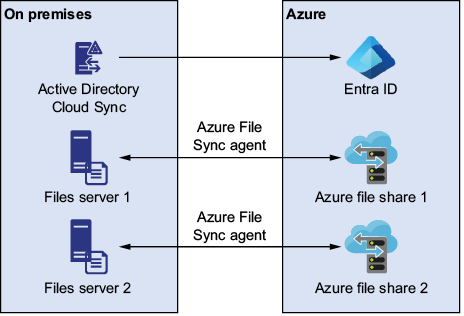
Use the hybrid synchronization diagram to see how Entra ID authentication, on-premises file servers, Azure File Sync agents, and Azure file shares combine into one locally and remotely accessible file environment. section 1.2.2