The Cisco IOS command-line interface (CLI) is a text-based shell for viewing, configuring, and operating Cisco network devices. You enter commands and press Enter; access can come through a console connection, Telnet, or SSH. Hands-on practice with Packet Tracer or a real device helps build operational skill. section 5.2 section 5.5
The CLI uses a hierarchy of modes, identified by the prompt:
- User EXEC mode, shown as hostname>, provides basic viewing commands. section 5.5
- Privileged EXEC mode, shown as hostname#, provides powerful operational commands; enter it with enable and leave it with disable. section 5.5
- Global configuration mode, shown as hostname(config)#, begins with configure terminal and supports device-wide changes such as hostname. section 5.5
- Use no to undo a configuration command and end, exit, or Ctrl-C/Ctrl-Z to return toward privileged EXEC mode. section 5.5
Finding and completing commands
At R1>, type ? to list commands, show ? to list show keywords, or show clock ? to view clock options. Type en<Tab> to complete enable; then the prompt changes to R1#. An incomplete e produces an ambiguous-command error. section 5.2.4
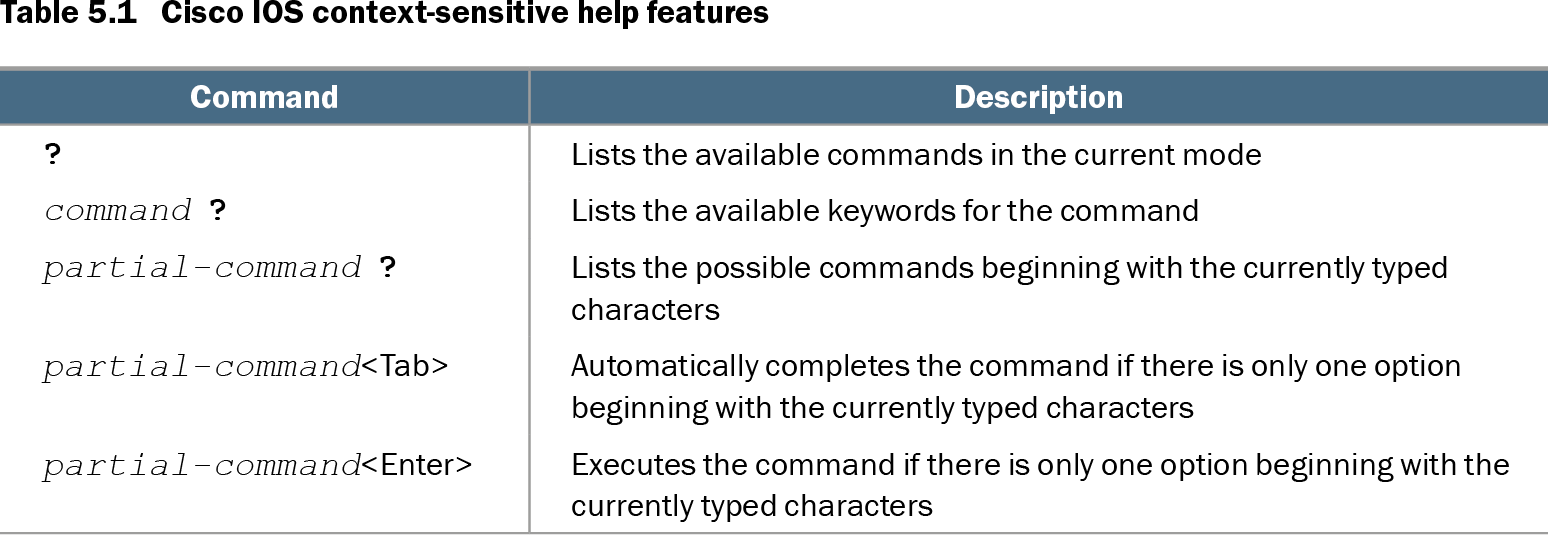
Table 5.1 Cisco IOS context-sensitive help features (view table figure)
| Command |
Description |
|---|---|
| ? |
Lists the available commands in the current mode |
| command ? |
Lists the available keywords for the command |
| partial-command ? |
Lists the possible commands beginning with the currently typed characters |
| partial-command<Tab> |
Automatically completes the command if there is only one option beginning with the currently typed characters |
| partial-command<Enter> |
Executes the command if there is only one option beginning with the currently typed characters |
Use the command-help table as a quick reference for ?, command ?, partial-command ?, Tab completion, and abbreviated execution. section 5.2.4