liveBook · Manning

Dev Tools

As explained in Elasticsearch in Action, Second Edition

Dev Tools is Kibana's interface for entering and executing Elasticsearch requests and inspecting their results.

Dev Tools is Kibana’s interface for writing and executing Elasticsearch requests. Its two-pane editor keeps the request on the left and displays Elasticsearch’s JSON response on the right. section 2.1.3

Use the interface to run a request and inspect its result:

  • Open Kibana and navigate to Management > Dev Tools. section 2.1.3
  • Write Elasticsearch request syntax in the left editor pane. section 2.1.3
  • Click the Play button to send the request through Kibana to Elasticsearch. section 2.1.3
  • Read the right-pane JSON response, including the result, HTTP status, index, ID, and document version. section 2.1.3
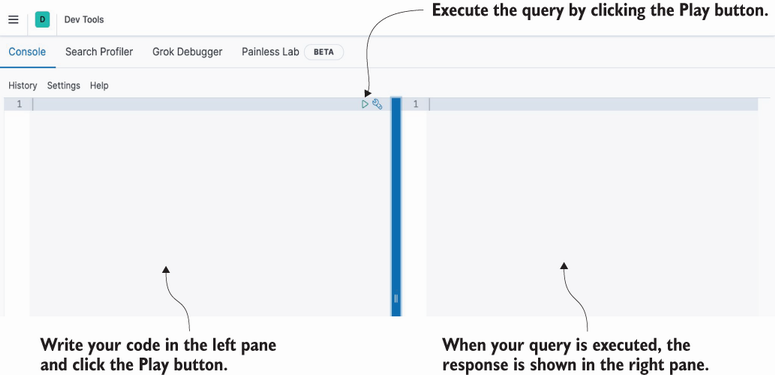
Figure 2.6 Kibana’s Dev Tools code editor

The editor layout shows where requests are written and how the Play control starts execution. section 2.1.3
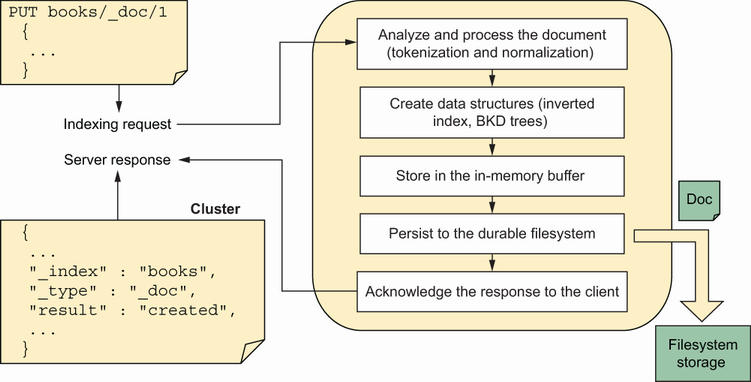
Figure 2.8  Elasticsearch’s request and response flow at a high level

The request-and-response flow connects Kibana’s editor, the Elasticsearch server, and the returned result. section 2.1.3

How Elasticsearch in Action, Second Edition covers it

How deep it goes
Explains navigation, editor panes, execution, and responses while deferring detailed request and response constituents.
Examples
Uses a first-document indexing request, the Play button, and a successful JSON response as concrete examples.
What it assumes
Assumes running Elasticsearch and Kibana instances but explains the interface workflow for first-time users.
What you can do after
Operate Kibana Dev Tools to send Elasticsearch requests and verify returned JSON results.
How it connects
Connects Kibana with Elasticsearch, JSON responses, HTTP status codes, and document indexing.

Related concepts

This explainer was generated by Manning's knowledge graph from the text of Elasticsearch in Action, Second Edition. The section links point to the parts of the book it draws on.