Get-Item retrieves an item object from a path. In file automation, that object supplies data needed after a path string has been validated, such as a file’s name, length, and last-write time. section 3.3.5
Use Test-Path before Get-Item when an absent path is an expected condition. This separates a normal “not found” result from failures such as access problems, and avoids treating every retrieval failure alike. section 6.2.5
A practical retrieval workflow is:
- Test whether the source file or registry path exists before retrieving it. section 3.3.5 section 6.2.5
- Retrieve a destination file with Get-Item and compare its metadata with the source when handling duplicate names. section 3.3.5
- Retrieve a registry item after the path check, then confirm that the required named property is present before reading its value. section 6.2.5
Handling a duplicate destination file
After confirming that a destination path exists, retrieve it with Get-Item. Compare its Length and LastWriteTime against the source file object. Matching files can be overwritten to clear the source; nonmatching files can receive a unique name before being moved. section 3.3.5
Listing 3.5 Action script with logging and error handling
param(
    [Parameter(Mandatory = $true)]
    [string]$FilePath,
    [Parameter(Mandatory = $true)]
    [string]$Destination,
    [Parameter(Mandatory = $true)]
    [string]$LogPath
)

Function Move-ItemAdvanced {                                     #1
    [CmdletBinding()]
    [OutputType()]
    param(
        [Parameter(Mandatory = $true)]
        [object]$File,
        [Parameter(Mandatory = $true)]
        [string]$Destination
    )

    $DestinationFile = Join-Path -Path $Destination -ChildPath $File.Name

    if (Test-Path $DestinationFile) {                            #2
        $FileMatch = $true
        $check = Get-Item $DestinationFile                       #3
        if ($check.Length -ne $file.Length) {
            $FileMatch = $false                                  #4
        }
        if ($check.LastWriteTime -ne $file.LastWriteTime) {
            $FileMatch = $false                                  #5
        }
        $SrcHash = Get-FileHash -Path $file.FullName             #6
        $DstHash = Get-FileHash -Path $check.FullName
        if ($DstHash.Hash -ne $SrcHash.Hash) {
            $FileMatch = $false
        }

        if ($FileMatch -eq $false) {                             #7
            $ts = (Get-Date).ToFileTimeUtc()
            $name = $file.BaseName + "_" + $ts + $file.Extension
            $DestinationFile = Join-Path -Path $Destination -ChildPath $name
            Write-Verbose "File will be renamed '$($name)'"
        }
        else {
            Write-Verbose "File will be overwritten"
        }
    }
    else {
        $FileMatch = $false
    }

    $moveParams = @{
        Path        = $file.FullName
        Destination = $DestinationFile
    }
    if ($FileMatch -eq $true) {                                  #8
        $moveParams.Add('Force', $true)
    }
    Move-Item @moveParams -PassThru
}

if (-not (Test-Path $FilePath)) {                                #9
    "$(Get-Date) : File not found" | Out-File $LogPath -Append
    break
}

$file = Get-Item $FilePath                                       #10

$Arguments = @{
    File        = $file
    Destination = $Destination
}

try {                                                            #11
    $moved = Move-ItemAdvanced @Arguments -ErrorAction Stop
    $message = "Moved '$($FilePath)' to '$($moved.FullName)'"
}
catch {                                                          #12
    $message = "Error moving '$($FilePath)' : $($_)"             #13
}
finally {                                                        #14
    "$(Get-Date) : $message" | Out-File $LogPath -Append
}
The action function retrieves an existing destination item before comparing file properties, while surrounding logging and error handling keep the move operation maintainable. section 3.3.5
Figure 6.10 Confirming that the path to the registry key exists and that the key itself exists before attempting to get the value from it
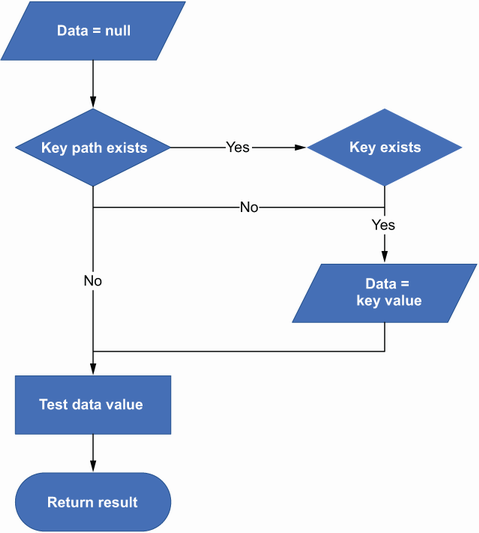
The workflow shows the two-stage registry check: confirm the path, retrieve the item, and verify the needed entry before reading its value. section 6.2.5