Homebrew is a package manager for macOS: an app store for developer tools that you use from the terminal. Instead of finding each download yourself, you ask Homebrew to install a package. It handles the appropriate version for your Mac, any other software the package needs, and later updates. section 2.1
Figure 2.1 The Homebrew installation flow for a single package. Homebrew automatically handles version detection, dependency resolution, downloading, and installation. Updating installed packages is covered in section 2.5.
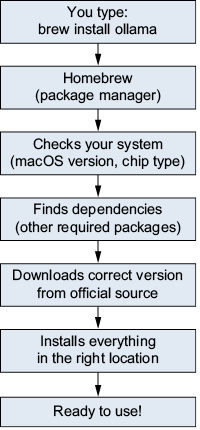
Follow one package through version detection, dependency resolution, downloading, and installation. section 2.1
To install Homebrew, open Terminal and use the installer command shown below. Read it from right to left: curl downloads the installer script, $( ) passes its output to the shell, and /bin/bash -c runs it. If the installer changes, get the current command from brew.sh and compare it with these parts before running it. section 2.2
/bin/bash -c "$(curl -fsSL https://raw.githubusercontent.com/Homebrew/install/HEAD/install.sh)"
The complete terminal command for installing Homebrew. section 2.2
Press Enter after typing the command. The installer may request your Mac login password; nothing appears on screen while you type it. Press Enter and let the installation finish. Lines beginning with ==> report progress—you do not need to respond to them. section 2.2.2
Where does a package go?
Consider wget, a first package to install. On an Apple Silicon Mac, Homebrew keeps packages in separate folders under /opt/homebrew/Cellar/ and puts symbolic links—shortcuts—in /opt/homebrew/bin/. When you type wget, the shell can follow its shortcut to the program. On an Intel Mac, the corresponding Homebrew location is /usr/local/; the commands stay the same. section 2.0 section 2.6