A local AI chat application lets you speak or type to an AI through a browser while the processing stays on your Mac. It can serve as a private assistant for voice notes or studying, or as a starting point for tools that cannot send conversations to an external service. Once set up, it can work without an internet connection or subscription. section 1.0 section 1.2
A conversation from start to finish
Open the local URL to see a chat interface with a microphone button and a text input bar. Click the microphone, speak, and click stop. Your words appear as text in about 1 to 2 seconds; the AI’s reply then streams onto the screen. You can type a message instead whenever you prefer. section 1.2
Three local components pass the conversation along:
- The Streamlit web app displays the chat and captures microphone audio through the browser’s Web Audio API. section 1.2
- MLX Whisper transcribes the speech into text, using the Mac’s Neural Engine and GPU. section 1.2
- An Ollama-hosted large language model (LLM) generates a reply; Python carries the streaming response back to Streamlit for display. section 1.2
Figure 1.2 Overview of the voice chat application. Your Mac runs three components locally: a Streamlit web app in the browser captures your voice and renders the chat, MLX Whisper transcribes your speech to text, and Ollama runs the LLM that generates the streaming reply. The dashed boundary marks the limits of your machine—nothing crosses it.
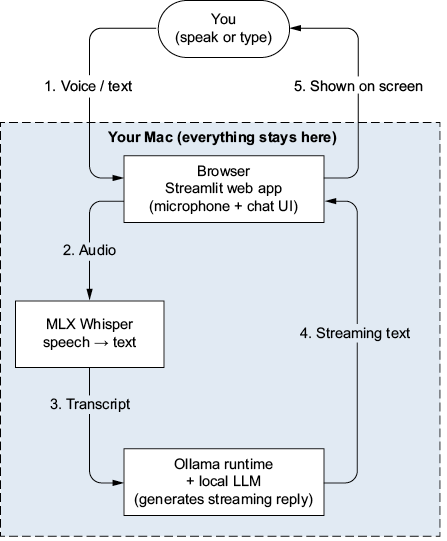
The diagram shows how audio becomes text and then a streaming reply, with all three components inside the Mac’s boundary. section 1.2
Keeping the pipeline local means voice data, conversations, and replies do not need to leave the machine. The tradeoff compared with cloud AI is the size and recency of available models. Important answers still deserve verification: an LLM can give a confident but inaccurate response. section 1.0 section 1.9