A positioned element uses a positioning mode that changes how offsets, overlap, and stacking are handled. Removing an element from normal flow also transfers responsibility for preventing viewport overflow and protecting visible content. section 6.4 section 6.6
Use the positioning mode that matches the relationship the element needs:
- Fixed positioning places the element relative to the viewport. section 6.6
- Relative positioning offsets the element from its initial static position while other content continues to flow around that original position. section 6.4.1 section 6.6
- Absolute positioning places the element relative to its nearest positioned ancestor. section 6.6
- Sticky positioning keeps the element on screen during scrolling while containing it within its parent. section 6.6
Positioning also changes painting order. The browser paints nonpositioned elements first, then positioned elements; among positioned elements, source order still determines which later element appears in front when no other stacking rule intervenes. section 6.4.1
Keeping a modal above a dropdown
If a dropdown appears after a modal in the markup, it can paint in front of the modal. Moving a fixed-position modal later in the document, commonly near the closing body tag, can correct the order. This approach is generally unsuitable for relative or absolute positioning because their placement depends on document structure. section 6.4 section 6.4.1
A positioned element with z-index can become the root of a stacking context. Its descendants are painted together, so a descendant with z-index: 100 cannot escape a parent stacking context that sits behind another element. z-index therefore compares stacking contexts as well as individual elements. section 6.4.3 section 6.6
Figure 6.10 The modal dialog incorrectly appears behind the dropdown menu.
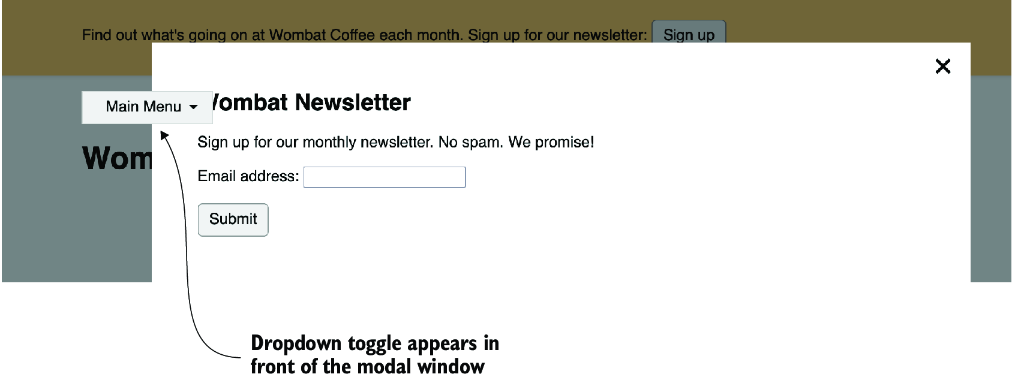
Use the modal-and-dropdown figure to inspect how source order can place a dropdown in front of an overlapping modal. section 6.4
