A state diagram makes the legal flow of a complex operation visible by representing states as boxes and transitions as arrows. User-initiated and automatic transitions can be distinguished, while associated actions clarify what happens during each transition. section 8.7
Use the diagram to expose invalid paths before implementing them. In a list/detail interface, adding belongs only to list view, removing belongs only to detail view, and actions can differ by the current state. Contextual data, such as the current item or a retry count, lives above individual states and is updated as transitions occur. section 8.7.1 section 8.7
A practical modeling pass should:
- Enumerate the meaningful states and the transitions available from each one. section 8.7
- Remove transitions that the interface or business rules do not permit. section 8.7.1
- Differentiate actions whose meaning changes with the current state, such as DO_THIS and DO_THAT. section 8.7.1
- Attach transition actions to update contextual data, such as the selected item or a list of items. section 8.7.1
Signup flow
Model email and password entry, optional personal information, terms acceptance, and backward navigation as states and transitions. Keep a retry count in contextual data so a password can be rejected after three failed attempts without placing that business value inside one state. section 8.7
Figure 8.18 As the visitor must have a user to proceed on a given website, they can navigate the different states of the diagram, and in the end, they will be given access to the full website. States are boxes, and transitions are arrows. Only the arrows leading out from a given state are allowed transitions from that state. Fully drawn arrows are user-initiated transitions, and dashed arrows are automatic transitions based on various criteria.
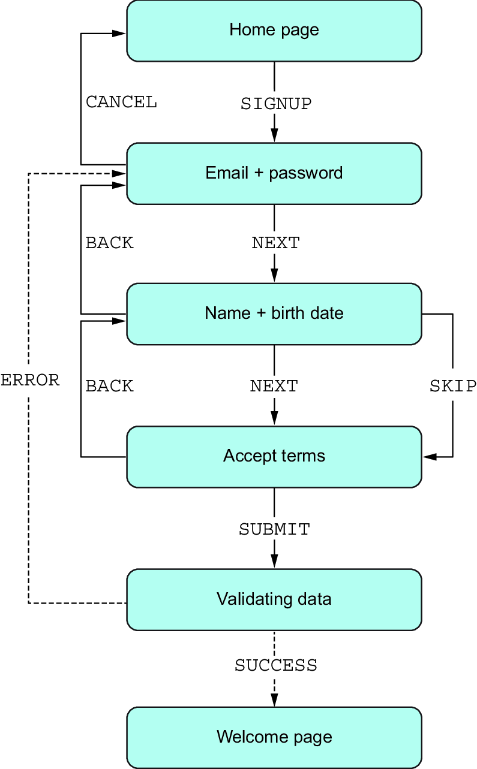
Use the state-flow figure to inspect boxes, outgoing arrows, user-initiated transitions, and automatic transitions before translating the model into application code. section 8.7