UpdraftPlus is a WordPress backup-and-restore plugin for keeping recoverable copies of a site. It can run complete backups manually or on a schedule, covering both site files and the database. That makes it a practical safety net before major edits, during active site building, or after a security problem that requires restoring a recent version. section 5.1 section 2.9
Use it alongside hosting backups rather than treating either one as the only protection. A quality host may create daily backups, but an additional copy provides useful redundancy. UpdraftPlus has free and paid versions; the free version is presented as sufficient for many sites. section 5.1 section 2.7
Set up automatic backups in a few interface-focused steps:
- Open Plugins > Add New, search for “updraftplus,” then install and activate the plugin. section 2.7
- Open Settings > UpdraftPlus Backups and select the Settings tab. section 2.7
- Choose schedules for Files Backup Schedule and Database backup schedule. Daily is recommended while actively changing the site or publishing frequently. section 2.7
- Choose how many backups to retain. With a retention setting of 10, creating an eleventh backup removes the oldest saved copy. section 2.7
- Choose a storage location and save the changes. Available options include Dropbox, Google Drive, and other locations. section 2.7 section 5.1
Save work before a risky change
Suppose you have just revised several pages and want a recovery point immediately. On the Backup/Restore tab, select Backup Now instead of waiting for the next scheduled run. If the site will be unchanged for several weeks, reduce the automatic backup frequency rather than continuing daily copies unnecessarily. section 2.7
Backups support recovery after an attack or other catastrophe. A security plugin such as Wordfence adds protection, but a recent UpdraftPlus backup can help recreate the site if an intruder gets through. If restoration is impossible, an internet archive may still preserve text, images, and layouts that make rebuilding easier. section 5.1 section 2.7
Figure 2.4 In this settings screen, specify how often to back up your site’s files and database, how many backups to retain, and where to store them.
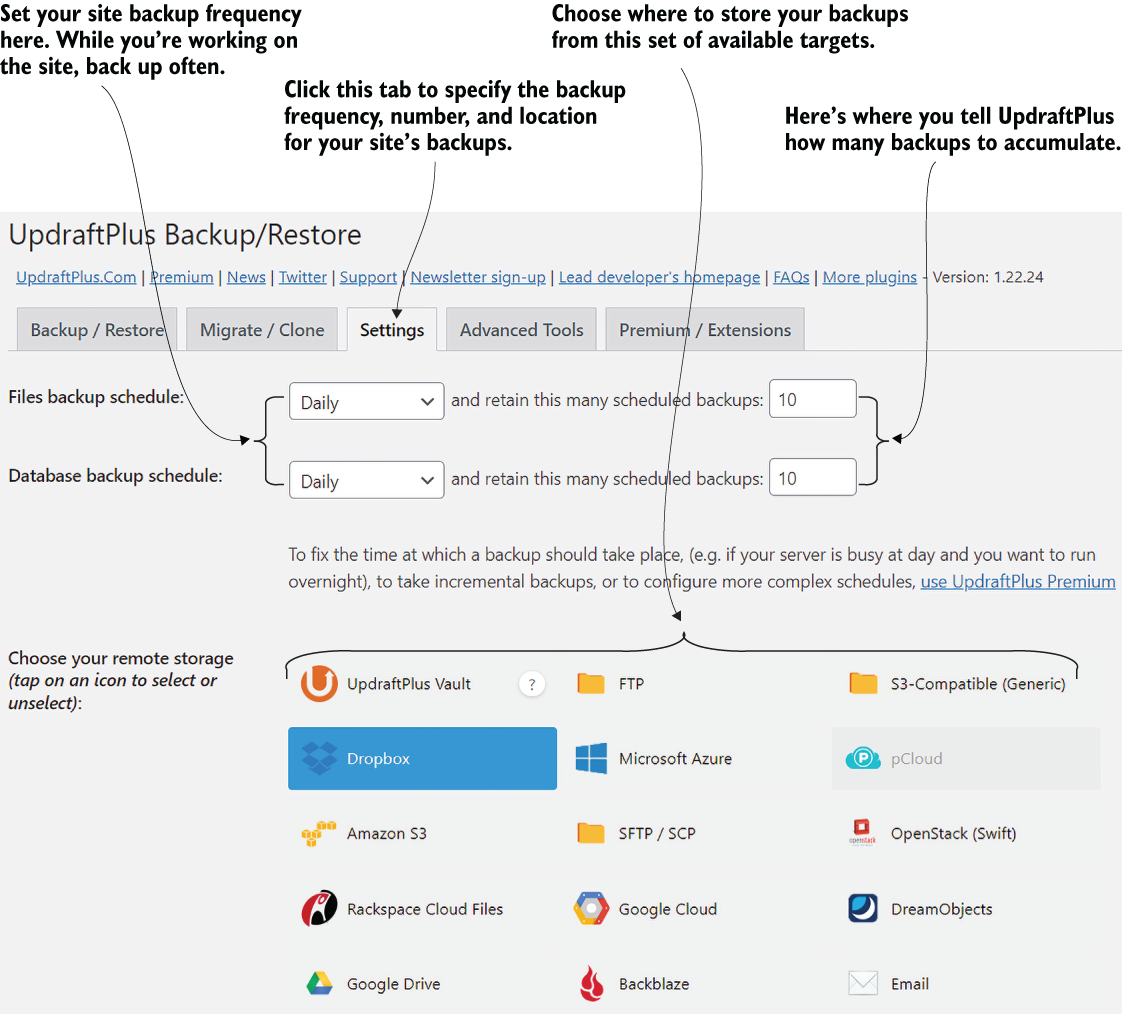
Use the settings-screen reference to identify the three decisions that shape an automatic backup plan: frequency for files and databases, number of retained copies, and storage destination. section 2.7
