User interaction is a visualization or interface responding to someone’s actions by changing what appears or how it behaves. Its job is not to make a display feel clever; it is to help people achieve an objective, engage with the data, and understand the message. A control that leaves people guessing how to use it is a “Norman door”: the design, not the person, has failed. section 7.0 section 7.1
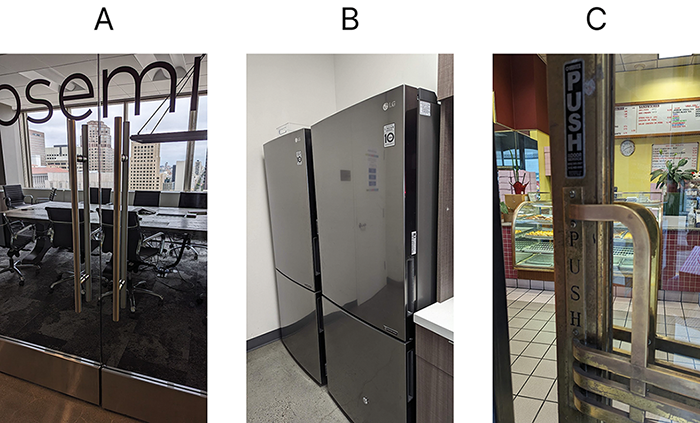
Confusing physical doors make the central test concrete: if people cannot tell whether to push, pull, or slide, the interaction lacks usable cues. section 7.1
Interaction is especially useful for exploratory visualizations, where people find a story by examining changing data from different angles and breakdowns. Explanatory visualizations, which communicate a completed analysis, can be static or interactive. For audiences with little time, lead with the biggest, best, worst, and largest changes rather than making them dig for the point. section 7.2
Design interaction around what people need to see and do:
- Make the most important, highest-level information visible immediately; do not require an action to reveal the main point. section 7.2.3
- Use labels and instructions rather than assuming an interface is self-explanatory. Tell people what an action is and provide a simple way to back out when needed. section 7.2.3
- Put the main value in a label when it matters, and reserve hover tooltips for secondary context such as totals and percentages. section 7.2.3
- Choose the amount of interaction for the audience and medium; less interaction is appropriate when it better serves users. section 7.2 section 7.2.3
- Support keyboard use, allow adequate reading time and user control of movement, avoid flashing effects, and provide sufficiently large targets. section 7.4
Label first, details on hover
For a survey bar chart, label each bar with the response count when that count is the point. Put supporting details—such as the total surveyed and response percentage—in a tooltip. People get the takeaway at a glance, while curious readers can hover for more. section 7.2.3
Figure 7.9 If the main point is that X number of people gave a certain response on a survey, you could put that X in a label, and then, if you want to give more context, such as the total number of people surveyed and the percentage who’d chosen that response, you could put that secondary information in a tooltip. This way, users will get the main idea, but when they want to know a little more, then all they need to do is hover on each bar.
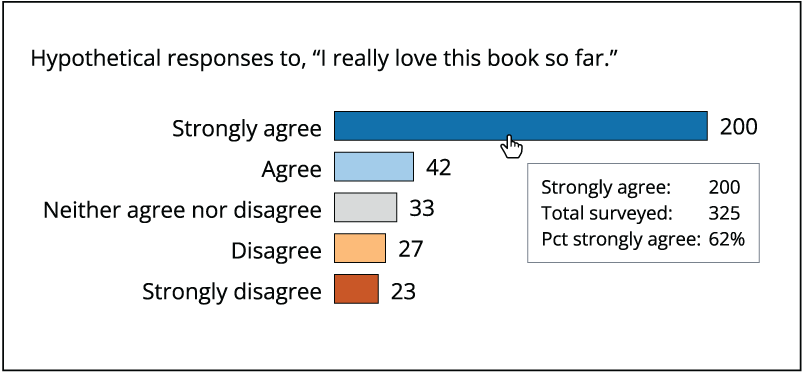
The figure contrasts immediately visible response counts with secondary survey context revealed on hover. section 7.2.3
A clean-looking visualization can become confusing when crucial information is buried in tooltips or when users must toggle between key segments that should be comparable side by side. Treat interaction as a purposeful layer of explanation, not an overloaded storage compartment. section 7.0 section 7.2.3