Wordfence is a freemium WordPress security plugin that adds another layer of protection alongside hosting security and backups. Its free version is presented as effective for many sites, making it a practical early installation rather than something to postpone until a problem appears. section 2.6 section 5.1
The plugin combines a firewall, real-time monitoring with optional alerts, malware scanning, and file-integrity monitoring. Its scanner checks WordPress core files, themes, plugins, and other installed components for backdoors, spam, malicious redirects, code injections, and related threats; integrity checks help identify files that have been altered. section 5.1
Install it early in the site setup process:
- Open the WordPress dashboard and choose Plugins > Add New. section 2.6
- Search for “Wordfence,” then select Install and Activate. section 2.6
- Keep strong, complex passwords for both the WordPress backend and hosting account; security software complements rather than replaces password protection. section 2.6
- Pair Wordfence with UpdraftPlus or another reliable backup approach, so a recent backup remains available if an attacker gets through. section 5.1
Choosing a security plugin
When comparing plugins, check popularity, reviews, and compatibility with the current WordPress version. A widely used, well-reviewed plugin can be a more dependable choice than an abandoned alternative; Wordfence is shown with more than 4 million users and a 4.5-star rating. Prefer actively maintained options, while remembering that backups provide a recovery path if security fails. section 5.2 section 5.1
Figure 5.4 If a plugin has millions of installations, you can feel confident that it’s of high quality and will be around for a while.
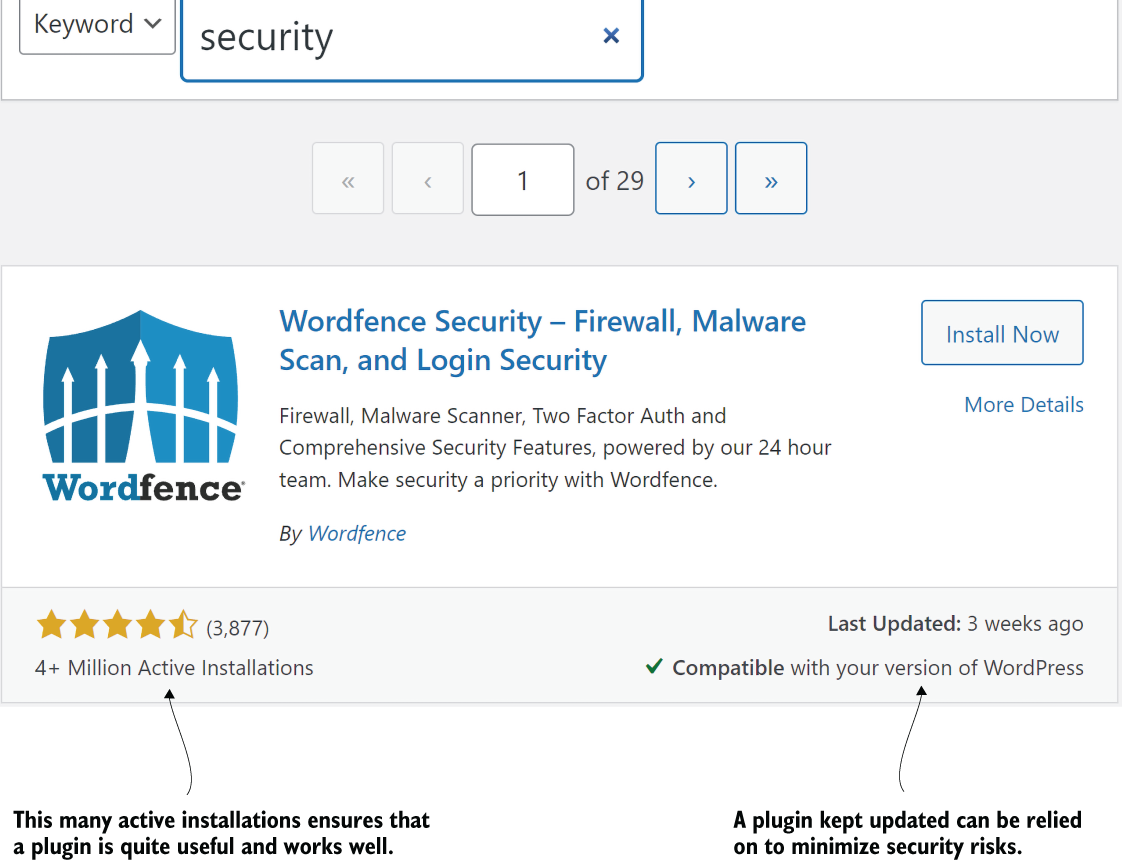
Use the plugin-directory example to see how active installations and ratings can inform a security-plugin choice. section 5.2
